Published 27 October 2026 · By Sourabh Singh (opens in a new tab), Senior software engineer, Zoorik · Published by Zoorik
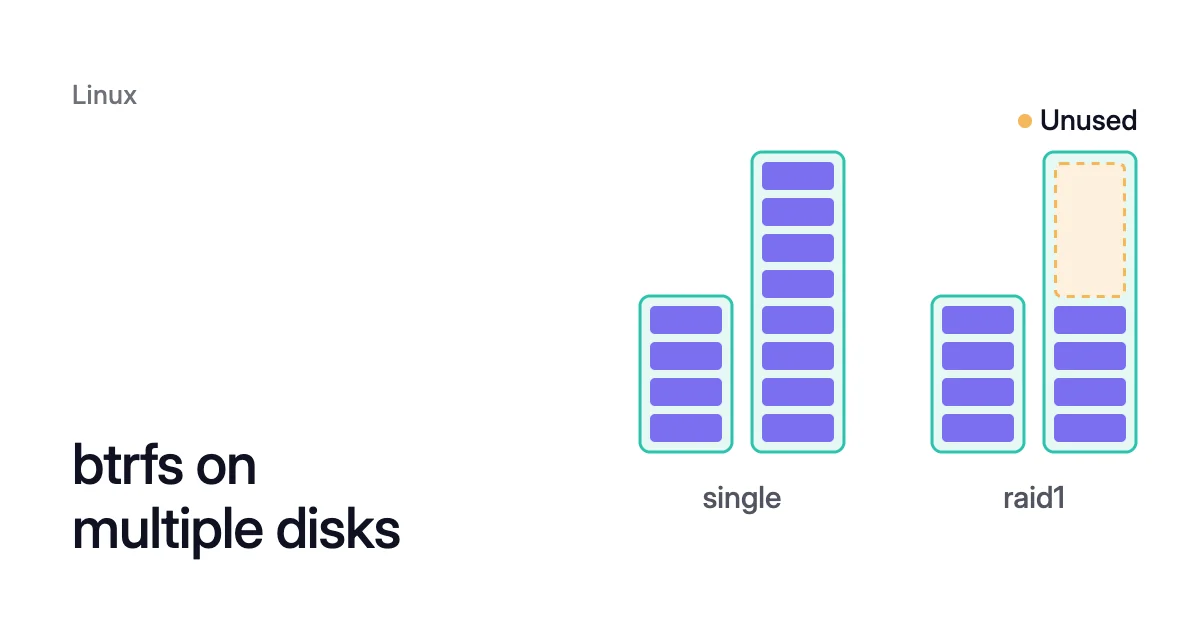
Short answer. btrfs on multiple disks is one filesystem across several block devices, and btrfs device add adds one while it’s mounted. The single profile keeps one copy of each chunk and uses every disk in full, even at different sizes. raid1 keeps two copies on two different disks, so at most half the raw space is usable.
How btrfs spans multiple disks, one chunk at a time
Picture a VM with a btrfs filesystem on one 50 GiB data disk. You attach a 100 GiB disk and run btrfs device add. Then one balance can convert the metadata, the filesystem’s record of its files, to raid1.
Of the 150 GiB, roughly 144 GiB is then usable for single data. Mirror the data with raid1, and at most 50 GiB is.
On a cloud VM, each btrfs device is usually a whole data disk: an Azure managed disk, or an Amazon Elastic Block Store (EBS) volume. Every device carries the filesystem’s UUID, which is how btrfs groups them. Where udev runs, each one is registered with the kernel as it appears, so naming any one disk mounts the whole set.
btrfs allocates space in chunks, and each new chunk goes to the disks with the most unallocated space. Traditional RAID works across whole disks of equal size. btrfs applies its RAID rules inside each chunk instead, which is why one btrfs filesystem across multiple disks of different sizes works.
Subvolumes sit on top. Each is a directory tree you can mount on its own with the subvol= option, and all share one pool of free space. That makes a btrfs storage pool useful on a VM: no mount runs out while free space sits on a disk that belongs to another.
The profile decides how much of each disk you can use
A profile sets how many copies btrfs keeps of each chunk and where it puts them. Data and metadata each get their own profile, written data/metadata: single/raid1 means one copy of your files and two of their metadata.
| Profile | Copies | Usable share, equal disks | Fewest disks | Disks it can lose |
|---|---|---|---|---|
single | 1 | 100% | 1 | 0 |
dup | 2, on one disk | 50% | 1 | 0 |
raid0 | 1, striped | 100% | 1 (kernel 5.15 or later) | 0 |
raid1 | 2, on two disks | 50% | 2 | 1 |
raid1c3 | 3, on three disks | 33% | 3 | 2 |
raid10 | 2, striped | 50% | 2 (kernel 5.15 or later) | 1 |
The parity profiles, raid5 and raid6, are left out on purpose. The mkfs.btrfs manual warns that they have known problems and shouldn’t be used in production.
Choosing single or raid1 data on cloud disks
An Azure locally redundant (LRS) managed disk is already written three times in one datacenter. AWS replicates each EBS volume within its Availability Zone. raid1 data adds a copy that btrfs controls, and takes two GiB of disk for every GiB of data.
Scrub reads all the data and checks its checksums. With raid1, it can repair a bad block from the other copy. With single, it finds the damage but has no copy to fix it from.
Keep metadata in raid1 either way, since it describes every file. For data, choose:
singledata when the provider’s replication and your backups are your protection. You get every disk’s full size, and losing a disk loses the data on it.raid1data when you want scrub to repair, or the filesystem to survive losing a whole disk, such as one detached by mistake. It then mounts with thedegradedoption until you replace the disk.
Create one btrfs filesystem on several disks
To make btrfs span multiple disks from the start, name every disk in one command. Check each one with lsblk first, because mkfs.btrfs writes a new, empty filesystem over every device you name:
$ sudo mkfs.btrfs -L data -d single -m raid1 /dev/sdc /dev/sdd /dev/sde
$ sudo mount /dev/sdc /data
mkfs.btrfs picks profiles from the device count when you don’t name them:
- On one device, metadata defaults to
dup. - On several, data defaults to
singleand metadata toraid1. - Before btrfs-progs 5.8, the multi-device data default was
raid0.
The manual recommends naming both profiles. That keeps the result the same across versions.
btrfs device add: add a disk to the pool without unmounting
You can add a device to the filesystem while it’s mounted. btrfs refuses a disk that already holds a filesystem. The -f flag overrides that by overwriting whatever is on the disk, so use it only on a disk you’ve confirmed is the new one.
- Attach a new, empty data disk to the VM. An EBS volume has to be in the instance’s Availability Zone.
- Find its device name with
lsblk, and check that it’s the empty disk you just attached. - Add it to the pool, then list, disk by disk, what each profile has allocated there:
$ sudo btrfs device add /dev/sdf /data
$ sudo btrfs device usage /data
- If the filesystem started on one disk, its metadata is still
dup, both copies on the same disk. Convert it toraid1with a balance. The copies then sit on different disks, and the system chunks, which map addresses to places on the disks, follow the metadata:
$ sudo btrfs balance start -mconvert=raid1 /data
The manual says the add itself is instant. btrfs registers the disk and moves no existing data. First, where the disk supports it, btrfs discards (TRIMs) the whole disk, unless you pass -K.
With single data, the new space is usable at once. New chunks go to the disk with the most unallocated space. While that’s the new disk, the next chunks land there.
A balance rewrites existing chunks, and the allocator places them as it places new ones, so old data spreads onto the new disk too. It’s a long job, because every chunk it moves is rewritten with its block pointers updated.
Grow one disk in place instead
Azure can expand a managed data disk without deallocating the VM, with a size limit:
- A Standard HDD, Standard SSD or Premium SSD disk of 4 TiB or less can’t grow past 4 TiB that way. Deallocate the VM and detach the disk first.
- Premium SSD v2 and Ultra Disk have no such limit.
AWS changes an EBS volume’s size while it’s in use. Grow it in the EC2 console or with the AWS CLI, then continue at step 3.
- On Azure, grow the disk. Azure rounds the size up to the nearest managed disk size.
$ az disk update --resource-group <resource-group> --name <disk-name> --size-gb 256
- Rescan the device, because Linux doesn’t see the new size until you do. Replace
sdfwith your disk’s name. Microsoft allows up to 10 minutes for a Premium SSD v2 or Ultra Disk to show it.
$ echo 1 | sudo tee /sys/class/block/sdf/device/rescan
- Find the devid of the disk you grew.
$ sudo btrfs filesystem show /data
- Grow that disk’s share to the whole device with
resize <devid>:max. Here sdf, the pool’s fourth disk, is devid 4. Without a devid, resize acts on devid 1, which may not be the disk you grew.
$ sudo btrfs filesystem resize 4:max /data
resize doesn’t touch partitions. If the disk has one, grow the partition first.
Growing goes one way. Microsoft says shrinking an existing disk “isn’t supported and might result in data loss.” AWS can’t shrink an EBS volume either.
A btrfs pool gets smaller a whole disk at a time instead. btrfs device remove moves that disk’s data onto the others. It fails if the disks left can’t meet the profiles, as raid1 can’t on one disk.
Shrinking one Azure disk covers a VM without a pool.
How to read usage across a btrfs pool
Plain df gives one number for space that btrfs splits by profile. The btrfs(5) glossary says its results aren’t accurate.
btrfs filesystem usage shows the split. Its manual says it’s meant to replace btrfs filesystem df in the long run. Run it as root, since a normal user doesn’t get the per-profile detail:
$ sudo btrfs filesystem usage /data
The Overall section comes first:
| Line | What it counts |
|---|---|
Device size | Raw capacity of every disk the filesystem can use, less the slack |
Device allocated | Space given to data, metadata and system chunks, written or not |
Device unallocated | Space in no chunk yet, which new chunks and a balance draw on |
Device slack | Disk space the filesystem doesn’t use, such as a grown disk before you resize |
Used | Data and metadata actually stored |
Free (estimated) | An estimate of the space still usable for data |
Data ratio, Metadata ratio | Raw space per byte stored: 1.0 for single, 2.0 for raid1 |
Multiple profiles | Whether data or metadata uses more than one profile |
The Free (estimated) figure can differ from the Avail column of df, because the two are worked out differently. The min beside it is the smallest the estimate can be when more than one profile is present.
Below the Overall section, root sees each profile with its size and how full it is, then the unallocated space on each disk.
“Multiple profiles: yes” can mean a profile conversion was interrupted. btrfs(5) says to restart the same conversion balance, which carries on until every chunk has the new profile.
How Amoeba builds a btrfs pool on Azure and AWS
Amoeba optimizes block storage. It works on the data disks of running VMs: Azure managed disks and Amazon EBS volumes, on Windows and Linux VMs. It never touches the OS disk or root volume.
- The pool. Amoeba moves a VM’s data disks onto one btrfs pool, sized to your data, with room to grow. On Azure the pool uses Premium SSD v2 where your region offers it, and Premium SSD otherwise. On AWS it uses gp3.
- The move. Amoeba copies your data while your services run. Then it switches each mount to a pool subvolume at the same path, with a short restart of the services that use it. If the switch fails, it puts the original mounts back and tries again.
- The old disks. Once the switch is checked, Amoeba snapshots each old disk and deletes the disk. It keeps the snapshot for a few days, then deletes it too.
- Cost during the move. You pay for both sets of disks only while the move runs. Then you pay for the snapshots while they’re kept.
- Rightsizing. Amoeba grows the pool while it stays mounted, before it fills, and sooner when data arrives fast. When your data goes down and stays down, it shrinks the pool one disk at a time. So you pay for close to what you use.
On Linux, the VM needs a recent kernel with btrfs. Every service that keeps a data mount open must run under systemd. The VM also needs a few free disk slots for the pool.
Sources: btrfs documentation, “btrfs-device(8)” (opens in a new tab); btrfs documentation, “mkfs.btrfs(8)” (opens in a new tab); btrfs documentation, “btrfs-filesystem(8)” (opens in a new tab); btrfs documentation, “btrfs(5)” (opens in a new tab); Linux kernel source, “fs/btrfs/volumes.c” (opens in a new tab); Microsoft Learn, “Expand virtual hard disks on a Linux VM” (opens in a new tab); Microsoft Learn, “Redundancy options for managed disks” (opens in a new tab); AWS, “Features and benefits of Amazon EBS volumes” (opens in a new tab).