Published 27 October 2026 · By Ravi Kumar (opens in a new tab), Guest author · SDE II at Expedia · Published by Zoorik
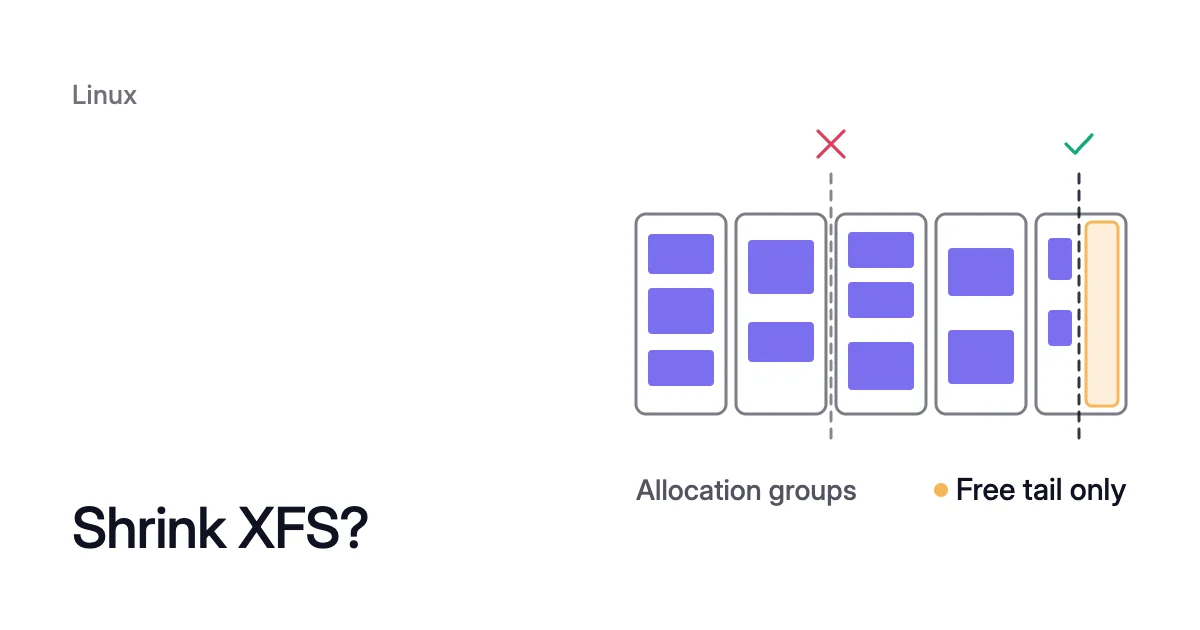
Short answer. You can’t shrink an XFS filesystem in any useful way: Red Hat says “XFS has no utility to reduce the size of a file system.” Since Linux 5.13, xfs_growfs can only give back free space at the end of the last allocation group. To make XFS smaller, copy the data to a new, smaller filesystem and move the mount.
Why XFS cannot be reduced
Picture an XFS data mount on a cloud VM, with the layout from the xfs_info man page. It holds 182.3 GiB, split into eight allocation groups (AGs). A cleanup has emptied most of it, and you want that space back, along with its charge.
In place, you can take back at most the end of the last AG, under 22.8 GiB, and only if nothing is stored there. The cloud disk keeps its size, and its charge, either way.
Each AG is a slice of the device that keeps its own free-space and inode records. Growing fits this design well.
xfs_growfs adds space at the end and leaves the data already there in place. The man page notes that “the filesystem must be mounted to be grown.”
Shrinking is the hard direction. Giving back more than part of the last AG means removing whole AGs, and moving the files and inodes in them first. The kernel’s shrink code doesn’t move them.
For Red Hat, whose RHEL uses XFS as its default filesystem, XFS filesystem shrinking is unsupported. Its filesystem comparison sets XFS against ext4, which “supports both extending and reducing the size of a file system.” Even ext4 shrinks only while unmounted, with resize2fs.
A smaller filesystem doesn’t make a smaller disk
On a cloud VM, even a shrink that works leaves the cost where it was. The disk under your XFS filesystem keeps its provisioned size whatever the filesystem does. That size is what you pay for.
You’d still have to shrink the partition and then the disk, and neither Azure nor AWS shrinks a disk. AWS lists it among the Elastic Volumes limits: “You can’t decrease the volume size.” Azure is the same: a managed disk can grow but not shrink.
The size you pay for goes down only when the data moves to a smaller disk and the old one is deleted. AWS suggests the same for EBS, naming rsync as one tool for the copy.
How to shrink an XFS filesystem: copy it to a smaller one
To reduce XFS filesystem size on Linux, you create a new, smaller filesystem, copy the data across and move the mount. Two tools can do the copy:
- rsync, in two passes. The first pass runs while the application works. The second, with the services stopped, copies only what changed, so the stop stays short.
- XFS’s own tools, in one pass.
xfsdump“backs up files and their attributes,” and its man page shows a pipe straight intoxfsrestore. It reads the mounted filesystem as it goes, so the services stay stopped for the whole copy.
Pick rsync when a short stop matters more, and the pipe when the data is small enough that a full stop is acceptable.
The copy, step by step
- Measure what the mount holds with
df -Th, and choose a size with room for growth. - Create and attach a smaller disk, with the exact steps in the Azure guide.
mkfs.xfserases the device you name, so check the new disk’s name withlsblkfirst. Then make an XFS filesystem on it withmkfs.xfsand mount it at a temporary path such as/mnt/new.- With rsync, run the first pass now, while the application works. With xfsdump, skip this step.
$ sudo rsync -aHAX /data/ /mnt/new/
Archive mode (-a) leaves out hard links, ACLs and extended attributes. The -H, -A and -X flags add them back, as in the Azure guide’s first pass. The trailing slash on /data/ copies its contents.
- Stop every service that writes to the mount: the downtime starts here.
- Run the final copy. With rsync, that’s the second pass. With xfsdump, it’s the whole pipe.
$ sudo rsync -aHAX --delete /data/ /mnt/new/
--delete removes files from /mnt/new that are gone from /data, as in the Azure guide’s final pass. With xfsdump, run this pipe instead:
$ sudo xfsdump -J - /data | sudo xfsrestore -J - /mnt/new
-J stops xfsdump updating its dump inventory, which a one-off copy doesn’t need. The man page’s example passes it to xfsrestore too.
- With the services still stopped, unmount the old filesystem and
/mnt/new. - Point the
/etc/fstabline for the mount at the new filesystem’s UUID, and mount it at the old path. - Start the services and check them: the downtime ends here.
- Snapshot the old disk, because deleting it can’t be undone.
- Detach and delete the old disk: its charge stops here.
The services on that mount are down from step 5 to step 9. You pay for both disks from step 2, when the new one is created, until step 11 deletes the old one. You also pay for the step-10 snapshot until you delete it.
XFS shrink on LVM: copy to a new logical volume
LVM doesn’t change any of this. Red Hat’s LVM guide states that “XFS does not support reducing the size of a volume formatted with an XFS file system.”
The copy works the same way on LVM:
- Create a new, smaller LV, either from free extents in the volume group or on a disk you add.
- Copy the data into it and move the mount, as in steps 3 to 9 above.
- Removing the old LV takes its filesystem with it, so check the copy first. Then unmount the old LV and run
lvremove. - To take a disk out of the volume group, empty it with
pvmove, which needs free extents on the other disks. - Detach and delete the emptied disk, as in steps 10 and 11 above. Its charge stops only then.
What an xfs_growfs shrink can give back since Linux 5.13
One narrow shrink does exist, in place, since Linux 5.13. The March 2021 kernel patch “xfs: support shrinking unused space in the last AG” calls it “the first step of shrinking.” You ask for it with xfs_growfs -D and a size smaller than today’s.
The man page states the limit: “Only shrinking the last AG without removing it is implemented.” So a shrink never removes an AG, and a filesystem with only one AG can’t shrink at all.
Only unused space comes back. Nothing is moved out of the way. If anything is stored in the blocks you ask it to drop, the shrink fails and the filesystem keeps its size.
The last AG, AG7 (they count from AG0), starts at block 7 × 5,974,144 = 41,819,008, which is 159.5 GiB from the start. Any new size at or below 41,819,008 blocks would remove AG7, and the kernel refuses it.
So a shrink can give back less than one AG: under 22.8 GiB of 182.3 GiB, or less than an eighth. Even that works only when the tail is empty.
Run the shrink
An in-place shrink leaves the cloud disk and its cost as they were. If you still want the filesystem smaller, it takes three steps:
- Read the geometry.
xfs_infoprints it, and so doesxfs_growfs -n, without changing anything.
$ xfs_info /data
$ sudo xfs_growfs -n /data
- Take a backup or a snapshot of the disk first. The shrink runs on the mounted filesystem. The kernel flags it as experimental.
- Run the shrink with the new size in filesystem blocks, the
bsizeunit thatxfs_inforeports. At 4,096 bytes a block, each GiB you give back is 1,073,741,824 ÷ 4,096 = 262,144 blocks. In the example, the new size must stay above 41,819,008 blocks.
$ sudo xfs_growfs -D <new-size-in-blocks> /data
How Amoeba handles an XFS data mount
Amoeba optimizes block storage on Azure managed disks and Amazon EBS. It makes this copy for you, once, on the data disks of running Windows and Linux VMs. It never touches the OS disk or root volume.
An XFS data mount moves like any other, including one on LVM, when every disk under it is a cloud data disk.
- The pool. Amoeba moves a VM’s data disks onto one btrfs pool, sized to your data, with room to grow. On Azure the pool uses Premium SSD v2 where your region offers it, and Premium SSD otherwise. On AWS it uses gp3.
- The move. Amoeba copies your data while your services run. Then it switches each mount to the pool at the same path, with a short restart of the services that use it. If the switch fails, it puts the original mounts back and tries again.
- The old disks. Once the switch is checked, Amoeba snapshots each old disk and deletes the disk. It keeps the snapshot for a few days, then deletes it too.
- Cost during the move. You pay for both sets of disks only while the move runs. Then you pay for the snapshots while they’re kept.
- Rightsizing. Amoeba grows the pool before it fills, and sooner when data arrives fast. When your data goes down and stays down, it shrinks the pool one disk at a time, with
btrfs device remove. So you pay for close to what you use.
What the VM needs
On Linux, the VM needs a recent kernel with btrfs. Every service that keeps a data mount open must run under systemd. The VM also needs a few free disk slots for the pool.
Amoeba checks the running kernel, not the OS name. Where the kernel has no btrfs, the XFS mount stays where it is. The manual copy above is then the route.
Sources: man7.org, “xfs_growfs(8) - Linux manual page” (opens in a new tab); man7.org, “xfs_info(8) - Linux manual page” (opens in a new tab); man7.org, “xfsdump(8) - Linux manual page” (opens in a new tab); kernel.org, “xfs: support shrinking unused space in the last AG” (opens in a new tab) (commit fb2fc172); Red Hat, “Managing file systems” (opens in a new tab) (RHEL 9); Red Hat, “Configuring and managing logical volumes” (opens in a new tab) (RHEL 9); kernel.org, “fs/xfs/xfs_fsops.c” (opens in a new tab) (mainline source, compared with tags v5.12 and v5.13); AWS, “Modify an Amazon EBS volume using Elastic Volumes operations” (opens in a new tab).