Published 21 October 2026 · By Sheldon Julius (opens in a new tab), Sales engineer, Zoorik · Published by Zoorik
Short answer. Azure disk cost optimization starts with one billing rule. A managed disk is billed hourly on the size you provision, rounded up to the nearest size Azure offers, whatever it holds. Premium SSD v2 also bills IOPS and throughput above a free baseline. Delete unattached disks, set raised performance back, then size disks to the data. Azure grows a disk in place but never shrinks it, so that last step takes a copy or a pool that resizes.
A managed disk bills for its size, every hour
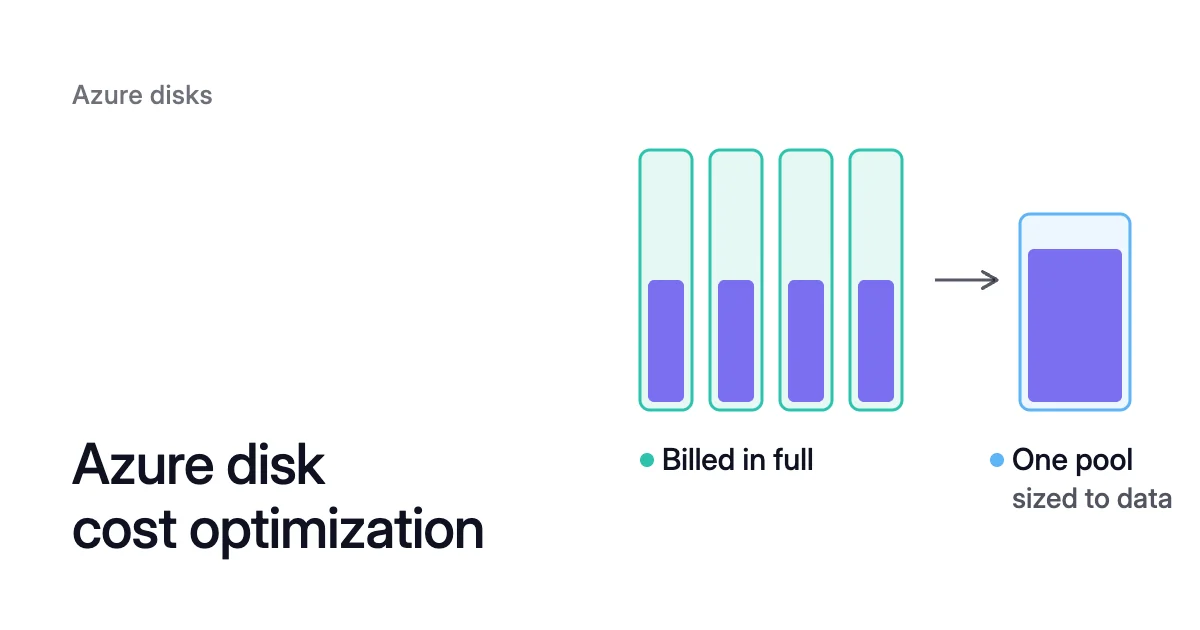
Picture a VM with four 512 GiB data disks holding 1,000 GiB of data. Azure bills all four in full, every hour.
A managed disk is billed on its provisioned size, which Azure rounds up to the nearest offered disk size, so a 200 GiB Standard SSD is billed as an E15, the 256 GiB tier. The charge is prorated hourly from the monthly price, and Microsoft’s pricing page says you’re charged the same rate for your provisioned disk regardless of how much of the disk space is being used.
Each size tier is named by its type’s letter and a number, P for Premium SSD, E for Standard SSD and S for Standard HDD. A 512 GiB Premium SSD is a P20, billed as one whether it holds 500 GiB or 5 GiB. On top of capacity, each type adds its own meters, and snapshots bill separately.
| Disk type | What you’re billed for | Reservation discount |
|---|---|---|
Premium SSD | Its size tier, P1 to P80 (4 GiB to 32,767 GiB), or a higher performance tier you select. On-demand bursting adds an hourly flat fee and burst transactions. | P30 to P80, one-year term |
Standard SSD | Its size tier, E1 to E80, plus transactions counted in 256 KiB units, capped per disk per hour | None |
Standard HDD | Its size tier, S4 to S80, plus transactions counted in 16 KiB units, billed per 10,000 and capped per disk per hour | None |
Premium SSD v2 | Every GiB provisioned (1 GiB to 64 TiB), plus IOPS above 3,000 and throughput above 125 MB/s | None |
Ultra Disk | Its provisioned capacity (4 GiB to 64 TiB), plus the IOPS and throughput you set | None |
Why disks grow in place but never shrink
Every expansion is one-way. A migration, a bulk import or a log spike fills a disk, and someone expands it a tier, say from a P30 (1,024 GiB) to a P40 (2,048 GiB). The data later goes back down, and the tier and its charge stay where the peak left them.
Growing is routine. You can expand a managed data disk without deallocating the VM, then grow the partition and the filesystem inside it. On Standard HDD, Standard SSD and Premium SSD, a disk at 4 TiB or less must be detached, with the VM deallocated, before it grows past 4 TiB.
Shrinking is the direction Azure doesn’t offer. Microsoft Learn says shrinking an existing disk “isn’t supported and might result in data loss.”
Azure disk cost optimization, one lever at a time
Take the levers in order, and reserve last, once sizes are settled.
Delete the disks nobody uses
When you delete a VM, its disks stay by default, and Microsoft notes that you continue to pay for unattached disks. An unattached disk has a null managedBy property. This lists their IDs in the current subscription:
$ az disk list --query '[?managedBy==`null`].[id]' -o tsv
Deleting a disk deletes its data, so snapshot any disk you might need first. An empty disk that was never attached or uploaded to isn’t charged for storage, because Azure hasn’t allocated its storage yet. To search every subscription at once, see finding unattached disks in Azure.
Set raised performance back
Look for performance settings raised for a launch or a load test and left there:
- Performance tiers. Some Premium SSD sizes can run at a performance tier above the one their size sets, and Microsoft bills the disk at that tier until you change it back.
- On-demand bursting. Available only on P30 and larger disks, it stays off until you enable it. Once enabled, it adds an hourly burst enablement fee plus transaction costs for bursts above the provisioned target.
- Premium SSD v2 performance. Raising IOPS above 3,000 or throughput above 125 MB/s raises the price, and you can change a disk’s performance four times in 24 hours.
Match each disk type to its workload
Azure positions Standard SSD for web servers, lightly used enterprise applications, and development and test environments, and Premium SSD for production workloads that need high performance and low latency.
Moving a disk between Premium SSD, Standard SSD and Standard HDD requires a VM restart, so plan it for a maintenance window. You can change a disk’s type twice per day.
Premium SSD v2 bills capacity, IOPS and throughput separately, and Microsoft describes it as offering higher performance than Premium SSD “while also generally being less costly.” It can’t be an OS disk or use host caching, and in most regions with availability zones it attaches only to zonal VMs.
Keep snapshots incremental
Snapshots are billed on the used size of the data, so a full snapshot of a 500 GiB disk holding 50 GiB is billed for 50 GiB. Full snapshots can sit on Premium SSD storage. Incremental snapshots always sit on Standard HDD storage and hold only the differences since the last snapshot, which Microsoft calls more cost efficient.
Size each disk to its data
Compare each disk’s size with what its filesystem uses. Inside a Linux VM, df -Th shows each mounted filesystem with its type, size and used space. The only route to a smaller disk is a copy and a switch, and the steps are in Can you shrink an Azure managed disk?.
Reserve Premium SSD that won’t change size
Azure disk reservation pricing is available for one disk type, Premium SSD from P30 (1 TiB) to P80 (32 TiB), with a one-year term. The managed disks pricing page lists the one-year reserved price per tier, and the portal shows the discount over pay-as-you-go when you buy.
A reservation is bought per disk SKU, so in Microsoft’s own example a P40 reservation doesn’t pay for two P30 disks, even though 2 × 1,024 GiB adds up to the P40’s 2,048 GiB. The discount applies hourly, and unused reserved capacity doesn’t carry over. A reservation doesn’t renew automatically, though it can be exchanged or refunded within the limits Azure sets.
How to estimate Azure managed disk cost
The Azure pricing calculator doubles as an Azure disk cost calculator, and lists the product as Managed Disks under Storage. To use it:
- Price each disk at the tier it’s billed at, not its provisioned size. The 200 GiB Standard SSD from earlier is an E15.
- Add each meter beyond capacity: transactions on Standard SSD and Standard HDD, IOPS and throughput on Ultra Disk and above the free baseline on Premium SSD v2, on-demand bursting where enabled, and snapshots at their used size.
- Use your region’s price on the day you plan, because Azure disk pricing differs by region and changes over time.
To compare Azure managed disk pricing per TB, divide each tier’s monthly price by its size. The tiers double from one to the next (P30 is 1,024 GiB, P40 is 2,048 GiB, P50 is 4,096 GiB), so a disk just past a boundary pays for nearly twice the space it asked for. Premium SSD v2 has one capacity rate per GiB, so its cost per TiB is that rate times 1,024, before any performance above the baseline.
How Amoeba rightsizes data disks to the data
Amoeba, Zoorik’s block storage optimization for Azure managed disks and Amazon EBS, keeps block storage sized to the data as the data changes. It works on the data disks of running Windows and Linux VMs, moving each VM’s data disks onto one pool, then rightsizing it. On Linux, it works like this:
- The pool. Amoeba installs its agent through Azure Run Command and builds one btrfs pool beside your disks, on Premium SSD v2 where the region and zone offer it and on Premium SSD otherwise. It sizes the pool from the highest use of the last 7 days, so the pool sits inside its target band, 80% to 90% full by default, with room for the largest recent 15-minute rise and at least 10 GiB free. Each data mount becomes a subvolume mounted at its old path, so application code needs no changes.
- The switch. Once
rsynchas copied the data, the agent stops the systemd services that hold the data mounts open, checks that the final pass has nothing left to copy, mounts the pool at the same paths and starts the services again. That restart is the service interruption. If the switch fails, the agent puts the original mounts back and Amoeba retries it, so the one switch can restart services more than once. - The soak. A 2-hour soak follows, in which any disk error, or p99 disk latency above 1.2 times its level before the switch, pauses the move. There is no switching back.
- The source disks. After the soak, each source disk is detached, snapshotted and deleted once its incremental snapshot is complete. The snapshot is kept for 7 days.
- Growing. When the pool’s lowest use over the last 30 minutes is above the band, Amoeba grows a disk in place or adds one while the pool stays mounted. Its safety floor is 5% of the pool or 10 GiB, whichever is larger. Free space below that floor triggers an urgent expand, and so does a fill rate in the last 10 minutes that would reach the floor within 30 minutes.
- Shrinking. Shrinks start once the move is done and 7 full days of data are in. The agent moves one disk’s data onto the others with
btrfs device remove, and Amoeba detaches and deletes the empty disk, which stops its billing. With shrinks set to Manual, each one waits for you.
During the move you pay for both sets of disks, from the moment the pool’s disks are created until the source disks are deleted after the soak, then for the snapshots for 7 days.
Data on Standard HDD or Standard SSD moves to Premium SSD v2 or Premium SSD, so check the estimate for those VMs and any Premium SSD reservation, which covers only its own SKU. Pool disks are locally redundant, so data on zone-redundant (ZRS) disks loses zone redundancy.
The VM needs 3 free data-disk slots: 2 for the pool and 1 kept free for an urgent expand. On Linux it needs systemd, kernel 5.14 or later and btrfs loaded or loadable, and every process that keeps a data mount open must run as a systemd service. VMs whose OS is in the Red Hat family are not moved.
Amoeba prices disks from the Azure Retail Prices API for the disk type and region, with a 730-hour month. To see your own figure first, the free block storage assessment runs in your terminal, writes one PDF and sends nothing to Zoorik. Amoeba is in early access.
Sources: Microsoft Learn, “Understand Azure Disk Storage billing” (opens in a new tab); Microsoft Learn, “Select a disk type for Azure IaaS VMs - managed disks” (opens in a new tab); Microsoft Learn, “Expand Virtual Hard Disks on a Linux VM” (opens in a new tab); Microsoft Learn, “Azure CLI - Find and delete unattached managed and unmanaged disks” (opens in a new tab); Microsoft Learn, “Convert managed disks storage between different disk types” (opens in a new tab); Microsoft Learn, “Optimize costs for Azure Disk Storage with reservations” (opens in a new tab); Microsoft Azure, “Pricing - Managed Disks” (opens in a new tab); Microsoft Azure, “Pricing Calculator” (opens in a new tab).