Published 21 October 2026 · By Sonu Kumar (opens in a new tab), Data engineer, Zoorik · Published by Zoorik
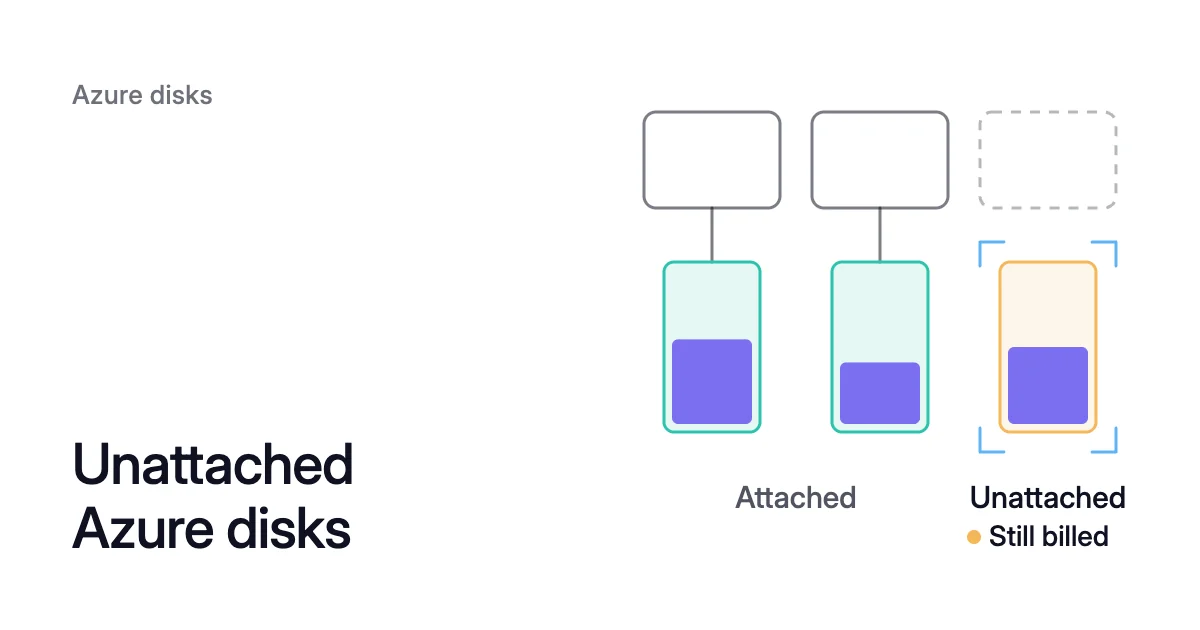
Short answer. To find unattached disks in Azure, query Azure Resource Graph for managed disks whose disk state is Unattached. One query reads every subscription you can access, from the portal, the Azure CLI or PowerShell. Almost all of those disks still bill for their provisioned size, so price them, check who owns them, take an incremental snapshot of each, and delete the ones nobody needs, since a deleted disk can’t be recovered.
Why an unattached disk stays on the bill
Picture a VM someone deleted last quarter. Its 1 TiB Premium SSD data disk wasn’t set to delete with it, so the disk still sits in its resource group. Nothing reads it now. At that size a Premium SSD is a P30 by default, the performance tier that sets its price, and it bills at the P30 tier with or without a VM until someone deletes it.
When you delete a VM, Azure keeps its disks by default. Microsoft says this guards against losing data to a mistaken delete, and adds that after a VM is deleted, “you will continue to pay for unattached disks.”
Azure orphaned disks usually come from one of three places:
- Deleted VMs. A deleted VM leaves its disks, NICs and public IPs behind unless their delete option was set to Delete. A VM created with the Azure CLI or PowerShell detaches its OS disk on delete by default.
- Disks detached by hand. A disk detached after a migration, or after the copy route for shrinking a managed disk, stays in its resource group until someone deletes it.
- Kubernetes volumes. A volume with the Retain reclaim policy leaves its disk behind after its PersistentVolume is deleted.
One kind costs nothing: Microsoft’s billing guide says an empty disk that hasn’t been used incurs no storage charges, since its storage is allocated only on first use, such as its first attach or upload.
What Azure disk state Unattached means, and which states still bill
Every managed disk carries a diskState property, and the table gives each value in the API’s words. Attached, Reserved, Frozen and Unattached disks all bill on what was provisioned, apart from the empty, never-used kind above.
| diskState | What it means (Azure Compute API) |
|---|---|
Attached | The disk is currently attached to a running VM. |
Reserved | The disk is attached to a stopped-deallocated VM. |
Frozen | The disk is attached to a VM which is in hibernated state. |
Unattached | The disk is not being used and can be attached to a VM. |
ActiveSAS | The disk currently has an Active SAS Uri associated with it. |
ActiveSASFrozen | The disk is attached to a VM in hibernated state and has an active SAS URI associated with it. |
ReadyToUpload | A disk is ready to be created by upload by requesting a write token. |
ActiveUpload | A disk is created for upload and a write token has been issued for uploading to it. |
Reserved disks won’t appear in an unattached list, yet they bill like any other disk, so a VM left deallocated for months is worth its own review.
How to find unattached disks in Azure across every subscription
Resource Graph reads across subscriptions, so one query replaces a loop of az disk list calls. Save this as unattached-disks.kql:
Resources
| where type =~ 'microsoft.compute/disks'
| where tostring(properties.diskState) =~ 'Unattached'
| project id, name, subscriptionId, resourceGroup, location,
    diskState = tostring(properties.diskState),
    diskType = tostring(sku.name),
    tier = tostring(properties.tier),
    sizeGiB = toint(properties.diskSizeGB),
    osType = tostring(properties.osType),
    createOption = tostring(properties.creationData.createOption),
    unattachedSince = todatetime(properties.LastOwnershipUpdateTime),
    created = todatetime(properties.timeCreated),
    tags
| order by sizeGiB descThe query leaves out disks with an open export link or a pending upload, since those read ActiveSAS, ReadyToUpload or ActiveUpload. managedBy holds the attached VM’s ID and is empty without one. To list every disk with an empty managedBy, whatever its state, swap the second where line for | where isempty(managedBy) and read the diskState column before you act on a row.
In the Azure portal
Open Resource Graph Explorer, paste the query and run it. Azure Advisor’s Cost tab also carries a preview recommendation, “Review disks that aren’t attached to a VM and evaluate if you still need the disks.”
Find unattached disks with the Azure CLI
az graph query comes from the resource-graph extension, which installs on first use (or with az extension add --name resource-graph). With no --subscriptions argument it queries every subscription you can access, and --first accepts 1 to 1,000 rows per call:
$ az graph query -q "$(cat unattached-disks.kql)" --first 1000
The disks come back in the data array of the JSON it prints, and paging past 1,000 is in the Watch out below. For a quick read, add --query data --output table. With --output table alone the disk rows don’t appear, because table output skips nested objects. The table also hides the id column, so take disk IDs from the JSON. For one subscription, az disk list can test managedBy instead:
$ az disk list --query '[?managedBy==`null`].[id]' -o tsv
Find unattached disks with PowerShell
Search-AzGraph, from the Az.ResourceGraph module, runs the query across all available subscriptions in the current tenant when you add -UseTenantScope. Its -First accepts 1 to 1,000.
Search-AzGraph -Query (Get-Content -Path ./unattached-disks.kql -Raw) `
  -UseTenantScope -First 1000
What unattached disks cost in Azure
For what you were charged, open Cost analysis in Microsoft Cost Management, filter to the managed disk resource type and group by resource. Match those rows against the IDs from the query.
For a forward estimate at list price, group the same disks by type, tier, size, provisioned performance and region:
Resources
| where type =~ 'microsoft.compute/disks'
| where tostring(properties.diskState) =~ 'Unattached'
| summarize disks = count() by
    diskType = tostring(sku.name),
    tier = tostring(properties.tier),
    sizeGiB = toint(properties.diskSizeGB),
    iops = toint(properties.diskIOPSReadWrite),
    mbps = toint(properties.diskMBpsReadWrite),
    location
| order by disks descMultiply each row’s count by that tier’s monthly price in that region on the managed disks pricing page. Prices differ by region and change, so check them on the day.
- Premium SSD. It bills at its performance tier.
- Standard SSD and Standard HDD. They bill at the tier their provisioned size falls in. The billing guide’s example is a Standard SSD grown from 1 TiB to 3 TiB, which bills at E50.
- Ultra Disk and Premium SSD v2. They have no tiers and bill per GiB, so price those from
sizeGiB, plus the performance in theiopsandmbpscolumns. An Ultra Disk’s price rises with its provisioned IOPS and throughput, and a Premium SSD v2 bills for IOPS above 3,000 and throughput above 125 MB/s.
Four checks before you delete anything
An unattached disk can still hold someone’s data. Put each row through four checks first, and let a disk reach the snapshot and the delete only after all four.
- Kubernetes volumes. If you run Kubernetes, a disk behind a PersistentVolume detaches when no pod uses it. A disk behind a
Boundvolume still belongs to a claim, so leave it, while aReleasedvolume means its claim was deleted and the disk is yours to review. This lists each volume’s disk, claim and phase:
$ kubectl get pv -o custom-columns=\
NAME:.metadata.name,DISK:.spec.csi.volumeHandle,\
CLAIM:.spec.claimRef.name,PHASE:.status.phase
- Site Recovery replicas. Advisor’s own recommendation “excludes unattached replica disks associated with Azure Site Recovery,” so leave any disk your recovery setup created alone.
- OS disks. A row with an
osTypeis a full operating system disk, such as the OS disk of a deleted VM, so if anyone might rebuild that VM, keep it until its owner decides. - The owner’s call. Read the resource group and the tags, and ask the owner. Tag each disk you keep with the command below, then add
| where isempty(tostring(tags.keep))to the query so the next run skips it.
$ az disk update --name <disk-name> --resource-group <resource-group> \
  --set tags.keep=true
Snapshot, then delete an unattached disk in Azure
Advisor’s recommendation spells out the routine: “Create a snapshot before deletion and confirm the data is no longer needed.” Make it incremental. An incremental snapshot sits on Standard HDD storage whatever the disk type, bills for used size only, and is a resource of its own that stays when you delete the disk. The first incremental snapshot of a disk is a full copy, so expect it to bill for everything the disk holds, as the snapshot cost guide explains.
- Take the snapshot, in the same subscription as the disk.
$ az snapshot create -g <resource-group> -n <snapshot-name> \
  --source <disk-id> --incremental true
- For Premium SSD v2 or Ultra Disk, wait for the background copy. Unless you enabled instant access when you created it, the snapshot can’t be used to create a disk until
completionPercentreads 100. Snapshots of other disk types always report 100.
$ az snapshot show -g <resource-group> -n <snapshot-name> \
  --query "[completionPercent]" -o tsv
- Delete the disk. This step can’t be undone: in Advisor’s words, “Deleting a disk is irreversible.” The
--yesflag skips the confirmation prompt, so check the ID twice.
$ az disk delete --ids <disk-id> --yes
- Tag the snapshot with the date to review it, and delete it once the owner confirms nobody needs the data.
$ az snapshot update -g <resource-group> -n <snapshot-name> \
  --set tags.reviewOn=<yyyy-mm-dd>
In PowerShell the same steps are New-AzSnapshotConfig -Incremental with New-AzSnapshot, then Remove-AzDisk -Force, which deletes without asking.
Stop new orphans
Pass --os-disk-delete-option Delete and --data-disk-delete-option Delete to az vm create, so that deleting the VM later deletes its disks and their data with it. For an existing VM, the delete guide’s PowerShell example, shown here without its network interface line, sets the option in place:
$vmConfig = Get-AzVM -ResourceGroupName "<resource-group>" -Name "<vm-name>"
$vmConfig.StorageProfile.OsDisk.DeleteOption = 'Delete'
$vmConfig.StorageProfile.DataDisks | ForEach-Object { $_.DeleteOption = 'Delete' }
$vmConfig | Update-AzVMShared disks are the exception, since their delete option can only be Detach or blank, so check them by hand after you delete the VMs that share them.
How Amoeba handles the disks it frees
A query of disk states can’t show the rest of the space you pay for and don’t use: attached data disks on running VMs, provisioned past the data they hold. Amoeba works on that part.
Amoeba moves a VM’s data disks onto one btrfs pool, sized from the highest use of the last 7 days. The pool then grows as the data grows, and Amoeba removes disks when the data shrinks. On Linux, the systemd services that use the data mounts restart at the switch onto the pool, and again only if Amoeba retries a failed switch.
Amoeba doesn’t leave the disks it frees behind as unattached disks:
- A disk a shrink empties. The agent moves its data onto the other pool disks with
btrfs device remove. Amoeba then detaches the empty disk and deletes it, with no snapshot, since its data has already moved. - The source disks. After the 2-hour soak, Amoeba detaches each source disk, takes an incremental snapshot of it, waits until the snapshot is complete and then deletes the disk. It deletes the snapshot 7 days after deleting the disk, and it deletes only snapshots tagged with its own move’s ID.
- Every other disk. Amoeba works only on the data disks of running VMs, never the OS disk, so apart from its own source disks during cleanup, the disks your query found stay yours to review.
If you run the query while a move finishes, a source disk can show as Unattached between its detach and its deletion. During a move you pay for both sets of disks, from the moment the pool’s disks are created until the source disks are deleted after the soak.
Amoeba works on Windows and Linux VMs. On Linux, it needs systemd, kernel 5.14 or later, and btrfs loaded or loadable. The VM needs 3 free data-disk slots: 2 for the pool and 1 kept free for an urgent expand. VMs in the Red Hat family are not moved.
The rest of the disk bill is in the guide to Azure disk costs.
Sources: Microsoft Learn, “Azure CLI - Find and delete unattached managed and unmanaged disks” (opens in a new tab); Microsoft Learn, “Disks - Get - REST API (Azure Compute)” (opens in a new tab); Microsoft Learn, “az graph” (opens in a new tab); Microsoft Learn, “Search-AzGraph (Az.ResourceGraph)” (opens in a new tab); Microsoft Learn, “Understand Azure Disk Storage billing” (opens in a new tab); Microsoft Learn, “Create an incremental snapshot” (opens in a new tab); Microsoft Learn, “Delete a VM and attached resources” (opens in a new tab); Microsoft Learn, “Cost recommendations - Azure Advisor” (opens in a new tab).