Published 28 October 2026 · By Sourabh Singh (opens in a new tab), Senior software engineer, Zoorik · Published by Zoorik
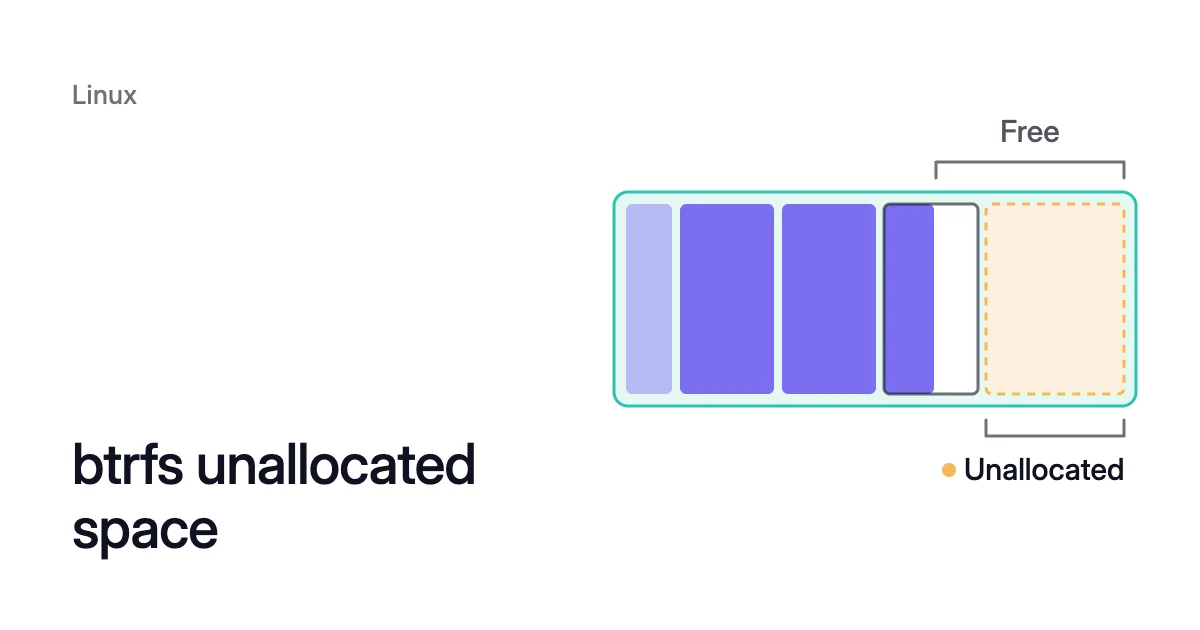
Short answer. btrfs unallocated space is raw device space no chunk holds yet, and free space also counts the room inside data chunks. Data chunks can’t hold metadata, so once nothing is unallocated and metadata fills, writes can fail with “No space left on device” despite that room. A filtered btrfs balance packs data chunks and returns whole chunks to unallocated.
btrfs unallocated space is room no chunk has claimed yet
Picture a btrfs data disk that refuses writes for lack of space while gigabytes still sit free inside it. That free room has been set aside for file data, and the write needs room for metadata.
btrfs hands out a device’s raw space in two stages. First the chunk allocator claims a large range, called a chunk, for one type of content. Only then does the filesystem place file data or metadata inside it.
The docs also call a chunk a block group, and this guide says block group from here on. Allocation is dynamic: btrfs creates a block group only when it’s needed.
There are three types:
- Data. File data only, typically 1 GiB per block group.
- Metadata. The filesystem’s internal records, kept in search trees (B-trees), where a very small file can also sit inline. Metadata block groups are typically 256 MiB on a filesystem under 50 GiB and 1 GiB above that.
- System. Block groups a few megabytes in size that map the physical devices onto the filesystem’s logical space.
Unallocated space is whatever no block group has claimed yet. It belongs to no type, so it can still become data or metadata.
Space goes back to unallocated only when a whole block group is empty. Since kernel 3.18, btrfs deletes an empty block group by itself.
A partly used block group keeps its full size, and its free part can take only more of the same type. In the balance documentation’s example, data block groups total 75.81 GiB, with 64.44 GiB used. So 75.81 − 64.44 = 11.37 GiB inside them is room that only file data can use.
On a cloud VM, unallocated space still costs money. Azure charges for a managed disk’s provisioned capacity, so you pay for space btrfs never allocated too.
How to read unallocated vs free space in btrfs filesystem usage
btrfs filesystem usage shows both kinds of space in one report. Only root sees its breakdown by block group type, so run it with sudo.
$ sudo btrfs filesystem usage /mnt/data
The btrfs documentation’s example is a single 1.82 TiB device:
Overall:
    Device size:                   1.82TiB
    Device allocated:              1.17TiB
    Device unallocated:          669.99GiB
    Device missing:                  0.00B
    Device slack:                  1.00GiB
    Used:                          1.14TiB
    Free (estimated):            692.57GiB      (min: 692.57GiB)
    Free (statfs, df)            692.57GiB
    Data ratio:                       1.00
    Metadata ratio:                   1.00
    Global reserve:              512.00MiB      (used: 0.00B)
    Multiple profiles:                  no

Data,single: Size:1.15TiB, Used:1.13TiB (98.26%)
   /dev/sdb        1.15TiB

Metadata,single: Size:12.00GiB, Used:6.45GiB (53.75%)
   /dev/sdb       12.00GiB

System,single: Size:32.00MiB, Used:144.00KiB (0.44%)
   /dev/sdb       32.00MiB

Unallocated:
   /dev/sdb      669.99GiB
Two lines in that report answer the question:
- Device unallocated is the space no block group has claimed.
- Free (estimated) counts what’s still usable for data: the room inside data block groups plus the unallocated space.
Free (statfs, df) is what df prints as Avail. It comes from the statfs system call and may not match the estimate, for example with more than one profile.
The metadata block groups keep 12.00 − 6.45 = 5.55 GiB free, and neither free figure counts it. That space is kept for metadata.
Device slack is device space the filesystem doesn’t occupy. When you grow the device under btrfs, the new space shows there until you resize the filesystem.
Global reserve is a slice of metadata kept for emergencies such as deleting files on a full filesystem, usually no more than 512 MiB.
The btrfs filesystem usage Unallocated section breaks the figure down per device. That matters across several disks, because raid1 keeps its two copies on two different devices. So a new raid1 block group needs unallocated space on two of them.
The guide to btrfs on multiple disks explains the profiles. The older btrfs filesystem df prints only the per-type lines, and btrfs filesystem usage is meant to replace it.
Why btrfs says no space left on device while df shows room
The “No space left on device” error (ENOSPC) has several causes and no single fix. Two come from how block groups are allocated, and the first is the plain case, where df is right.
When the data block groups are full
Fill a 4.0G filesystem with one file, as the troubleshooting page does, and df then reports 0 available. btrfs filesystem df shows data at total=1.98GiB, used=1.98GiB, while metadata has total=1.00GiB with 2.22MiB used. Metadata still has room, but none of it can take file data.
When metadata fills with nothing unallocated
This is the case behind df showing room. Device unallocated reaches zero while the data block groups still have free space. Then the metadata block groups fill, and with nothing unallocated, btrfs can’t create another one, so writes fail with ENOSPC.
Before Linux 4.5, df kept showing Avail above zero here. Since 4.5 it reports Avail as 0, and the room shows only as Used below Size.
Once metadata runs out, btrfs can’t record where new data sits, or store small inline files, reflinked copies or extended attributes (xattrs). Deletion still works.
The split between types is why mkfs.btrfs offers --mixed, which keeps data and metadata in the same block groups. Its man page warns that separate block groups reserve space one type can’t use “and can lead to ENOSPC state.”
It recommends mixed mode under 1 GiB and suggests it, more loosely, under 5 GiB. You can set it only when you create the filesystem.
How to tell the cases apart
Read btrfs filesystem usage and act on what it shows:
| What you see | What it means | What to do |
|---|---|---|
Device unallocated near zero, and Data Used close to Data Size | The data block groups are full | Delete data or grow the device (steps 2 and 3 of the balance ENOSPC section below). A data balance finds nothing to pack |
Device unallocated near zero, room left in data, and Metadata Used plus Global reserve equal to Metadata Size (the man page’s test: GlobalReserve/total + Metadata/used = Metadata/total) | Metadata is exhausted | Run the filtered balance in the next section |
btrfs balance itself fails with ENOSPC | Balance has no work space | Work through the steps in the balance ENOSPC section below, in order |
A filtered balance packs data block groups and returns their space to unallocated
Balance relocates block groups. It usually creates a new block group, moves the old one’s contents there and then removes the old one. With the usage filter it touches only block groups below a fill level you choose.
$ sudo btrfs balance start -dusage=0 /mnt/data
$ sudo btrfs balance start -dusage=10 /mnt/data
$ sudo btrfs balance status /mnt/data
-d limits balance to data block groups. usage=N picks those at most N percent used. Write it straight after the option with no space, as in -dusage=10.
Start small, at -dusage=0 and then -dusage=10, since lightly used block groups have the least data to move. Raise the value only while Device unallocated stays near zero.
The documentation’s example starts higher, on data block groups about 85% full on average (64.44 / 75.81 = 0.85). A pass with -dusage=50 relocates 2 block groups and brings the data total from 75.81 GiB to 74.03 GiB.
Raising the filter to -dusage=85 relocates 13 block groups and takes it to 68.03 GiB. That frees about 6 GiB for new data or metadata block groups.
Data used barely moves, to 64.43 GiB. Across both passes, 75.81 − 68.03 = 7.78 GiB goes back to unallocated.
Leave metadata block groups alone unless their used and total figures are far apart. Running out of metadata is the more severe problem, so metadata needn’t be packed tightly.
Balance is expensive: the docs call it very IO intensive and possibly quite CPU intensive. Also:
- It runs only on a mounted filesystem.
btrfs balance cancelstops it.- An interrupted balance resumes at the next mount, unless you mount with
skip_balance. - Without filters it moves everything, so btrfs-progs warns you and waits a few seconds first.
What to do when btrfs balance says no space left on device
Balance has an ENOSPC of its own, and it isn’t the same as free space running out. To relocate a block group, balance first needs work space: device space with no block group on it.
A fully allocated filesystem has none. Balance can then fail while much of the allocated space sits empty.
Check the work space with btrfs filesystem show, where size minus used for each device is its free work space. In the documentation’s example, two devices each read size 53.90GiB used 51.90GiB, leaving 2.00 GiB of work space on each.
$ sudo btrfs filesystem show /mnt/data
Four ways to make work space
When it’s too little, work through these in order:
- Clear empty block groups. Run
-dusage=0, which cleans up completely unused block groups without needing work space. The docs suggest it when balance returns ENOSPC on a filesystem that isn’t too full. If btrfs has already removed them itself, the pass finds none. - Delete what you can. Then retry
-dusage=10. Deletion works even with metadata exhausted, and removing data can leave whole block groups empty, which btrfs then frees on its own. - Grow the device. On a cloud VM, expand the disk first, as the Azure managed disk and Amazon EBS guides explain. Grow the partition too, if there is one. Then resize the filesystem on that device by its device ID (devid) from
btrfs filesystem show, since without it the command resizes devid 1.
$ sudo btrfs filesystem resize <devid>:max /mnt/data
- Add a device for the length of the balance.
btrfs device addis instant and doesn’t touch existing data. The new device brings unallocated space, so balance gets its work space. With raid1, grow or add two devices.
$ sudo btrfs device add /dev/<extra-disk> /mnt/data
$ sudo btrfs balance start -dusage=10 /mnt/data
Detach and delete the cloud disk only once btrfs filesystem show no longer lists it. The guide to removing a device has the whole procedure.
$ sudo btrfs device remove /dev/<extra-disk> /mnt/data
How the Amoeba pool keeps room free
A managed disk can’t shrink to fit its data. Microsoft says shrinking an existing disk “isn’t supported and might result in data loss,” as the managed disk shrink guide explains. Across several disks, you give space back by emptying one disk, taking it out of the filesystem and deleting it.
Amoeba optimizes block storage. It works on the data disks of running VMs: Azure managed disks and Amazon EBS volumes, on Windows and Linux VMs. It never touches the OS disk or root volume.
- The pool. Amoeba moves a VM’s data disks onto one btrfs pool, sized to your data, with room to grow. Each data mount becomes a subvolume at its old path.
- Growing. Amoeba grows the pool while it stays mounted, before it fills, and sooner when data arrives fast. It also watches unallocated space. When too little is left for new metadata, it adds room to the pool.
- Shrinking. When your data goes down and stays down, Amoeba shrinks the pool one disk at a time. It moves that disk’s data onto the others with
btrfs device remove, then detaches the empty disk and deletes it. So you pay for close to what you use. - Safe shrinks. Amoeba never takes a disk out while the pool is nearly full, or while it’s growing the pool.
On Linux, the VM needs a recent kernel with btrfs. Every service that keeps a data mount open must run under systemd. The VM also needs a few free disk slots for the pool.
Sources: BTRFS documentation, “btrfs-filesystem(8)” (opens in a new tab); BTRFS documentation, “btrfs-balance(8)” (opens in a new tab); BTRFS documentation, “Troubleshooting pages” (opens in a new tab); BTRFS documentation, “mkfs.btrfs(8)” (opens in a new tab); BTRFS documentation, “btrfs-device(8)” (opens in a new tab); Linux kernel source tree, “btrfs: statfs: report zero available if metadata are exhausted” (opens in a new tab) (merged for 4.5); Microsoft Learn, “Understand Azure Disk Storage billing” (opens in a new tab); Microsoft Learn, “Expand virtual hard disks on a Linux VM” (opens in a new tab).