Published 21 October 2026 · By Rupesh, Guest author · SDE II · Published by Zoorik
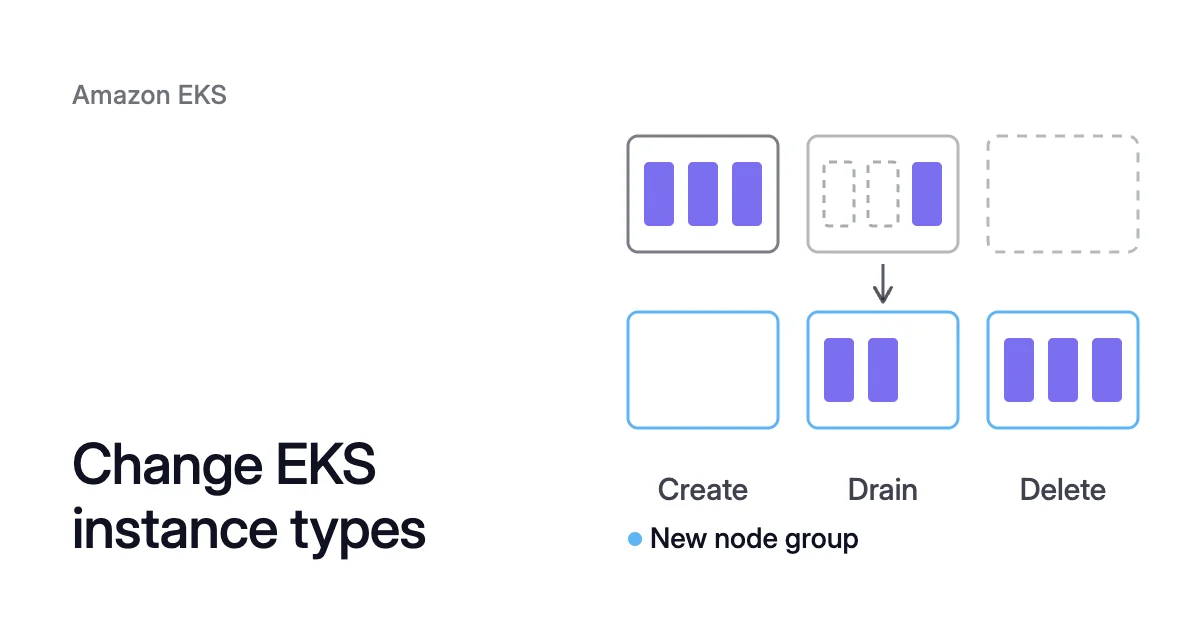
Short answer. You can’t change the instance type of an existing Amazon Elastic Kubernetes Service (EKS) managed node group in place. Its update API changes settings such as labels, taints and scaling, not instance types. To change it, create a new node group with the types you want, cordon and drain the old nodes within their PodDisruptionBudgets (PDBs), then delete the old group. If the type is set in your own launch template, a new template version replaces the nodes instead.
Why a managed node group can’t change instance types in place
Picture a managed node group, ng-old, created with m5.xlarge in its list of instance types, that you want on m7i.xlarge. You create ng-new beside it, move the pods across one node at a time, and delete ng-old once it’s empty. Until that delete, you pay for the instances in both groups.
A managed node group is an EC2 Auto Scaling group that EKS runs for you, and its instance types are set when the group is created. They live in one of two places: the node group’s instanceTypes list, which takes 0 to 20 types, or the launch template you supply, which takes zero or one. Setting a type in both places makes the create fail. With neither, EKS uses t3.medium.
Once the group exists, UpdateNodegroupConfig covers Kubernetes labels and taints, the scaling and update configuration, node repair and the warm pool. Instance types aren’t on that list, so a new type means new nodes. Where the type is set decides the route:
- If it’s in the node group’s list, or is the default, follow the steps below. A group created without a custom launch template can’t switch to one later, so this is its only route.
- If your own launch template sets it, a new template version can carry a different type, and EKS recycles every node to match it.
- With Karpenter, change the NodePool’s requirements.
Check four things before you choose the new EKS instance types
The first three can keep pods off the new nodes:
- Match the architecture. AWS Graviton types are Arm-based, so every image the group runs, DaemonSets included, needs an arm64 build, and the group needs an Arm AMI type.
- Count pod slots, not only vCPUs. With the Amazon VPC CNI, each pod takes its own IP address, so a type’s address-based pod cap follows its elastic network interfaces (ENIs) and the IPs on each, not its vCPUs. Spread the same vCPUs over more, smaller nodes and the total of pod slots can change. Without a custom AMI, managed node groups also cap a node at 110 pods for types under 30 vCPUs, and on AWS Nitro System types, prefix delegation in VPC CNI 1.9.0 or later raises the IPs per node.
- Find pinned pods. Search your manifests for nodeSelectors or node affinity on the
node.kubernetes.io/instance-typelabel, or on a node group name. A pod pinned to the old group stays Pending on the new nodes. - Confirm the Region. AWS doesn’t offer every type in every Region, so check that yours has it first.
How to change an EKS node group instance type, step by step
Drain the old nodes yourself, and delete the group only once it’s empty.
- Read the settings of the group you’re replacing, so the new one can match them:
$ aws eks describe-nodegroup \
  --cluster-name <cluster-name> \
  --nodegroup-name <old-nodegroup> \
--query 'nodegroup.{types:instanceTypes,ami:amiType,capacity:capacityType,subnets:subnets,role:nodeRole,disk:diskSize,template:launchTemplate,scaling:scalingConfig,labels:labels,taints:taints}'If template is null, go to step 2. If not, the group runs on your own launch template: check whether the template version it names sets an instance type. If it holds the type, use the launch template section below. If it doesn’t, you still need a new group: in step 2, add --launch-template id=<launch-template-id> and leave out --disk-size, plus --ami-type if the template sets a custom AMI, or the create fails.
- Create the new group with the new instance types and the old group’s subnets, node role, capacity type and disk size, sized to hold every pod it runs. Copy its labels and taints too, because pods that select those labels won’t schedule on nodes without them. Drop
--labelsor--taintsif the old group had none.
$ aws eks create-nodegroup \
  --cluster-name <cluster-name> \
  --nodegroup-name <new-nodegroup> \
  --instance-types <new-type-1> <new-type-2> \
  --ami-type <ami-type> \
  --node-role <node-role-arn> \
  --subnets <subnet-1> <subnet-2> \
  --capacity-type <ON_DEMAND-or-SPOT> \
  --disk-size <disk-size-gib> \
  --scaling-config minSize=<min>,maxSize=<max>,desiredSize=<desired> \
  --labels <key>=<value> \
  --taints key=<key>,value=<value>,effect=<effect>
Types of different sizes can give every node the smallest pod cap, as shown after step 7. If the Cluster Autoscaler runs with auto-discovery, it picks up the new group, because EKS tags managed node group resources for it. Leave the new group’s maximum size room to grow while pods move.
- Wait for the group to become active, and check that its nodes are Ready with the type you chose. EKS labels each node with its group’s name in
eks.amazonaws.com/nodegroup:
$ aws eks wait nodegroup-active --cluster-name <cluster-name> --nodegroup-name <new-nodegroup>
$ kubectl get nodes -l eks.amazonaws.com/nodegroup=<new-nodegroup> -L node.kubernetes.io/instance-type
- Cordon every old node, so evicted pods can’t land back on the old ones:
kubectl cordon -l eks.amazonaws.com/nodegroup=<old-nodegroup>. - Drain the old nodes one at a time. A drain evicts each pod on the node and deletes the data in its emptyDir volumes, so check first that no emptyDir there holds data you need.
$ for node in $(kubectl get nodes -l eks.amazonaws.com/nodegroup=<old-nodegroup> -o jsonpath='{.items[*].metadata.name}'); do
  kubectl drain "$node" --ignore-daemonsets --delete-emptydir-data --timeout=15m || break
doneThe evictions go through the Kubernetes Eviction API, which respects your PDBs. If a PDB allows no disruption, the drain waits until the timeout, and || break stops the loop there so you can fix the budget or add a replica. Draining without downtime covers single-replica apps, which restart under any drain.
- Check that only DaemonSet pods are left on each old node, with
kubectl get pods -A -o wide --field-selector spec.nodeName=<node-name>. Check the node IAM role too: if you gave the new group a different role and no other managed node group uses the old one, EKS removes it from theaws-authConfigMap when you delete the group, and self-managed nodes that share the role goNotReady. - Delete the old group, which terminates its instances and can’t be undone:
$ aws eks delete-nodegroup --cluster-name <cluster-name> --nodegroup-name <old-nodegroup>
Multiple instance types in one EKS node group get the smallest pod cap
Listing several types makes a group easier to fill. But mixed sizes cost pod slots, because without a custom AMI, a managed node group applies the smallest pod cap across its types to every node.
A group holds one capacity type, On-Demand or Spot, so to run both, create two groups. On-Demand groups use the prioritized allocation strategy: EKS tries the types in the exact order you list them. Spot groups created in clusters on Kubernetes 1.28 or later use price-capacity-optimized. For Spot, AWS recommends several types, and where the Cluster Autoscaler scales the group, a set with the same vCPU and memory so nodes scale as expected.
When the instance type is in your launch template, a new version replaces the nodes
If you created the group with your own launch template and set the instance type there, a new template version changes it. This route is less work than a new group, with two limits: a launch template holds a single instance type, and the group stays on the template it was created with. Built on the current version with --source-version, the new version inherits the other launch parameters:
$ aws ec2 create-launch-template-version \
  --launch-template-id <launch-template-id> \
  --source-version <current-version> \
  --launch-template-data '{"InstanceType":"<new-instance-type>"}'

$ aws eks update-nodegroup-version \
  --cluster-name <cluster-name> \
  --nodegroup-name <nodegroup-name> \
--launch-template id=<launch-template-id>,version=<new-version>EKS then replaces the nodes itself, one node at a time by default. With the default update strategy, it launches new nodes first, and once a new node is Ready, it cordons and drains an old one, then terminates it 60 seconds after the last eviction. The minimal strategy terminates old nodes before creating new ones, which AWS describes as useful when you’re constrained on resources or cost, as with GPUs.
Pods that haven’t left within 15 minutes fail the update with a PodEvictionFailure error. Passing --force to update-nodegroup-version deletes those pods whatever their PDBs allow, so fix the budget instead where you can.
With Karpenter, the NodePool’s requirements decide the types
Karpenter, at v1.15 in October 2026, has no node group to replace. A NodePool’s requirements, under spec.template.spec.requirements, decide which instance types Karpenter may launch, and narrowing them marks every existing node whose type no longer fits as drifted.
Karpenter replaces drifted nodes as a voluntary disruption. It taints the old node, launches any replacements it needs and waits until they’re ready, then evicts the old node’s pods through the Eviction API, which respects PDBs. A NodePool with no budget set lets 10% of its nodes be disrupted at once.
Widening the requirements drifts nothing, because the existing nodes still match. A node running a pod annotated karpenter.sh/do-not-disrupt is held back from drift unless its NodeClaim sets a terminationGracePeriod, as the annotations guide explains.
How Coral moves EKS nodes onto cheaper machines
A new instance type pays off only when the pods’ requests fit it well, and Karpenter chooses machines from pod requests without changing them. Coral optimizes Kubernetes on AKS and EKS: it rebalances each container’s CPU and memory requests to what it really uses, and what it can then do with your nodes depends on the autoscaler you run.
- With Karpenter: Coral can rebalance the nodes you choose onto cheaper machines that still fit the work, and you compare current and rebalanced cost before it starts. It creates fixed-size NodePools named zoorik-rb-…, your Karpenter launches the new machines, and the old nodes are drained and removed one by one.
- With only the Cluster Autoscaler: Coral empties spare nodes one at a time but never changes their size, and the Cluster Autoscaler removes them within its minimums. Changing a node group’s type is still the route above.
- With no autoscaler: connecting Coral can set up Karpenter on EKS, with your approval. On a cluster that uses only
aws-auth, that switches authentication toAPI_AND_CONFIG_MAP, which can’t be undone.
A rebalance can take nodes from an EKS managed node group too. Coral drains each one and terminates it through the group’s Auto Scaling group, reducing the desired count by one, and it never adds machines to the group. A group that the Cluster Autoscaler manages is left to it.
A rebalance needs Node optimization on and the permission to remove nodes, which on EKS is an IAM role that can terminate instances in the cluster’s Auto Scaling groups. Where only a group’s minimum size blocks a removal, Coral can reduce that minimum, given the permission for it, and puts it back later.
A rebalance never goes past a PDB, and a node that can’t be emptied within 45 minutes is kept. Where a warm handover applies, Coral starts a new copy on another node first, and it must be Ready and serving for 5 minutes with no restarts before the old pod goes. Pods that don’t qualify, such as StatefulSet pods or pods with ReadWriteOnce volumes, are evicted instead, and a single-replica app among them gets a short restart. Reducing Kubernetes cost puts rebalancing and node removal in order.
Sources: AWS, “Customize managed nodes with launch templates” (opens in a new tab); AWS, “UpdateNodegroupConfig” (opens in a new tab) (Amazon EKS API Reference); AWS, “Simplify node lifecycle with managed node groups” (opens in a new tab); AWS, “Create a managed node group for your cluster” (opens in a new tab); AWS, “Choose an optimal Amazon EC2 node instance type” (opens in a new tab); AWS, “Understand each phase of node updates” (opens in a new tab); AWS, “Delete a managed node group from your cluster” (opens in a new tab); Karpenter, “Disruption” (opens in a new tab).