Published 23 October 2026 · By Swapnil Srivastav (opens in a new tab), Software development manager, Zoorik · 11 years’ experience · Published by Zoorik
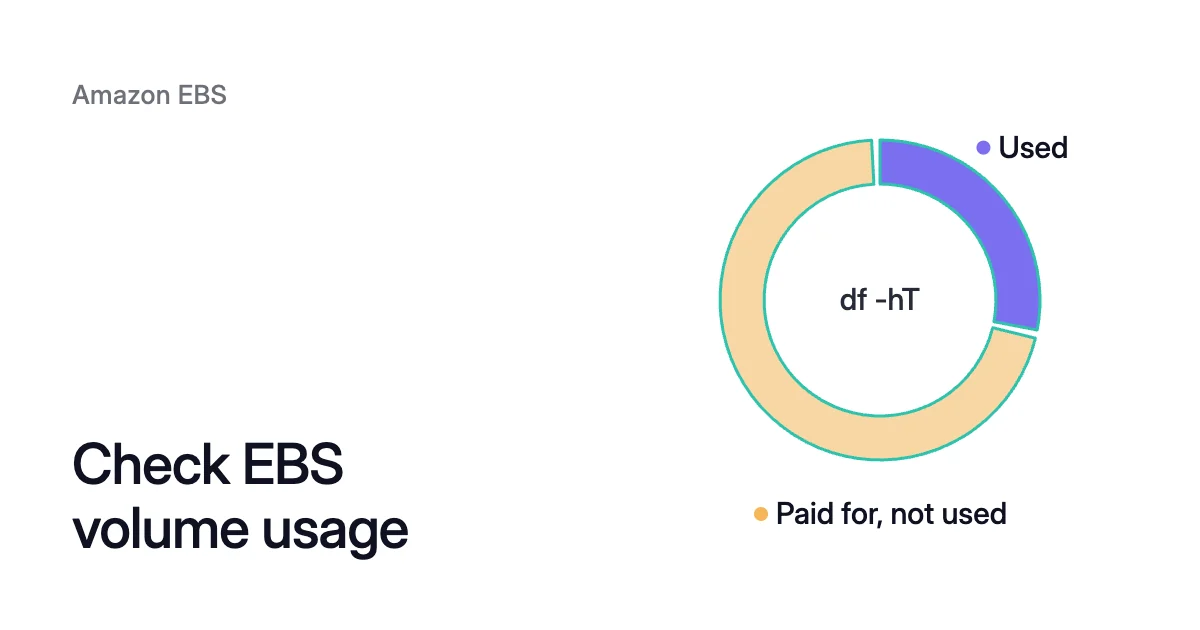
Short answer. To check EBS volume usage, read it inside the instance. AWS bills each Amazon Elastic Block Store (EBS) volume for the space you provision, and CloudWatch’s built-in EBS metrics report I/O, not how full the filesystem is. Run df -hT for used space per mount and lsblk -o +SERIAL to tie each mount to its volume ID on Nitro instances, or collect disk_used_percent with the CloudWatch agent. Then compare each volume’s used space with the provisioned size you pay for.
EBS bills the size you provision, however little data it holds
Picture a 500 GiB gp3 volume holding 50 GiB of data: AWS bills it for all 500 GiB, the same as a full volume of that size.
The pricing page’s rule covers every EBS volume type. Volume storage “is charged by the amount of GB you provision per month until you release the storage.” Detaching a volume doesn’t release it. A detached volume waits in the available state, still billed, until you delete it. Snapshot storage is the exception. It’s based on the space your data takes up in Amazon S3, and EBS “does not save empty blocks.”
Elastic Volumes, AWS’s name for changing a volume in place, can make a volume larger, change its type or adjust its performance, but it can’t shrink one. In AWS’s words, “You can’t decrease the volume size.” An increase made for a migration or a log spike stays on the bill after the data shrinks again, so an EBS cost review starts by measuring used space against provisioned space, one volume at a time.
EBS volume utilization in CloudWatch means I/O
How to check EBS volume utilization depends on which kind you mean: how busy a volume is (its I/O) or how full it is (its used space). The Monitoring tab on a volume in the EC2 console and the AWS/EBS namespace in CloudWatch cover only the first. That namespace receives 1-minute metrics at no charge for every attached volume: bytes and operations read and written, queue length, idle time, burst balance on gp2, st1 and sc1, and on Nitro instances average IOPS (input/output operations per second), throughput and latency. None of them reports used or free space, and AWS’s metrics page points you to the operating system for that.
The two measures don’t track each other. VolumeIdleTime counts the seconds in a period with no reads or writes, so a volume can sit idle while it’s nearly full of cold data, or stay busy all day on a filesystem that’s mostly empty. Only the mostly empty one is billed for space it doesn’t use.
How to check EBS volume usage on Linux and Windows
Used space is known only to the filesystem, so the check starts on the instance and ends with the size AWS bills.
1. Read each filesystem’s size and use
On Linux, df -hT lists every mounted filesystem with its type, size, used and available space. It’s the command AWS’s docs give for viewing free disk space.
$ df -hT
On Windows, AWS’s steps read free space with fsutil volume diskfree C:, which prints the total and free bytes.
2. Match each filesystem to its volume ID
On Linux, lsblk lists the block devices as a tree, with each one’s size and mount point, and its SERIAL column is the link to AWS. On instances built on the Nitro System, EBS volumes appear as NVMe devices, and AWS sets each device’s serial number to its EBS volume ID.
$ lsblk -o +SERIAL
The serial drops the hyphen. AWS’s nvme id-ctrl example shows it as vol01234567890abcdef, while describe-volumes prints IDs in the form vol-01234567890abcdef, so add the hyphen back before you match. On a partitioned volume the mount sits on a partition row such as nvme0n1p1, and the serial on the disk row above it.
Key your report on that volume ID, because device names move. AWS notes that an NVMe name such as /dev/nvme1n1 follows the order devices respond at boot, can change on a later start, and can differ from the name you gave at attach time.
On Windows, ebsnvme-id.exe, in C:\ProgramData\Amazon\Tools on the latest AWS Windows Server AMIs, prints each disk number with its volume ID.
Reading df next to lsblk also shows two cases that df alone hides:
- A filesystem smaller than its volume. Growing an EBS volume is two jobs: Elastic Volumes grows the device, then you grow the partition and the filesystem. AWS’s sample output for extending a filesystem shows the gap.
lsblklistsnvme1n1at 30G, mounted on/data, whiledf -hTshows the XFS filesystem on it at 8.0G with 33M used. The bill counts 30 GiB, anddfnever sees 22 of them. - A volume that isn’t mounted.
dfreports mounted filesystems only, so an attached volume with no mount point is missing from its output.lsblkstill lists it with an empty mount point, and AWS still bills its full size.
3. Read the size AWS bills
This lists the instance’s volumes with their provisioned sizes in GiB:
$ aws ec2 describe-volumes \
    --filters "Name=attachment.instance-id,Values=<instance-id>" \
    --query "Volumes[*].[VolumeId,Size,VolumeType]" \
--output textThe G in df -h and lsblk output is the same GiB as the Size field, which is how AWS’s resize steps compare them. For the bytes that fsutil prints, divide by 1,073,741,824 (1024³) to get GiB.
How to check EBS volume usage in AWS without signing in to each instance
Systems Manager Run Command runs the same commands on every instance Systems Manager manages (AWS calls them managed nodes), so you don’t sign in to each one. These are Linux commands, so target a tag on Linux instances:
$ aws ssm send-command \
    --document-name "AWS-RunShellScript" \
    --targets "Key=tag:<tag-key>,Values=<tag-value>" \
    --parameters 'commands=["df -hT","lsblk -o +SERIAL"]' \
    --output-s3-bucket-name "<bucket-name>" \
--comment "EBS usage check"Each instance’s output is stored in the S3 bucket you name. Unless you set --max-concurrency, the command runs on up to 50 managed nodes at the same time. For Windows instances, the send-command reference uses the AWS-RunPowerShellScript document instead, which can run fsutil and ebsnvme-id.exe.
Track EBS disk usage in CloudWatch with disk_used_percent
Run Command tells you where each volume stands today. A trend needs the CloudWatch agent. It reads used space inside the instance and publishes it to CloudWatch in the CWAgent namespace, and on Linux its disk section collects disk_used, disk_total and disk_used_percent, among others, for each mounted filesystem, every 60 seconds by default.
{
  "metrics": {
    "append_dimensions": {
      "InstanceId": "${aws:InstanceId}"
    },
    "metrics_collected": {
      "disk": {
        "measurement": ["used", "total", "used_percent"],
        "resources": ["*"],
        "append_dimensions": {
          "VolumeId": "${aws:VolumeId}"
        }
      }
    }
  }
}Inside disk, the append_dimensions block adds the EBS volume ID to each disk metric, so the mount and the bill share a key.
The metrics the agent collects are charged, and each mount adds its own set, so on an instance with many mounts, list only the data mount points in resources. To cover many instances, AWS’s page on viewing free disk space points to installing and configuring the agent through Systems Manager.
Compare used space with the size you pay for, and rank by unused GiB
A usage report for EBS needs one row per volume: the instance, the mount, the volume ID, the provisioned size, the used space and the unused GiB, which is size minus used space. df or disk_used gives used space per mount. The SERIAL column or the VolumeId dimension ties the mount to a volume, and describe-volumes gives that volume’s Size.
Four cases need care:
- One mount on several volumes, such as an LVM volume group or a RAID 0 set, needs the provisioned sizes of all the volumes under it added up before you compare.
- One volume under several mounts, such as two partitions. Add up their used space.
- A filesystem never grown after its volume was.
dfanddisk_totalreport the filesystem’s size, so always take the provisioned size fromdescribe-volumes. - Volumes in the
availablestate. They’re attached to nothing, so no instance can measure them and CloudWatch receives no metrics from them. Give each a row with no used space. This command lists them:
$ aws ec2 describe-volumes \
    --query "Volumes[?State=='available'].[VolumeId,Size,VolumeType]" \
--output textSort the report by unused GiB, largest first, not by percent full. Of the two volumes on this page, AWS’s 30 GiB sample is the emptier by percent, with all but 33 MiB unused, yet the 500 GiB example’s 450 unused GiB rank higher. A disk-space alert ranks the fullest volumes first, because they’re the risk. A cost report puts the most unused space first, because within one volume type that’s the order of what the empty space costs.
Then work down the report:
availablevolumes first. They’re billed in full and nothing reads them, but deleting one deletes its data, so confirm nobody needs it first.- A filesystem smaller than its volume. If the data needs the room, grow the filesystem. If not, the gap is unused space like the rest.
- A data volume that’s mostly unused space. EBS can’t take that space back in place, so it takes a copy to a smaller volume, and shrinking an EBS volume covers that copy and the downtime it needs.
For the same job on Azure, see the Azure VM disk usage guide.
How Amoeba measures and rightsizes EBS volumes
Amoeba by Zoorik optimizes Azure managed disks and Amazon EBS, and keeps the measurement above current on each instance you onboard. Its agent installs through AWS Systems Manager Run Command and reports each mount’s size and use every 15 seconds, and Amoeba prices the volumes from the AWS Price List API.
Then Amoeba rightsizes. It moves the data on a running EC2 instance’s EBS data volumes onto one btrfs pool, built from gp3 volumes in the instance’s Availability Zone, and never touches the root volume. Pool size comes from the highest use of the last 7 days, so the pool sits inside its target band, 80% to 90% full by default, with room for the largest recent 15-minute rise and at least 10 GiB free.
Each mount keeps its path. On Linux, the systemd services that use those mounts restart at the switch onto the pool. After that, expands go in while the pool stays mounted, and shrinks remove one volume at a time.
Amoeba works on Windows and Linux instances, with these requirements:
- On AWS: the instance must be running, managed by Systems Manager with its SSM agent connected, and a Nitro type that exposes EBS as NVMe. It needs at least one EBS data volume and 3 free attachment slots: 2 for the pool and 1 kept free for an urgent expand.
- On Linux: it needs systemd, kernel 5.14 or later and btrfs loaded or loadable, and every process that keeps a data mount open must run as a systemd service. Instances whose OS is in the Red Hat family aren’t moved.
The free block storage assessment covers Amazon EBS. For the data volumes of Linux EC2 instances, it estimates your own figure, proposes a gp3 pool, and writes one PDF without sending anything to Zoorik. Inside an instance, it runs a command only after you say yes, through Systems Manager.
Sources: AWS, “Amazon EBS pricing” (opens in a new tab); AWS, “Amazon CloudWatch metrics for Amazon EBS” (opens in a new tab); AWS, “View information about an Amazon EBS volume” (opens in a new tab); AWS, “Modify an Amazon EBS volume using Elastic Volumes operations” (opens in a new tab); AWS, “Map Amazon EBS volumes to NVMe device names” (opens in a new tab); AWS, “Extend the file system after resizing an Amazon EBS volume” (opens in a new tab); AWS CLI Command Reference, “send-command” (opens in a new tab); AWS, “Manually create or edit the CloudWatch agent configuration file” (opens in a new tab).