Published 23 October 2026 · By Shubhankar Sharma (opens in a new tab), Guest author · Associate manager (data engineering) at MSD · Published by Zoorik
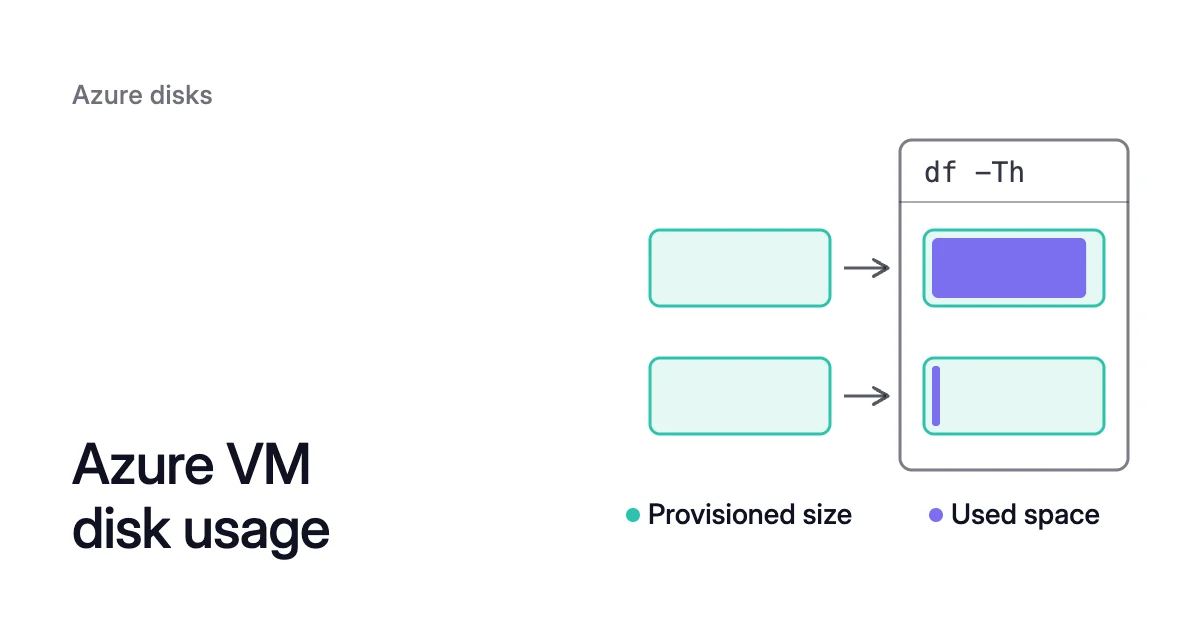
Short answer. Azure VM disk usage is two numbers: the provisioned size you pay for and the space your files use. A disk’s portal page and its bill show only the first, and Azure’s platform disk metrics report neither. Used space is known only to the filesystem inside the VM, so read it there, with df -Th in a shell or through Run Command, or collect it with Azure Monitor Agent’s guest metrics. Compare the two, disk by disk.
Azure bills the provisioned size, and its disk metrics don’t show used space
Picture a 500 GiB managed disk with 50 GiB of it in use, the example Microsoft’s billing guide uses for snapshots. The portal lists 500 GiB, and the disk’s own line on the bill is set by that size.
Microsoft’s billing guide gives three cases:
- A 512 GiB Premium SSD appears on the bill as a P20 disk.
- A 1 TiB Standard SSD is billed at the E30 tier, and growing it to 3 TiB moves it to E50.
- Premium SSD v2 is billed per GiB you provision.
None of those meters depends on how full the disk is: a P20 is billed as a P20 whether it’s 5% full or 95% full.
Azure’s disk metrics for VMs cover I/O, throughput, queue depth and latency, plus bursting credits and the share of a disk’s provisioned IOPS and bandwidth you consume. Used and free space aren’t among them. From outside the VM, a disk is a block device of a fixed size, and only the filesystem tracks which of its blocks hold live files.
How to check disk usage in an Azure VM
The check has two halves: read each filesystem’s size and use inside the guest, then tie each filesystem to the Azure disk behind it, whose size is the one on the bill.
On Linux: read each filesystem with df
df lists every mounted filesystem with its type, size, used and available space. Microsoft’s expand guide starts with the same command:
$ df -Th
In Microsoft’s sample output, /opt/db/data on /dev/sdd1 is a 32G ext4 filesystem with 30G used, and /opt/db/log on /dev/sde1 is 32G with 49M used. One is close to full, while the other is billed for space that holds almost nothing.
On Linux: match each mount to the disk you pay for
df names devices, and Azure identifies each attached data disk by its LUN, the logical unit number a disk gets when it’s attached. Three steps tie a mount to the disk behind it.
- Find the LUN behind each device. With a SCSI disk controller, each LUN has a link in
/dev/disk/azure/scsi1:
$ sudo ls -alF /dev/disk/azure/scsi1/
Microsoft’s example links lun1 to sdd and lun2 to sde. The devices df named, sdd1 and sde1, are partition 1 on each disk, with links of their own (lun1-part1, lun2-part1). That puts /opt/db/data on the disk at LUN 1 and /opt/db/log on LUN 2. On a VM that exposes its disks through an NVMe controller, the azure-nvme-id tool from the azure-vm-utils package prints each data disk with its LUN, in lines such as /dev/nvme0n2: type=data, lun=0.
- List the VM’s data disks in Azure. Each comes with its LUN and the managed disk attached there:
$ az vm show -g <resource-group> -n <vm-name> --query "storageProfile.dataDisks"
- Read each managed disk’s provisioned size. That’s the size the bill uses:
$ az disk list -g <resource-group> \
--query '[*].{Name:name,size:diskSizeGB,Tier:sku.tier}' --output tableThat command lists every disk in the resource group, so pick out the names from step 2. The VM’s Disks page in the portal shows the same LUN, name and size for each disk, and on the sample VM the LUN is what joins each mount to a disk on the bill:
On Windows
The Run Command example below runs a Linux shell script. On Windows, collect each drive’s use with Azure Monitor Agent instead: its system.filesystem.usage counter, below, covers Windows and Linux VMs alike.
Matching a disk to Azure goes by LUN: comparing sizes can work, Microsoft notes, but not when several attached disks are the same size. In Disk Management, a disk’s Properties show the LUN in the Location field on the General tab. If the disks sit in a Storage Spaces pool, Server Manager lists each one’s LUN under Physical Disks instead. Then match it to Azure with steps 2 and 3 above.
Check Azure VM disk space without SSH or RDP
For one VM, or a VM whose SSH and RDP ports are both closed, Run Command runs a script inside the guest through the VM agent and returns the output. Microsoft calls it one of the only ways to troubleshoot a VM in that state. It’s also the shortest way to check current usage on an Azure VM disk from your own terminal:
$ az vm run-command invoke -g <resource-group> -n <vm-name> \
  --command-id RunShellScript --scripts "df -Th"
Know its limits before you loop it over a fleet:
- Output is limited to the last 4,096 bytes.
- Running a command needs a role that allows it, such as Virtual Machine Contributor or higher.
- A run takes about 20 seconds at minimum.
- The VM needs outbound access on port 443 to send the result back.
- One script runs at a time.
Scripts run as an elevated user on Linux, so keep them to read-only commands like df.
Collect Azure disk usage metrics with Azure Monitor Agent
For a trend across many VMs, collect guest metrics through Azure Monitor Agent, which reads them inside the VM, unlike the host-level disk metrics above. The agent samples them every 60 seconds by default.
With OpenTelemetry metrics, which Microsoft recommends for new deployments, the counter to collect is system.filesystem.usage: bytes per filesystem, with mountpoint and state labels, where state is used, free or reserved. The agent sends it to an Azure Monitor workspace that you query in PromQL:
# Used space per mount, in GiB
sum by ("Microsoft.resourceid", mountpoint) ({"system.filesystem.usage", state="used"})
  / (1024 * 1024 * 1024)

# Share of each filesystem that is used
sum by ("Microsoft.resourceid", mountpoint) ({"system.filesystem.usage", state="used"})
  /
sum by ("Microsoft.resourceid", mountpoint) ({"system.filesystem.usage"})If you collect classic performance counters into a Log Analytics workspace instead, the Linux counter is Logical Disk(*)\% Free Space, where the asterisk gives each mount its own row. Windows’s default list has \LogicalDisk(_Total)\% Free Space, one figure for all drives together, so collect the counter per drive in your data collection rule if you want a row for each. The readings land in the Perf table:
Perf
| where TimeGenerated > ago(1d)
| where ObjectName in ("Logical Disk", "LogicalDisk") and CounterName == "% Free Space"
| where InstanceName != "_Total" and InstanceName != "HarddiskVolume1"
| summarize arg_max(TimeGenerated, CounterValue) by Computer, InstanceName
| order by CounterValue descThe two InstanceName filters match Microsoft’s free-space sample, which skips the _Total row and HarddiskVolume1.
Build an Azure VM disk usage report
An Azure disk utilization report needs one row per mount: the VM, the mount, every LUN and disk behind it, their provisioned sizes added up, and the used space. Each source above holds one piece of that row:
- Used GiB per mount: the first PromQL query above, since the Perf query gives only % free.
- Mount to device:
dfon each VM. - Device to LUN: the LUN links in each VM, or
azure-nvme-idwhere the disks sit on an NVMe controller. - LUN to managed disk:
az vm show. - Provisioned size:
az disk list, for each managed disk.
The device and LUN reads happen inside each VM, so a fleet report takes one SSH session or Run Command per VM, and the Run Command limits above apply. Then read each row in order:
- Is the filesystem smaller than its disk? Then part of the disk is paid for but can’t hold data until you finish the expand (the Watch out above).
- Does the mount sit on more than one disk, such as an LVM volume group or a striped set? Add up the provisioned sizes of every disk behind it.
- Is it nearly full? That’s the risk, so an alert ranks the fullest disks first.
- Is it mostly empty? Most of what you pay for it holds no data, so a cost report, like the Perf query above, ranks the emptiest first.
Azure can’t take the empty space back in place. Microsoft’s expand guide says shrinking an existing disk “isn’t supported and might result in data loss.” Freeing blocks with TRIM doesn’t reduce the disk’s own bill either: Microsoft describes TRIM as saving money on storage billed by consumption, such as unmanaged standard disks and disk snapshots.
Snapshots are the one managed-disk charge billed on used size: a full snapshot of the 500 GiB disk above is billed for 50 GiB, while the disk stays billed for its provisioned size. What to do with the gap is covered in the guide to shrinking a disk and in the disk cost guide. On AWS the measuring job has the same shape, and the EBS guide walks through it.
How Amoeba tracks used and provisioned space
Amoeba by Zoorik does this measuring on every VM you onboard, then acts on it. Its agent installs through Azure Run Command, the channel used above, and every 15 seconds reports each mount’s path, filesystem type, used and total size, and the devices, LUNs and cloud disk IDs behind it. That’s the mount-to-disk join from the report, kept current.
The console shows used and provisioned space on every disk, 30 days of both on each VM’s Dashboard, and what the disks cost at Azure’s list price. Before the agent’s first report, used space reads “Available once the agent reports” rather than a guess.
Then Amoeba rightsizes. It moves the VM’s data mounts onto one btrfs pool, and each mount keeps its path. Amoeba sizes the pool from the highest use of the last 7 days, so the pool sits inside its target band with room for the largest recent 15-minute rise and at least 10 GiB free. It copies the data while services run, and the systemd services that use those mounts restart at the switch onto the pool. After that the pool expands as the data grows and shrinks one disk at a time as it falls, without unmounting.
Amoeba works on Windows and Linux VMs. On Linux, it needs systemd, kernel 5.14 or later, and btrfs loaded or loadable, and every process that keeps a data mount open must run as a systemd service. The VM needs 3 free data-disk slots: 2 for the pool and 1 kept free for an urgent expand. VMs in the Red Hat family are not moved.
To see the gap on your own VMs first, the free assessment runs in your terminal or Cloud Shell and covers the data disks of Linux Azure VMs. It runs a command inside your VMs only after you say yes, and sends nothing to Zoorik. What you get is one PDF with each VM’s estimated saving at list price.
Sources: Microsoft Learn, “Understand Azure Disk Storage billing” (opens in a new tab); Microsoft Learn, “Disk performance metrics” (opens in a new tab); Microsoft Learn, “Expand virtual hard disks on a Linux VM” (opens in a new tab); Microsoft Learn, “Use the portal to attach a data disk to a Linux VM” (opens in a new tab); Microsoft Learn, “How to map Azure Disks to Windows VM guest disks” (opens in a new tab); Microsoft Learn, “Run scripts in your Linux VM by using action Run Commands” (opens in a new tab); Microsoft Learn, “OpenTelemetry Guest OS Metrics reference” (opens in a new tab); Microsoft Learn, “PromQL for system metrics and Guest OS performance counters” (opens in a new tab).