Published 21 October 2026 · By Shubhankar Sharma (opens in a new tab), Guest author · Associate manager (data engineering) at MSD · Published by Zoorik
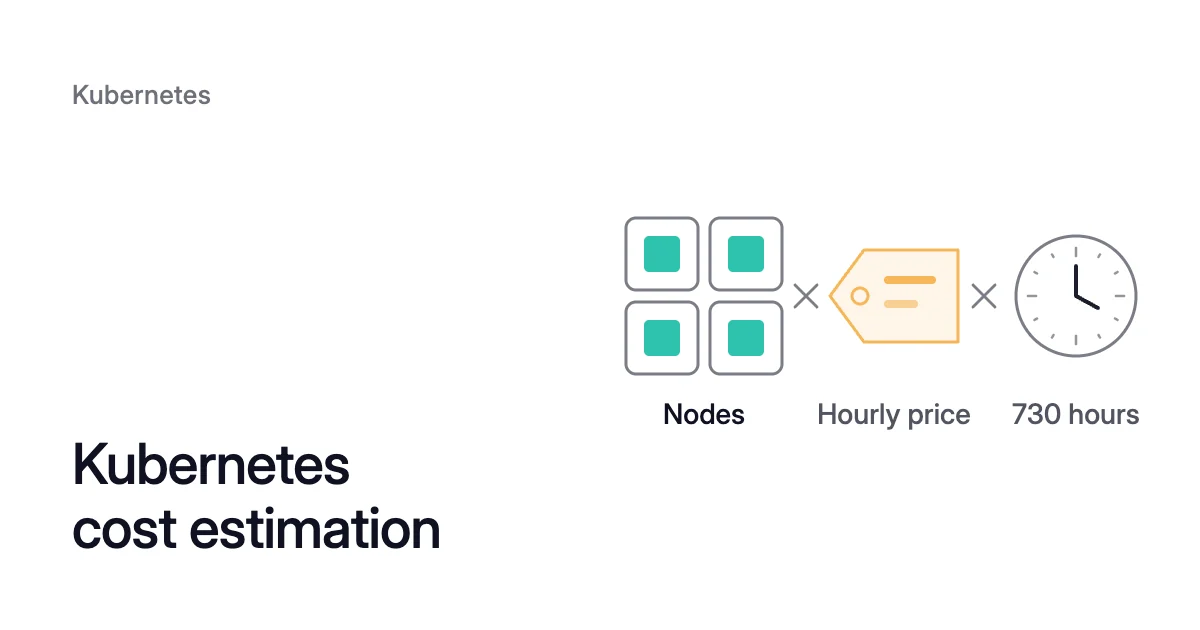
Short answer. Kubernetes cost estimation means pricing the machines a cluster needs, plus its control plane, disks and network. The arithmetic is short: nodes × each machine’s hourly list price × 730 hours a month. The node count is the hard part, because the scheduler fills nodes by the CPU and memory pods request, not by what they use. Estimate from measured use plus headroom, and the same sum shows how many nodes you could do without.
What a Kubernetes cluster costs
Picture a node pool whose pods request 30 CPU in all, on 9 nodes that each have 3.5 CPU left for pods after their reservations and DaemonSets. You pay for all 9 machines for every hour they run, however little of that CPU the pods use. Nodes are the line of the bill that moves with your workloads. Sized from measured use plus headroom, say to 11 CPU, those requests would fit on 4 nodes.
A managed cluster’s bill has three parts:
- Worker nodes. Virtual machines, billed like any other VM or EC2 instance for the time they run.
- The control plane. A fee per cluster, which depends on the tier or the version.
- The parts around them. Disks, load balancers and public IP addresses, which Microsoft lists for AKS beside its VMs, and network traffic.
Kubernetes cost estimation for a new cluster, in six steps
Before a cluster exists, a Kubernetes cost calculator does the pricing, either the Azure pricing calculator or the AWS Pricing Calculator. Neither one knows your workloads, so the node count is yours to work out:
- Add up the requests. Multiply each workload’s CPU and memory requests by the replica count it runs most of the time, and add them up per node pool.
- Pick a machine and use its allocatable, not its size. Allocatable is what’s left for pods after the node’s own reservations. In Microsoft’s example for AKS 1.29 and later, an 8 GB node that supports 30 pods reserves 0.65 GB for Kubernetes itself (kube-reserved) and 0.1 GB for the eviction threshold, which leaves 7.25 GB.
- Take off what your DaemonSets request. A DaemonSet puts a pod on every node it targets.
- Divide the requests by what’s left per node, and round up. Keep the larger of the CPU and memory counts, and check the node’s maximum pod count too: a node can run out of pod slots before it runs out of CPU or memory.
- Leave slack. A pod can’t be split across two nodes, so a pool rarely packs to 100%. The free assessment plans for 85%.
- Price the nodes. Multiply them by the machine’s hourly price and 730 hours, then add the control plane and the parts around it.
AKS cost estimation
Microsoft’s own Azure Kubernetes cost estimator is the Azure pricing calculator. It takes its per-unit prices from the Azure Retail Prices API, prices a VM for 730 hours a month unless you change it, and can show your negotiated prices once you log in.
The Free tier has free cluster management and is recommended for clusters of fewer than 10 nodes. Standard and Premium carry a price of their own on the AKS pricing page and include an uptime service level agreement, which AKS cost analysis shows as a service charge.
Two details change the node count. Every cluster needs a system node pool for system pods such as CoreDNS and metrics-server, and in production it needs at least two nodes (Microsoft recommends three), each with at least 4 vCPUs and 4 GB of memory. Reservations also grow with the machine, though more slowly: AKS reserves 140 millicores of CPU on a 4-core host (3.5%) and 260 on a 16-core host (1.6%).
EKS cost estimation
The Amazon EKS pricing page points to the AWS Pricing Calculator for the cluster and the rest of its architecture in one estimate. Amazon EKS charges $0.10 per cluster per hour, or $73 over a 730-hour month, while the cluster’s Kubernetes version is in standard support: the first 14 months after that version is released in Amazon EKS (same page, October 2026; prices change). Three lines are easy to leave out:
- The version fee. In the 12 months of extended support that follow, it’s $0.60 an hour, or $438 a month. A Provisioned Control Plane tier, if you choose one, adds its own hourly price on top.
- EKS Auto Mode. Its management fee varies with the instance type, comes on top of the EC2 price, and is billed per second with a one-minute minimum.
- Public IPv4 addresses and cross-zone traffic. Both are billed: each public IPv4 address, and traffic from nodes to the control plane across Availability Zones.
Why a running cluster needs a different estimate
Once a cluster runs, the invoice tells you what it costs, but the useful estimate is what it would cost on the nodes its workloads really need. Today’s requests decide how many nodes run, and measured use plus headroom decides how many they need. A node can be full by requests and close to idle: the Kubernetes documentation says the scheduler keeps the requests on each node within its capacity, and that even when real use on the node is very low, it “still refuses to place a Pod on a node if the capacity check fails.”
Two commands show the gap:
$ kubectl describe node <node-name>
$ kubectl top node
In the describe output, look for the node’s Allocatable figures and, under Allocated resources, the CPU and memory its pods request. kubectl top shows recent use, but only where Metrics Server is installed and running. Say a node’s requests sit at 90% of its allocatable CPU and use at 25%. Then 75% of that CPU is paid for and used by no pod, and requests hold most of it, 65% (90 − 25), so the scheduler can’t place new pods there.
kubectl top is a reading of the moment, though. An estimate you’ll act on needs at least a week of history from Prometheus or another metrics store, so that it sees your weekly peak.
Cost allocation tools answer a different question. The AKS cost analysis add-on, built on OpenCost and available on the Standard and Premium tiers, maps cost to clusters and namespaces. Its idle charges are “the cost of available resource capacity that isn’t used by any workloads.” It doesn’t count the nodes you could do without.
How to estimate the saving from smaller requests
The saving estimate reruns the new-cluster count with measured use in place of today’s requests, then compares it with today’s nodes:
- Size each container from a week or more of use. Take a high percentile of CPU plus headroom, and the peak of memory plus headroom, because when a container goes over its memory request and its node runs short of memory, its pod is likely to be evicted. Right sizing pods covers choosing the percentile and the headroom.
- Count the nodes each pool needs at those sizes. Use the same allocatable, DaemonSets, pod limit and slack as before, and stay between the pool’s autoscaler minimum and today’s count.
- Price the difference. Multiply (nodes today − nodes needed) by the machine’s hourly list price and 730. List prices leave out reservations, savings plans and negotiated rates, so your saving in dollars can come in under the estimate.
What the free assessment reads, sends and writes
Zoorik’s free assessment runs a version of this estimate against your own clusters and writes it into one PDF. Sign in with the az or aws CLI first (az login on Azure, for example), or run it in Azure Cloud Shell or AWS CloudShell:
$ npx -y zoorik assess coral
It prices AKS and EKS clusters. Any other cluster kubectl can reach is assessed but not priced. Outside a Cloud Shell it needs Python 3.8 or later and npx to start it, plus kubectl, and az for AKS or aws for EKS.
- Reads. Nodes and pods with
kubectl get, plus ReplicaSets and Jobs to match each pod to its workload. Withkubectl top, it samples container use every 30 seconds for 3 minutes by default and keeps the peak, and it takes list prices from the Azure Retail Prices API and the AWS Price List. - Doesn’t read. HorizontalPodAutoscalers (HPAs), PodDisruptionBudgets, PersistentVolumes or PersistentVolumeClaims, Secrets or ConfigMaps.
- Access. It uses the access your
azorawssign-in already has. Cluster credentials go into a temporary kubeconfig that’s deleted when the run ends, and your own kubeconfig is left as it is. - Runs as a fallback.
az aks command invoke, only when kubectl can’t reach or sign in to an AKS cluster, such as a private cluster from outside its network. Azure then starts a short-lived pod in that cluster, unless you turn this off with--no-invoke. - Sends. Nothing to Zoorik. Run through
npx, it also downloads the zoorik package from npm and PyPI. - Writes. One PDF,
zoorik-coral-assessment-YYYYMMDD-HHMM.pdf, timestamped in UTC. In Cloud Shell it lands in your home folder, and elsewhere in the current folder. For a copy you can share,--anonymizereplaces namespace and workload names, and--anonymize-clustersalso replaces cluster names.
The PDF gives three things: the estimated saving at list price, how many nodes each pool could do without and the recommended request sizes. Control-plane fees, storage, network, load balancers, Windows nodes and discounts are left out.
Three minutes of samples can miss a daily or weekly peak, so treat the recommended requests, and the saving counted from them, as a first look. A cluster connected to Coral sizes from days of data instead. On the balanced policy, the default for Deployments, DaemonSets and Argo Rollouts, CPU is the 80th percentile of the last 3 days and memory the highest use in the last 8 days, each plus 10%.
Sources: Kubernetes, “Resource Management for Pods and Containers” (opens in a new tab); Kubernetes, “kubectl top” (opens in a new tab); Microsoft Learn, “Node resource reservations in Azure Kubernetes Service (AKS)” (opens in a new tab); Microsoft Learn, “Use System Node Pools in Azure Kubernetes Service (AKS)” (opens in a new tab); Microsoft Learn, “Azure Kubernetes Service (AKS) Free, Standard, and Premium Pricing Tiers” (opens in a new tab); Microsoft Learn, “Azure Kubernetes Service (AKS) cost analysis” (opens in a new tab); Microsoft Learn, “Estimate costs with the Azure pricing calculator” (opens in a new tab); AWS, “Amazon EKS pricing” (opens in a new tab).