Published 28 October 2026 · By Pulkit Gaur (opens in a new tab), Data engineer, Zoorik · Published by Zoorik
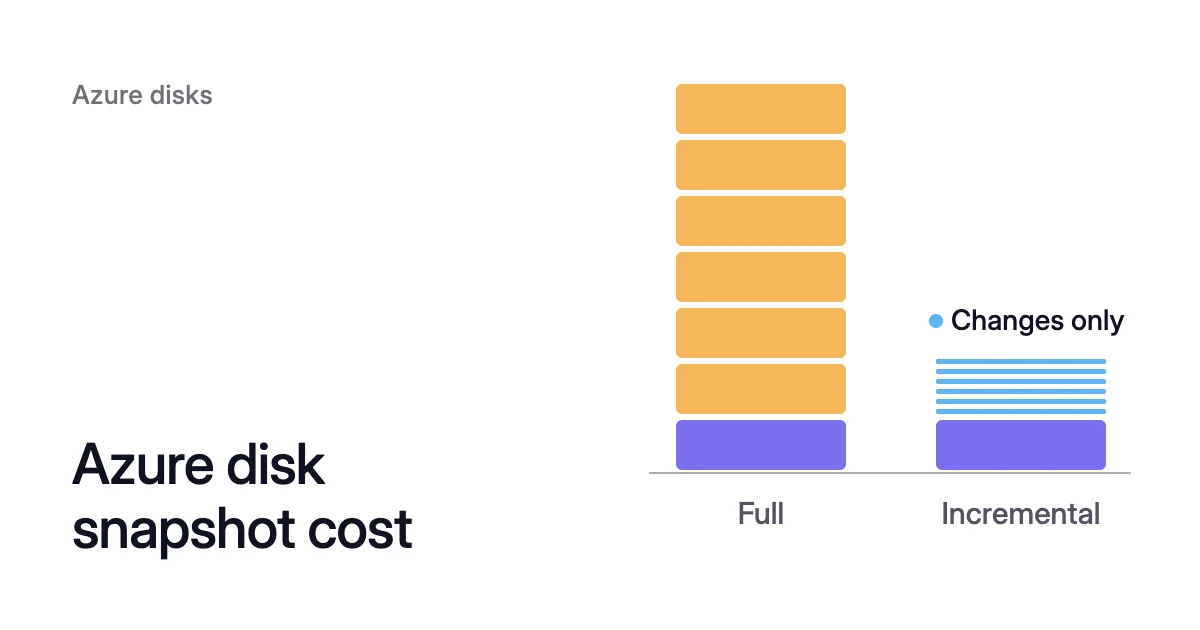
Short answer. Azure disk snapshot cost is the snapshot’s used size times a per-GB monthly rate, on top of the disk, until you delete the snapshot. Each full snapshot holds all the disk’s data, but an incremental chain holds it once, then only changes. Incremental ones always sit on Standard HDD: $0.05 per GB per month in East US, October 2026.
Azure disk snapshot cost follows the data a snapshot holds
Take Microsoft’s own example: a full snapshot of a 500 GiB disk with 50 GiB in use. The disk is charged on the size you provisioned.
You pay only for the 50 GiB of data the snapshot holds, a tenth of the disk’s size. That charge is separate from the disk’s, and comes on top of it.
On your invoice, Standard storage snapshots appear under the tier Standard HDD managed disks, as the meter LRS snapshots or ZRS snapshots. They appear there even when the source was a Premium SSD v2 or an Ultra Disk. LRS and ZRS mean locally redundant and zone-redundant storage, and a snapshot on Standard storage costs the same in either.
Used size means data written to the disk that Azure still holds. A file you delete inside a Linux VM can still be part of it.
The filesystem marks the space free, but Azure only learns those pages are no longer valid when the VM sends TRIM (UNMAP) for them. Microsoft says TRIM can save money on storage charged by consumed space, “such as unmanaged standard disks and disk snapshots.”
To send TRIM, mount the filesystem with the discard option, or run fstrim on a schedule, which Microsoft suggests where discard costs performance:
$ sudo fstrim <mount-path>
Azure incremental snapshot vs full: you pay for all the data in every full copy
Keep seven full snapshots of a disk and you pay for its data seven times. A full snapshot is a complete, read-only copy of the disk’s data at one point in time. So for every one you keep, you pay for the disk’s whole used size.
An incremental snapshot stores only what changed since the previous snapshot of the same disk. The first in a chain is a full copy. Restoring from any of them still gives you the whole disk as it was when that snapshot was taken.
The two also live on different storage. Incremental snapshots always use Standard HDD storage, whatever the source disk type. They use ZRS automatically in regions that offer it, and LRS where ZRS isn’t available.
Full snapshots can sit on Standard HDD or Premium SSD storage. Microsoft recommends standard storage for snapshots, because premium snapshots cost more.
Seven daily snapshots, full vs incremental
- Seven full snapshots hold 7 × 200 = 1,400 GB. At the East US Standard rate in October 2026, $0.05 per GB per month, that’s 1,400 × $0.05 = $70.00 a month.
- Seven incremental ones hold the first full copy plus six days of changes, 200 + 6 × 5 = 230 GB. That’s 230 × $0.05 = $11.50 a month.
- The incremental chain holds 1,400 − 230 = 1,170 GB less, which is $58.50 a month.
Put the full snapshots on Premium SSD storage at $0.132, and the same seven cost 1,400 × $0.132 = $184.80 a month.
The Azure CLI creates a full snapshot on Standard_LRS unless you pass another --sku. To take an incremental one, add --incremental true:
$ az snapshot create --resource-group <resource-group> \
  --name <snapshot-name> --source <disk-id> \
  --incremental true
Extra rules and limits
Instant access adds two charges:
- Storage for the extra space the snapshot consumes, charged per GiB per hour.
- A one-time fee for each disk you restore, based on the disk’s provisioned size.
In East US in October 2026, the Retail Prices API lists that fee at $0.40 per provisioned TB for both disk types. Microsoft isn’t charging for the instant access storage through January 2027.
Incremental snapshots have limits:
- You can keep up to 500 per disk at any one time.
- You can create up to seven per disk every five minutes.
- They can’t move to another subscription or resource group, though you can copy them to another resource group or region.
Azure snapshot pricing, and how to estimate your cost
Snapshots fall into three price cases, shown here as East US list prices from Microsoft’s pricing page in October 2026:
| Snapshot | Stored on | Price per GB per month |
|---|---|---|
Full, Standard_LRS or Standard_ZRS | Standard HDD | $0.05 |
Full, Premium_LRS | Premium SSD | $0.132 |
Incremental, any source disk, LRS or ZRS | Standard HDD | $0.05 |
In West Europe and Central India the Standard rate is also $0.05, and West Europe lists Premium storage for full snapshots at $0.145. Azure managed disk snapshot pricing differs by region and changes over time, so check yours.
You don’t need an Azure snapshot cost calculator for the estimate itself. Three steps do it:
- Find your region’s rate. Microsoft’s Azure Retail Prices API returns list prices without signing in:
$ curl -s -G "https://prices.azure.com/api/retail/prices" \
  --data-urlencode "\$filter=productName eq 'Standard HDD Managed Disks' and meterName eq 'LRS Snapshots' and armRegionName eq '<region>'"
- Work out the data your snapshots hold. For incremental snapshots, use the steady-state formula from Microsoft’s Azure Backup documentation: data size + (days of snapshots kept − 1) × daily change. It comes from the Enhanced policy, which keeps one full copy and then incremental snapshots. For full snapshots, it’s snapshots kept × data size.
- Multiply by the price per GB to get the monthly charge.
Microsoft’s own example is a 100 GB VM with a 2% daily change rate and snapshots kept for 5 days. It’s charged as 108 GB: 2% of 100 GB is 2 GB a day, and 100 + (5 − 1) × 2 = 108.
The same formula gives the worked example’s 230 GB, since 200 + (7 − 1) × 5 = 230.
You pay for a snapshot until you delete it
A snapshot taken before a migration or a risky change costs money every month until someone removes it, even after its disk is gone. A snapshot exists apart from its source disk, so deleting the disk leaves its snapshots in place. To find the ones you still pay for:
- List what exists. The table shows when each snapshot was created, what it came from and what it’s stored on:
$ az snapshot list --resource-group <resource-group> \
  --query "[].{name:name, incremental:incremental, sku:sku.name, created:timeCreated, source:creationData.sourceResourceId}" \
--output table- Question the leftovers. A snapshot whose source disk no longer exists, or one older than any restore you’d still run, is the one to question. A row with
incrementalfalse andPremium_LRSis a full snapshot on the more expensive storage. - Check, then delete. Deleting a snapshot removes that restore point, so check first that no runbook, image build or recovery plan still depends on it:
$ az snapshot delete --resource-group <resource-group> --name <snapshot-name>
Unattached disks are the same kind of leftover, with their own clean-up guide.
Azure Backup keeps snapshots too. They serve its Instant Restore feature, and you pay for their storage beside your disks.
By default, the Standard policy keeps 2 days of snapshots, and you can set 1 to 5. The Enhanced policy keeps 7 days by default, and you can set 1 to 30.
Instant Restore can’t be turned off. Don’t delete these snapshots by hand, since Microsoft warns that manual deletion can cause problems with backup consistency. To pay for fewer of them, shorten the snapshot retention in the backup policy.
How to check an incremental snapshot’s size
Microsoft’s documented way to see a snapshot’s used size is the Azure usage report. A day’s line shows a share of the size, not the size itself, so read it in two steps:
- Find the meter. In the usage file, find the LRS snapshots or ZRS snapshots meter under Standard HDD managed disks. Then narrow it to the snapshot you’re checking.
- Turn the day’s quantity back into a size. Microsoft’s example is a snapshot with 10 GiB of used data. The daily usage report shows it as 10 GiB ÷ 31 days = 0.3226. So that day’s quantity times 31 gives back the 10 GiB.
If the figure is larger than you expected, two things can explain it:
- Pages the VM deleted without sending TRIM still count.
- The first snapshot after a new family starts is a full copy, not a set of changes.
Within one family, you can retrieve the changes between two incremental snapshots of the same disk, but not across families.
An empty incremental snapshot, taken when nothing changed, is 0 MiB. Microsoft notes one exception for now: empty snapshots of disks with a 4096-byte logical sector size show 6 MiB.
How Amoeba uses snapshots when it moves a VM
Amoeba optimizes block storage. It works on the data disks of running VMs: Azure managed disks and Amazon EBS volumes, on Windows and Linux VMs. It moves a VM’s data disks onto one btrfs pool, sized to your data, with room to grow.
Its safety snapshots come at the end of that move:
- The old disks. Once the switch to the pool is checked, Amoeba snapshots each old disk. It deletes the disk only after its snapshot is complete.
- On Azure, each safety snapshot is incremental, so it uses Standard HDD storage, as described above. On AWS it’s an EBS snapshot, which the EBS snapshot guide prices.
- Cleanup. Amoeba keeps each snapshot for a few days, then deletes it. It deletes only the snapshots it created.
Your cloud provider charges you directly for these snapshots, as it does for the disks Amoeba creates. You pay for both sets of disks only while the move runs, and then for the snapshots while they’re kept.
A disk that a shrink removes is handled differently. Amoeba first moves its data onto the pool’s other disks, then deletes the empty disk, with no snapshot.
If you stop Amoeba, any safety snapshot not yet deleted stays in your account. For why the old disks are replaced at all, see why a managed disk can’t shrink in place.
Sources: Microsoft Learn, “Understand Azure Disk Storage billing” (opens in a new tab); Microsoft Learn, “Create an incremental snapshot” (opens in a new tab); Microsoft Learn, “Create a snapshot of an Azure managed disk” (opens in a new tab); Microsoft Azure, “Managed Disks pricing” (opens in a new tab); Microsoft Learn, “Azure Retail Prices REST API overview” (opens in a new tab); Microsoft Learn, “Azure Instant Restore Capability” (opens in a new tab); Microsoft Learn, “Use the portal to attach a data disk to a Linux VM” (opens in a new tab) (TRIM/UNMAP section); Microsoft Learn, “az snapshot” (opens in a new tab).