Published 1 November 2026 · By Rupeshankar (opens in a new tab), Marketing, Zoorik · Published by Zoorik
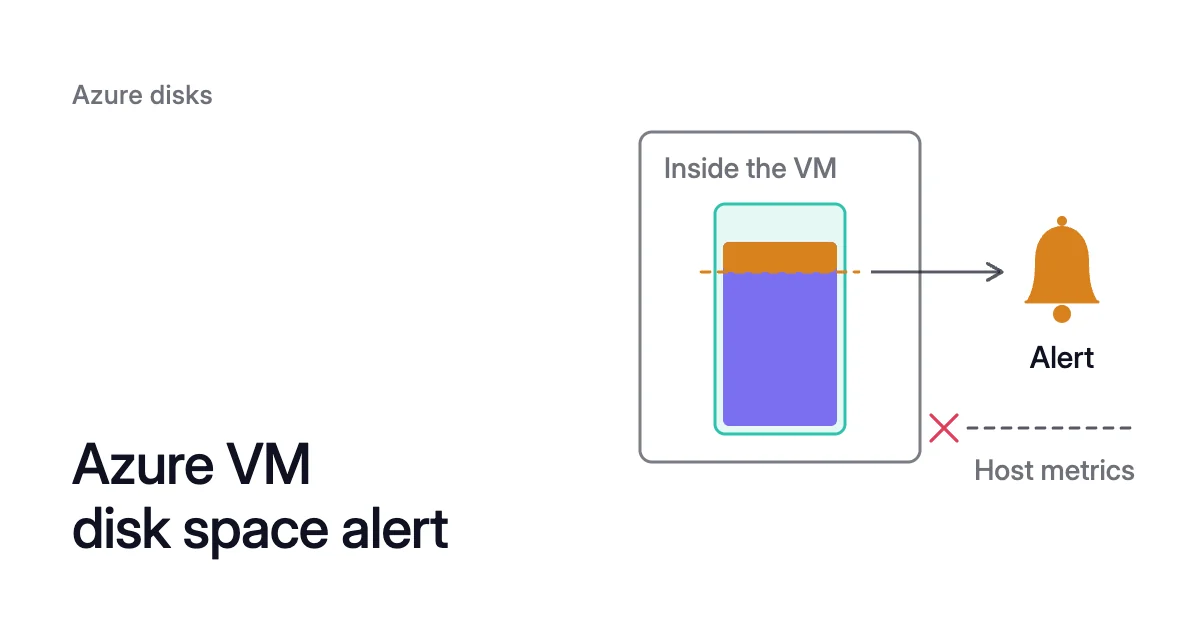
Short answer. An Azure VM disk space alert needs data that Azure Monitor Agent collects inside the VM, because host metrics never report free space. Turn on enhanced monitoring, then alert on system.filesystem.usage in a query-based metric alert (preview) or FreeSpacePercentage in a log search alert.
Azure VM disk space alert: host metrics can’t see free space
Picture a 32 GiB data disk mounted at /data on a VM. Azure Monitor collects host metrics for every VM without setup, but none of them says how much of those 32 GiB is still free.
Microsoft’s guide to VM alerts adds that virtual machines have no preconfigured alert rules. The recommended rules Azure can add when you turn on monitoring use host metrics, unless OpenTelemetry metrics are on. Until an alert rule reads data collected inside the guest, nothing warns you as /data fills.
The host metrics for disks report IOPS, throughput and latency, but never free space. The disk metrics include these, each split by LUN (the disk’s logical unit number):
- Data Disk IOPS Consumed Percentage
- Data Disk Latency
- Data Disk Queue Depth
- bytes and operations per second
Data Disk Used Burst IO Credits Percentage and Data Disk Used Burst BPS Credits Percentage sound closer than they are. Both count burst credits, not space. Nothing in Microsoft’s metric list for Microsoft.Compute/virtualMachines reports how full a filesystem is.
A managed disk is a block device, and Azure sees blocks being read and written. The filesystem that decides which blocks hold data runs in your guest operating system. Free space is a filesystem fact, so Azure VM disk space monitoring starts with an agent in the guest.
Azure Monitor Agent collects free space, under a different name per path
Azure Monitor Agent collects the data on Windows and Linux, and it’s the only agent this guide uses. It takes its instructions from a data collection rule (DCR). By default it samples performance counters every 60 seconds.
Each path names the free-space signal differently, which is why answers disagree about the counter:
| Path | Where the data lands | Free-space signal | Alert rule type |
|---|---|---|---|
OpenTelemetry metrics, Microsoft’s recommended experience | Azure Monitor workspace | system.filesystem.usage in bytes, with state free, reserved or used, per mountpoint | Query-based metric alert in PromQL, the Prometheus Query Language (preview) |
VM insights, logs-based (classic) | Log Analytics workspace, InsightsMetrics table | Namespace LogicalDisk, name FreeSpacePercentage | Log search alert in KQL, the Kusto Query Language |
A DCR you write | Log Analytics workspace, Perf table | Linux: Logical Disk(*)\% Free Space, and Free Megabytes from the same object. Windows: % Free Space and Free Megabytes in the LogicalDisk object, read per volume instance, since _Total covers all volumes together | Log search alert in KQL |
Starting fresh, take the first path. Microsoft recommends it, and its standard set of counters is collected at no cost.
Take the second path when your team already keeps VM data in a Log Analytics workspace. It also fits when you’d rather not depend on a preview alert type.
Both paths use the same names on Windows and Linux. So an Azure Linux VM disk space alert and a Windows one differ mainly in their mount names.
How to set up an Azure Monitor VM disk space alert on metrics
On the metrics path, the agent sends each mount’s usage in bytes to an Azure Monitor workspace. The rule is a query-based metric alert, in preview in October 2026.
Turn on collection and check the data
- Turn on collection. Open the VM in the Azure portal and select Monitor. If enhanced monitoring isn’t on yet, select Configure. Leave OpenTelemetry metrics selected, keep or choose the Azure Monitor workspace, then select Review + Enable and Enable.
- Wait for the agent. Within a few minutes, Azure installs Azure Monitor Agent. It also gives the VM a system-assigned managed identity if it has none.
- Check the data. Run a PromQL query scoped to the Azure Monitor workspace. The query
{"system.filesystem.usage", state="free"}should return a series for each mount point.
Create the metric alert rule
- Scope the rule. In Monitor, select Alerts, then Create and Alert rule. Scope it to the Azure Monitor workspace, so one rule covers every VM that sends metrics there. A rule scoped to a VM, resource group or subscription also works, but only after the workspace has resource-centric access turned on.
- Enter the query. For the signal, choose Custom PromQL query and enter this query. It returns each mount, on each VM, that has less than 10% free, and it leaves out tmpfs:
sum by ("Microsoft.resourceid", mountpoint) ({"system.filesystem.usage", state="free", type!="tmpfs"})
/
sum by ("Microsoft.resourceid", mountpoint) ({"system.filesystem.usage", type!="tmpfs"})
< 0.10- Set the timing. Under the alerting options, Check every sets how often the rule runs. Wait for sets how long the condition must hold before the alert fires. That way, a brief dip during a large write doesn’t page anyone.
- Add an identity and an action group. Give the rule a user-assigned managed identity, created beforehand with the Monitoring Reader role on the rule’s scope. Add an action group to send the email.
- The metric splits each filesystem’s bytes by state: free, reserved and used. So the query’s division gives the share of each filesystem that’s still free.
- The comparison on the query’s last line decides which mounts alert, so the condition stays a static threshold.
- The Wait for setting is the rule’s
forproperty, such as PT5M. - Keep the quotes around metric and label names that contain dots, such as
"Microsoft.resourceid"and"system.filesystem.usage".
Set an Azure VM alert on low disk space with a log search rule
The logs path builds the same Azure Monitor disk space alert from KQL instead of PromQL. Setup starts on the same Configure page: select the logs-based option and a Log Analytics workspace. VM insights then writes its counters to the InsightsMetrics table, and you can’t change which ones it collects.
Create the log search rule
- Create the rule. In Monitor, select Alerts, then Create and Alert rule. Set the scope to the Log Analytics workspace, so one rule covers every machine that reports to it.
- Enter the query. On the Condition tab, choose Custom log search and use Microsoft’s per-disk query:
InsightsMetrics
| where Origin == "vm.azm.ms"
| where Namespace == "LogicalDisk" and Name == "FreeSpacePercentage"
| extend Disk=tostring(todynamic(Tags)["vm.azm.ms/mountId"])
| summarize LogicalDiskSpacePercentageFreeAverage = avg(Val) by bin(TimeGenerated, 15m), Computer, _ResourceId, Disk
- Measure the average. Under Measurement, set Measure to
LogicalDiskSpacePercentageFreeAverageand Aggregation type to Average. Set Aggregation granularity to 15 minutes, to match the query’s bin. - Split by machine and mount. Under Split by dimensions, leave Resource ID column at Don’t split. Add
ComputerandDisk, and select Include all future values. Each mount on each machine then raises its own alert, including machines added later. - Set the threshold. Under Alert logic, use a static threshold, an operator of less than, and a value of 10. Set Frequency of evaluation to 15 minutes to match the query’s bin. It can be anything from one minute to one day.
- Add the action and auto-resolve. Add an action group on the Actions tab. On the Details tab, set the severity and select Automatically resolve alerts. The alert then closes once space comes back.
What a log search rule costs
The rule’s price depends on its type, its dimensions and how often it runs. Each Computer and Disk pair is its own time series. Microsoft’s docs say each one “triggers its own alert and is charged separately.”
A 1-minute frequency sees a fast fill sooner than a 15-minute one, so weigh that against the price. Read the Alert rules section of the Azure Monitor pricing page before one rule spreads across hundreds of VMs.
How to pick a disk space alert threshold
A percentage treats every disk alike, so one rule can page far too early on a large disk and too late on a small one.
The same rule pages with 409.6 ÷ 3.2 = 128 times as much room left on the large disk. That’s more than the small disk’s whole 32 GiB.
Pair the percentage with a floor in bytes. On the metrics path, that’s a second rule comparing {"system.filesystem.usage", state="free"} with your floor, since that metric is already in bytes. On the logs path, it’s a second log search rule on Free Megabytes, collected by a DCR you write.
A fixed threshold also can’t tell how fast a disk is filling. Whether the mount took a month or an hour to get there, the rule fires at the same level. Evaluation frequency then sets how long a fast fill runs before anyone hears about it.
What to do when the alert fires
Find what grew before you add space. Each step has its own page:
- Checking Azure VM disk usage covers the queries and commands that find it.
- df vs du explains why two space checks on one mount can disagree.
- Expanding an Azure disk without downtime covers growing the disk, its partition and its filesystem.
- The Azure disk pricing calculator shows what a larger disk would cost a month.
- Can you shrink an Azure managed disk? covers the way back down.
When Amoeba adds space on its own
Amoeba by Zoorik optimizes block storage on Azure and AWS. It works on the data disks of running Windows and Linux VMs, and never touches the OS disk.
Amoeba moves a VM’s data disks onto one btrfs pool sized to your data, with room to grow. It copies your data while your services run. Then it switches each mount to the pool, with a short restart of the services that use it.
After the move, Amoeba rightsizes the pool:
- It grows the pool before it fills, and sooner when data arrives fast. That covers the fill rate a fixed threshold can’t see.
- It grows the pool’s disks or adds new ones while the pool stays mounted.
- When your data goes down and stays down, it shrinks the pool one disk at a time.
So the disks no longer need to be sized ahead for growth you expect, and you pay for close to what you use.
Keep your alert as a backstop. Amoeba works on data disks only, so the OS disk still needs one.
On a Linux VM, a logs-path backstop can’t see the pool. The pool is btrfs, and VM insights reports data disks only on XFS and ext. Amoeba also can’t grow a pool while its agent is disconnected, or after you remove Zoorik’s role.
On Linux, the VM needs a recent kernel with btrfs. Every service that keeps a data mount open must run under systemd. The VM also needs a few free disk slots for the pool.
The page on Azure managed disk cost optimization covers Amoeba on Azure in full.
Sources: Microsoft Learn, “Monitor virtual machines with Azure Monitor: Alerts” (opens in a new tab); Microsoft Learn, “Supported metrics - Microsoft.Compute/virtualMachines” (opens in a new tab); Microsoft Learn, “Enable enhanced monitoring for an Azure virtual machine” (opens in a new tab); Microsoft Learn, “OpenTelemetry Guest OS Metrics reference” (opens in a new tab); Microsoft Learn, “Analyze the health and status of your virtual machine with Azure Monitor” (opens in a new tab); Microsoft Learn, “PromQL for system metrics and Guest OS performance counters” (opens in a new tab); Microsoft Learn, “Create Query-Based Metric Alerts (Preview)” (opens in a new tab); Microsoft Learn, “Create Azure Monitor log search alert rules” (opens in a new tab).