Published 1 November 2026 · By Vineet (opens in a new tab), Infrastructure engineer, Zoorik · Published by Zoorik
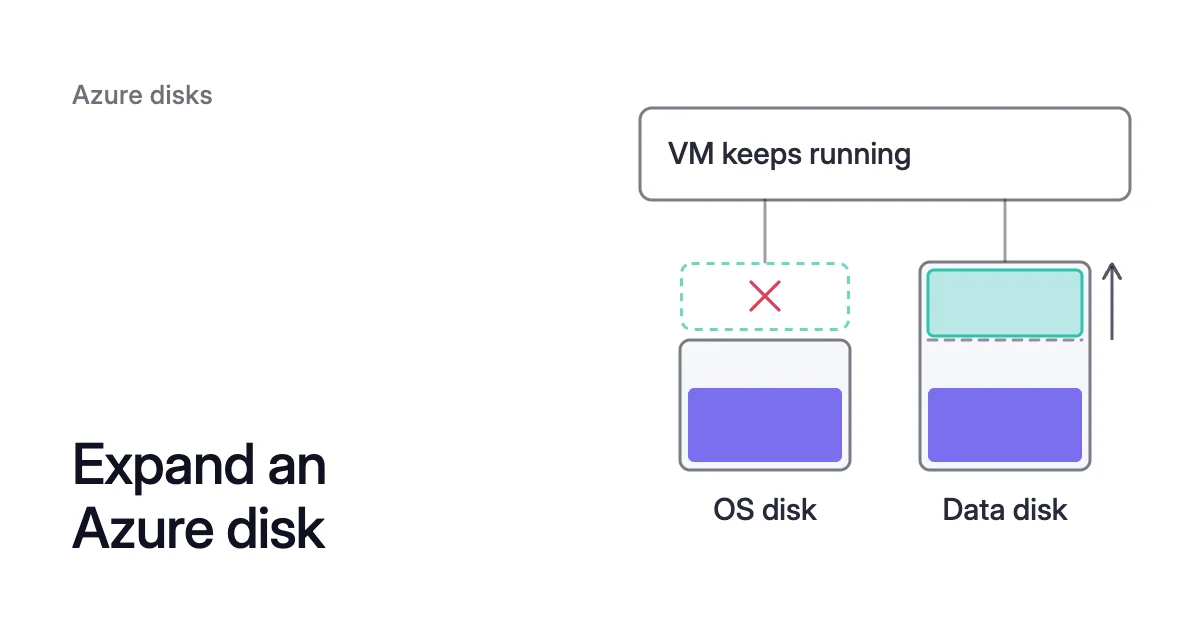
Short answer. You can expand most Azure managed data disks without downtime: resize in Azure, rescan the device, then grow the partition and filesystem. OS disks, shared disks and Standard HDD, Standard SSD or Premium SSD crossing 4 TiB need downtime, and you keep paying for the new size.
Azure disk expand without downtime: what qualifies
Picture a 512 GiB Premium SSD data disk at /datadrive, nearly full, on a VM whose application keeps writing. You can make it 1,024 GiB without stopping either one. When the data shrinks again, you still pay for 1,024 GiB.
The work happens at four layers: the managed disk, the device Linux sees, the partition and the filesystem. Each keeps its old size until its own step runs.
Microsoft calls expanding a disk without deallocating the VM “Expand without downtime”. The disk’s host cache setting doesn’t affect it. Whether you can expand a disk in Azure without downtime depends on its type and size, the VM size and your tool.
| Disk or situation | Expand while the VM runs? | What it takes |
|---|---|---|
Data disk on Standard HDD, Standard SSD or Premium SSD, ending at 4 TiB or less | Yes | A VM size that supports it, and the latest Azure CLI, Azure PowerShell, the portal, or an ARM template with API version 2021-04-01 or newer |
The same disk types, growing from 4 TiB or less to more than 4 TiB | No | Deallocate the VM and detach the disk first |
The same disk types, already larger than 4 TiB | Yes | As the first row |
Premium SSD v2 or Ultra Disk, any size | Yes, including disks on NVMe controllers | No expand while a background copy of data is running on the disk |
Shared disk (maxShares above 1) | No | Detach it from every VM, or deallocate every VM it’s attached to |
OS disk | No | Deallocate the VM |
Microsoft’s troubleshooting guide says which VM sizes support the feature. They include sizes with Premium Storage capability, ephemeral OS disk support or Hyper-V Generation 2.
The troubleshooting guide has a PowerShell script that lists the qualifying sizes in a region. For a data disk on any other size, the guide’s fallback keeps the VM running but not the disk:
- Stop what uses the disk.
- Unmount it and remove its
/etc/fstabline, per Microsoft’s detach guide. - Detach the disk, resize it, then reattach and remount it.
How to increase disk size in Azure
Find the disk
On a Linux VM with several data disks, first match the mount that’s filling up to its device. Then match the device to its Azure logical unit number (LUN):
$ df -Th
$ sudo ls -alF /dev/disk/azure/scsi1/
In Microsoft’s example, /dev/sdd1 holds a 98% full /opt/db/data. The lun1 -> ../../../sdd line shows it’s the disk at LUN 1 in the portal.
NVMe controllers name disks differently. There a data disk shows up as a path such as /dev/nvme0n2. The command sudo azure-nvme-id, from the azure-vm-utils package, prints its LUN.
Resize the managed disk
In the portal, open the VM and select Disks. Select the disk, then Size + performance, pick the larger size and select Resize. With the Azure CLI, it’s one command:
$ az disk update \
    --resource-group <resource-group> \
    --name <disk-name> \
--size-gb <new-size-gb>The new size has to be larger than the current one. On Premium SSD, Standard SSD and Standard HDD, the price follows the disk’s size tier. Azure maps the provisioned size, rounded up, to the nearest offered size.
Premium SSD v2 is different. It grows in 1 GiB increments and charges for each GiB you provision. Our Azure disk pricing calculator shows what a managed disk costs a month at list price.
You gain 600 − 512 = 88 GiB of space, but the size you pay for doubles. Setting 1,024 GiB costs the same and gives you 1,024 − 600 = 424 GiB more. That’s why the opening goes straight to 1,024 GiB.
Resize the disk without a reboot: rescan the device
Linux keeps reporting the old size until the device is rescanned. That normally happens only at boot, but you can trigger the rescan yourself.
The commands below use /dev/sdc, the LUN 0 disk in Microsoft’s example. Use your own device:
$ sudo fdisk -l /dev/sdc
$ echo 1 | sudo tee /sys/class/block/sdc/device/rescan
$ sudo fdisk -l /dev/sdc
The first line of the second fdisk output should show the new size. The partition inside still shows its old size.
Microsoft’s rescan example is for an sd (SCSI) device, and the expand guide gives no NVMe rescan command.
On Ultra Disks and Premium SSD v2, Microsoft says to allow up to 10 minutes for the new size to show. A rescan made sooner may need repeating. If repeated rescans don’t show it, Microsoft’s fallback is a VM restart, which is downtime.
How to expand a data disk on a Linux VM: partition, then filesystem
/datadrive stays mounted through every step below.
- Grow the partition.
growpartexpands the partition you name into the free contiguous space after it. With the gdisk package, it also handles GPT disks, which older versions of fdisk didn’t support. On Red Hat images, it comes in thecloud-utils-growpartpackage, preinstalled on most marketplace images.
$ sudo growpart /dev/sdc 1
- Grow the filesystem. Use the tool that matches the Type column of
df -Th. An XFS filesystem must be mounted to be grown, soxfs_growfstakes its mount point. For ext4,resize2fstakes the device and grows the filesystem while it’s mounted. Linux kernels have supported that for ext3 and ext4 since the 2.6 series.
$ sudo xfs_growfs /datadrive    # XFS
$ sudo resize2fs /dev/sdc1      # ext4
- Check that the filesystem now shows the larger size.
$ df -Th /datadrive
If the partition holds a Logical Volume Manager (LVM) physical volume, run sudo pvresize /dev/sdc1 after growpart. Then grow the logical volume with lvresize -r, which resizes its filesystem in the same step. Microsoft’s example adds 10 GB with lvresize -r -L +10G /dev/mapper/rootvg-rootlv.
Nothing was unmounted and no service stopped. These steps resize an Azure disk without downtime for any data disk in the table’s first, third or fourth row. The VM size must support it too.
Can you expand the OS disk without downtime?
Not by Microsoft’s expand guide, which says expanding without downtime “is supported only for data disks.”
The troubleshooting guide mentions OS disk live resize on supported VM sizes and storage types. For the requirements, it points back to the expand guide.
Plan this expand as a maintenance window. The whole VM is down from step 2 to step 4.
- Take a full VM backup, or at least an OS disk snapshot, as Microsoft recommends.
- Deallocate the VM with
az vm deallocate. Stopping it withaz vm stopwon’t do, because that doesn’t release the compute resources. - Resize the OS disk with
az disk update. - Start the VM with
az vm start. - Grow the root partition and filesystem. On Ubuntu 16.x and newer, cloud-init grows them into the new space at boot. On SUSE and Red Hat images, run
growpart, thenxfs_growfsorresize2fs. Where the root sits on LVM, followgrowpartwithpvresizeandlvresize -r.
The OS disk tops out at 4,095 GiB. Many operating systems partition it with MBR by default, which caps the usable space at 2 TiB. For more, Microsoft’s advice is to attach data disks, which you can also expand while the VM runs.
Why you keep paying for the new size
A managed disk is charged on its provisioned size, prorated hourly, however much data you’ve written to it. And the size only goes one way. Microsoft’s expand guide says shrinking an existing disk “isn’t supported and might result in data loss.”
So an expand for a one-off peak, such as a bulk import or a migration, keeps costing you after the data goes. Three habits reduce what growth costs:
- Grow in whole tiers. On Premium SSD, Standard SSD and Standard HDD, set the full size of the tier you’ll pay for. Premium SSD v2 charges per GiB, so add only what you need.
- Change the performance tier for IOPS. If a Premium SSD needs IOPS rather than space, raise its tier: a P20’s gives 2,300 IOPS and a P30’s 5,000. You pay the higher tier’s rate while it’s set. Unlike a larger size, the tier can step back down to the baseline later. Microsoft allows one downgrade per 12 hours, and most tier changes need no downtime. Azure disk performance tiers covers the rules.
- Grow when the disk fills. A data disk expands while the VM runs. So a disk space alert plus this procedure lets you buy less headroom up front.
Getting the space back means a copy onto a smaller disk. The services on that mount stop for the switch, as shrinking an Azure managed disk walks through. Measure used against provisioned space before you decide.
For the other ways to reduce what managed disks cost, see Azure disk cost optimization.
How Amoeba expands a pool as it fills
Amoeba optimizes block storage on Azure and AWS. The steps above leave one disk at a fixed size, and you run them again each time it fills. Amoeba keeps a VM’s data in one pool instead, and rightsizes that pool as your data changes.
What Amoeba does with your data disks
- What it works on. The data disks of running Windows and Linux VMs. It never touches the OS disk.
- The pool. It moves a VM’s data disks onto one btrfs pool sized to your data, with room to grow. On Azure the pool uses Premium SSD v2 where your VM’s region and zone offer it, and Premium SSD otherwise.
- The move. Amoeba copies your data while your services run. Then it switches each mount to the pool, with a short restart of the services that use it. If the switch fails, it puts the original mounts back and tries again.
- Growing. It grows the pool before it fills, and sooner when data arrives fast. It grows the pool’s disks or adds new ones while the pool stays mounted. You run no rescan, growpart or filesystem step.
- Shrinking. When your data goes down and stays down, it shrinks the pool one disk at a time. So you pay for close to what you use.
- The old disks. Once the switch is checked, Amoeba snapshots each old disk and deletes the disk. It keeps each snapshot for a few days, then deletes it too.
What you give up, and what a VM needs
You pay for both sets of disks only while the move runs, and then for the snapshots while they’re kept. Data on zone-redundant (ZRS) disks moves to a locally redundant pool and loses its zone redundancy.
On Linux, the VM needs a recent kernel with btrfs. Every service that keeps a data mount open must run under systemd. The VM also needs a few free disk slots for the pool.
The page on Azure managed disk cost optimization covers Amoeba on Azure in full.
Sources: Microsoft Learn, “Expand Virtual Hard Disks on a Linux VM” (opens in a new tab); Microsoft Learn, “Expand Virtual Hard Disks Attached to a Windows VM in Azure” (opens in a new tab); Microsoft Learn, “Troubleshoot Azure VM disk resize errors” (opens in a new tab); Microsoft Learn, “Select a disk type for Azure IaaS VMs - managed disks” (opens in a new tab); Microsoft Learn, “Performance tiers for Azure Premium SSD managed disks” (opens in a new tab); Microsoft Learn, “Detach a data disk from a Linux VM - Azure” (opens in a new tab); man7.org, “resize2fs(8) - Linux manual page” (opens in a new tab); man7.org, “xfs_growfs(8) - Linux manual page” (opens in a new tab).