Published 1 November 2026 · By Swapna Nanda (opens in a new tab), Guest author · Infrastructure engineer at Salesforce · Published by Zoorik
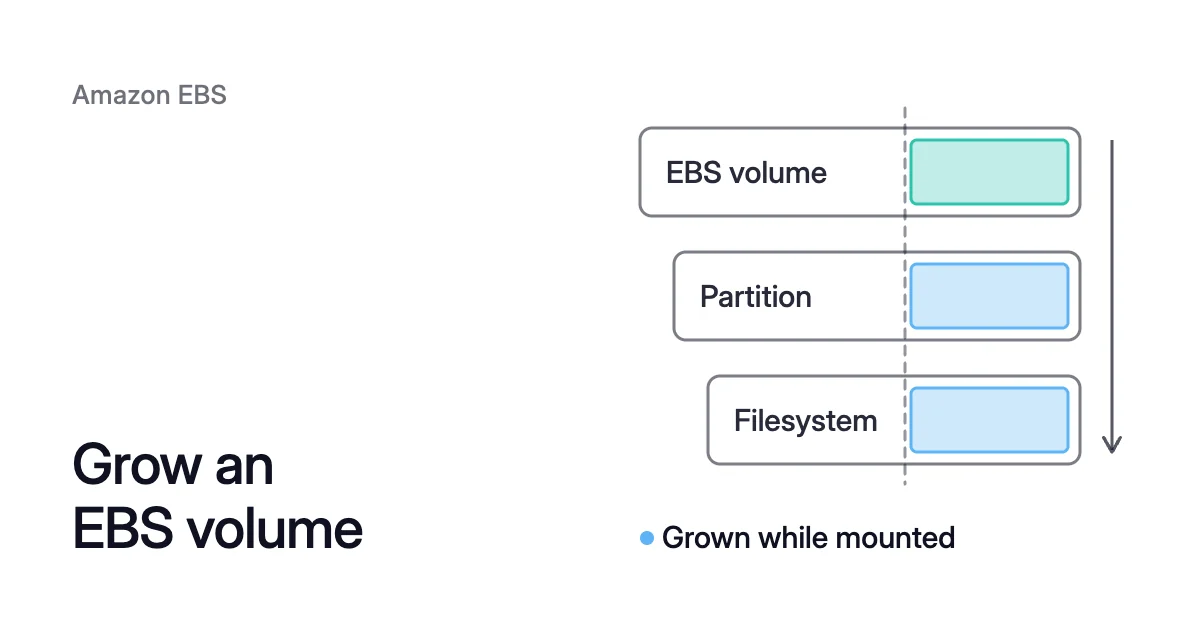
Short answer. You can increase EBS volume size without downtime on any current-generation EC2 instance, but you can’t shrink the volume again. Raise the size with Elastic Volumes, wait for the optimizing state, then grow the partition (growpart) and filesystem (xfs_growfs or resize2fs) while mounted.
When you can increase EBS volume size without downtime
Picture a 500 GiB data volume at /data on a running EC2 instance, too small for an import due tomorrow. You can grow it to 1,000 GiB while the application keeps writing. You then pay for 1,000 GiB from that day on.
Elastic Volumes is AWS’s name for changing an Amazon Elastic Block Store (EBS) volume in place. On an instance that supports it, a volume can grow, change type or change its performance. AWS says this works “without detaching the volume or restarting the instance,” and root volumes grow this way too.
Growing a volume is two jobs. EBS grows the block device, and you extend the partition and filesystem inside the instance, which keep their old size until you do.
Whether it works without a stop depends on your instance type and volume:
| Situation | Without downtime? | What it takes |
|---|---|---|
Any current-generation instance type | Yes | Elastic Volumes, then grow the partition and filesystem |
Previous-generation C1, C3, C4, G2, I2, M1, M3, M4, R3 or R4 | Yes | The same steps. AWS notes that m3.large, m3.xlarge and m3.2xlarge might not support every modification feature |
Any other previous-generation type, or a modification that returns an error | No | Data volume: detach it, modify it, attach it again. Root volume: stop the instance, modify the volume, start the instance |
Volume attached before 3 November 2016, 23:40 UTC | Not the first time | Detach and attach the volume, or stop and start the instance, once, to initialize Elastic Volumes support |
Root volume on an AMI with MBR partitioning | Up to 2 TiB (2,048 GiB) | Linux AMIs need a GUID partition table (GPT) and GRUB 2 to boot from a volume of 2 TiB or more. Data volumes don’t have this boot limit, but no volume can grow past what its partitioning scheme and filesystem support |
Every modification follows four rules:
- Up only. AWS doesn’t let you decrease a volume’s size.
- No cancel. A submitted request can’t be cancelled, so check the number before you confirm.
- One at a time. Each modification must reach
completedbefore the next can start, and a volume takes at most four in a rolling 24-hour period. If it fills again before the first one completes, you can’t grow it a second time. So add enough the first time. - Charged at once. You pay for the new size as soon as the modification starts.
How to modify EBS volume size
1. Find the volume ID
To increase EBS volume size on an EC2 instance, work from the volume’s ID. On instances built on the Nitro System, EBS volumes appear as NVMe devices named /dev/nvme<x>n1.
Those numbers follow the order the devices answered at boot, which can change between starts. The ID is stable, and an NVMe EBS volume carries it as its serial number. Xen instances use names such as /dev/xvdf.
$ df -hT
$ sudo lsblk -o +SERIAL
df -hT shows which device holds the mount that’s filling up, and its filesystem type. Then lsblk -o +SERIAL puts the volume ID next to that device.
2. Take a snapshot
AWS calls a snapshot a best practice for any volume that holds valuable data, in case you need to roll back.
3. Request the new size
In the EC2 console, open Volumes, select the volume and choose Actions, Modify volume. Enter the new value under Size, choose Modify, and confirm. With the AWS Command Line Interface (CLI), one command does it, with the size in GiB:
$ aws ec2 modify-volume \
    --volume-id <volume-id> \
--size <new-size-GiB>The response shows OriginalSize, TargetSize and a ModificationState of modifying.
4. Wait for the optimizing state
A modification moves through three states: modifying, optimizing and completed. The size increase takes effect at optimizing, which usually takes a few seconds, and from then on, AWS says, you can extend the filesystem.
Don’t wait for completed. The whole modification can take from a few minutes to a few hours, and AWS says a 1 TiB volume can take up to six.
Check where it stands with:
$ aws ec2 describe-volumes-modifications \
--volume-ids <volume-id>While the volume is optimizing, its performance doesn’t drop below the old configuration’s. If you’d rather not poll, Amazon EventBridge can notify you of modification events.
Rarely, a transient AWS fault ends a modification in a failed state. AWS says that isn’t a sign of trouble with the volume. Retry it.
How to extend an EBS volume in Linux
With the larger device in place, run lsblk and compare the sizes. In AWS’s example on a Nitro instance, the root volume nvme0n1 holds two partitions, nvme0n1p1 and nvme0n1p128. Beside it, a 30 GiB data volume, nvme1n1, is mounted at /data with no partition at all.
5. Grow the partition, if there is one
A data volume formatted as a whole device skips this step. Where the partition is smaller than the volume, grow it with growpart.
Give it the device and the partition number, with a space between them. For nvme0n1p1, that number is 1:
$ sudo lsblk
$ sudo growpart /dev/nvme0n1 1
$ sudo lsblk
The second lsblk should show the partition at the volume’s size.
6. Grow the filesystem
Use the command for the filesystem type df -hT reports. For XFS, xfs_growfs takes the mount point.
For ext4, resize2fs takes the device name that df -hT shows for it. That’s /dev/nvme1n1 for a filesystem on the whole volume, or /dev/nvme0n1p1 for one on a partition:
$ sudo xfs_growfs -d /data         # XFS
$ sudo resize2fs /dev/nvme1n1      # ext4
$ df -hT
Both commands grow the filesystem while it’s mounted, so the application on /data keeps reading and writing throughout. You’re done when df -hT shows the filesystem as large as the volume.
If the volume holds Logical Volume Manager (LVM) logical volumes, the last step differs, and AWS says you must extend the logical volume with LVM.
When a layer doesn’t grow
Three messages tell you which layer didn’t move:
| Message | From | Means | Then |
|---|---|---|---|
No space left on device | growpart, as it makes a directory under /tmp | Not enough free space for its temporary files | Free some space and run it again |
NOCHANGE: partition 1 is size <n>. it cannot be grown | growpart | The partition already fills the volume | Check that the modification succeeded |
data size unchanged, skipping or The filesystem is already <n> blocks long | xfs_growfs or resize2fs | The filesystem already fills what’s under it | Check the modification, then check that you grew the partition |
Can you auto expand EBS volumes?
Not out of the box. EBS has no reading of how full your filesystem is. An AWS Storage Blog post on automating the job notes that this figure comes only from the operating system.
So any auto expand is a pipeline you build around Elastic Volumes. In that post’s design, a monitor on the instance alerts at 80% of capacity. AWS services then add 20% to the volume, and a local script grows the partition with growpart and extends the filesystem.
For the usage reading, the post names the Amazon CloudWatch agent as AWS’s option. The guide to checking EBS volume usage shows how to collect it.
- It checks that the instance is eligible.
- It maps the mount point to its volume ID, with a script run through AWS Systems Manager.
- It takes a snapshot, if you chose one.
- It has a Lambda function make the modification.
Systems Manager then runs the grow script.
The post dates from 2019, when a volume could be modified once every six hours. Today’s limit of four in a rolling 24 hours lets a volume that fills fast grow several times a day.
Say each adds 20% of the size at the time. A 500 GiB volume that triggers four times in one day then ends that day at about 1,037 GiB (500 × 1.2⁴), more than double.
The post itself warns that leaving the root cause alone can add storage cost as volumes keep expanding. Give the automation a size ceiling where it stops and pages a person.
Why you keep paying for the bigger size
EBS charges for capacity, not data. AWS’s pricing page says volume storage is charged by the GB you provision per month, until you release the storage. With the one-way rule on size, every time you expand an EBS volume, you set a new floor for its cost.
Back to the volume from the opening. You grow it to 1,000 GiB to land the import. A week later, the staging files are deleted and 450 GiB of data remains.
You keep paying for 1,000 GiB every month.
Say it’s a gp3 volume in that Region. Its storage went from 500 × $0.08 = $40 to 1,000 × $0.08 = $80 a month. Of that, 550 × $0.08 = $44 pays for empty space.
Rates vary by Region and change. The EBS pricing calculator shows what a volume costs a month at list price, and what its empty space costs.
Getting the space back means shrinking the volume by hand, in three steps:
- Create a smaller volume.
- Copy the data with a tool such as rsync.
- Switch the mount, with its services stopped.
Two habits keep growth from setting your cost:
- Grow when the volume fills, not months ahead. The new space is usable within seconds, and four modifications a day leave room for smaller steps.
- Change the performance when you need speed. Elastic Volumes can change IOPS on gp3, io1 and io2 volumes, and throughput on gp3, without adding a GiB. The new figures must stay within the volume type’s limits. EBS Elastic Volumes covers type and performance changes in full.
How Amoeba expands a pool as it fills
Amoeba optimizes block storage on Azure and AWS. The steps above leave one volume at a fixed size. Amoeba keeps an instance’s data in one pool instead, and rightsizes that pool as your data changes.
What Amoeba does with your volumes
- What it works on. The data volumes of running EC2 instances, and the managed data disks of Azure VMs. It never touches the root volume or OS disk.
- The pool. It moves an instance’s EBS data volumes onto one btrfs pool sized to your data, with room to grow. On AWS the pool uses gp3.
- The move. Amoeba copies your data while your services run. Then it switches each mount to the pool, with a short restart of the services that use it. If the switch fails, it puts the original mounts back and tries again.
- Growing. It grows the pool before it fills, and sooner when data arrives fast. It enlarges the pool’s volumes or adds new ones while the pool stays mounted, with no growpart or filesystem step on your side.
- Shrinking. When your data goes down and stays down, it shrinks the pool one volume at a time. So your cost stays close to what you use.
- The old volumes. Once the switch is checked, Amoeba snapshots each old volume and deletes it. It keeps the snapshot for a few days, then deletes that too.
- Cost during the move. You pay for both sets of volumes only while the move runs, and then for the snapshots while they’re kept.
What an instance needs
Amoeba works on Windows and Linux instances. Each instance needs a few things:
- On AWS: the instance must be running and managed by AWS Systems Manager, with its SSM agent connected. It must be a Nitro type that exposes EBS as NVMe. It needs at least one EBS data volume and a few free attachment slots for the pool.
- On Linux: a recent kernel with btrfs. Every service that keeps a data mount open must run under systemd.
The page on EBS cost optimization covers Amoeba on AWS in full, from onboarding to what each instance needs.
Sources: AWS, “Modify an Amazon EBS volume using Elastic Volumes operations” (opens in a new tab); AWS, “Requirements for Amazon EBS volume modifications” (opens in a new tab); AWS, “Request Amazon EBS volume modifications” (opens in a new tab); AWS, “Monitor the progress of Amazon EBS volume modifications” (opens in a new tab); AWS, “Extend the file system after resizing an Amazon EBS volume” (opens in a new tab); AWS, “Map Amazon EBS volumes to NVMe device names” (opens in a new tab); AWS Storage Blog, “Automating Amazon EBS volume resizing with AWS Step Functions and AWS Systems Manager” (opens in a new tab); AWS, “Amazon EBS pricing” (opens in a new tab).