Published 1 November 2026 · By Vineet (opens in a new tab), Infrastructure engineer, Zoorik · Published by Zoorik
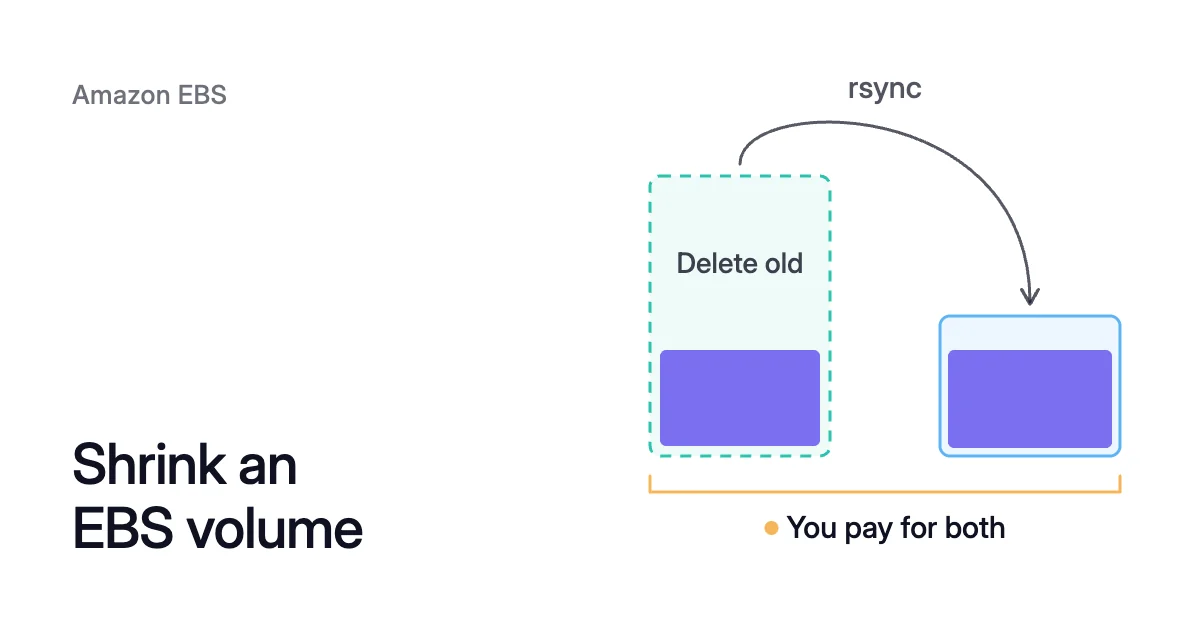
Short answer. You can’t shrink an Amazon Elastic Block Store (EBS) volume in place, so you keep paying for its old size. To reduce EBS volume size, copy the data to a smaller volume with rsync, move the mount and delete the old one.
Why you keep paying for the size you provisioned
Picture a 1,000 GiB data volume of gp2, the older General Purpose SSD type, that now holds 90 GiB. You pay for all 1,000 GiB, 910 of them empty, while a 100 GiB volume would hold the data with 10 GiB to spare.
An EBS volume is charged for capacity, not data. Volume storage “is charged by the amount of GB you provision per month until you release the storage,” says the pricing page. The EBS pricing calculator shows what a volume’s empty space costs a month at list price.
Volumes grow for ordinary reasons, such as a bulk import. Elastic Volumes, AWS’s name for changing a volume in place, can increase its size, change its type or adjust its performance. You then extend the filesystem to use the new space.
When the data shrinks again, the provisioned size stays. Detaching the volume doesn’t stop the charge either. AWS keeps charging for a detached volume’s storage, beyond the Free Tier, until you delete it.
Before you plan a shrink, measure how full each volume really is from inside the instance.
Can you reduce EBS volume size in place?
No. An attached EBS volume reaches the instance as a block device. The filesystem on it can place data in any block, including the last ones.
Removing the end of the device, such as everything past 100 GiB on the example volume, removes part of the filesystem. Only the operating system on the instance can move data away from the end first.
“You must increase the volume size. You can’t decrease the volume size,” says the Elastic Volumes limitations list. The same page names the way out: create a smaller volume and migrate the data with an application-level tool such as rsync.
Two shortcuts look promising and don’t get you there:
- Restoring from a snapshot. A volume restored from a snapshot can’t be smaller than the snapshot. The create-volume command accepts only “a volume size that is equal to or larger than the snapshot size.”
- Shrinking the filesystem first. It doesn’t change what you pay, because the volume under it keeps its provisioned size. Whether a filesystem can shrink at all has its own pages, for XFS and for ext4 with resize2fs.
How to shrink an EBS volume: copy to a smaller one
Use this route for a data volume on a Linux instance, mounted at /data in the example.
Prepare the new volume
- Take a snapshot of the old volume, as AWS recommends before you unmount a volume, to guard against data loss. You pay for snapshot storage by the space your data uses, not by the volume’s size.
- Choose the new size: the data you measured, plus the headroom you want for growth.
- Create an empty gp3 volume in the instance’s Availability Zone, since a volume attaches only to instances in its own zone. The AWS Command Line Interface (CLI) creates gp2 when you leave out
--volume-type, so name the type.$ aws ec2 create-volume \ --volume-type gp3 \ --size <new-size-GiB> \ --availability-zone <instance-availability-zone>If the old volume is encrypted, add
--encrypted. Add--kms-key-id <key-id>too if it uses a customer managed key in AWS Key Management Service (KMS). The CLI accepts a key only with--encrypted. - Attach the new volume to the instance. On the instance,
lsblkshows it with the size you chose and no mount point. On Nitro System instances it appears as an NVMe device such asnvme2n1, whose name can differ from the one you gave when attaching. - Create a filesystem on the new device and mount it at a temporary path. The
mkfscommand erases whatever is on the device you name. Check the name againstlsblkbefore you run it.$ sudo mkfs -t xfs /dev/<new-device> $ sudo mkdir /mnt/new $ sudo mount /dev/<new-device> /mnt/new
Copy, then switch
- Copy the data while the application runs. In the command,
-ais archive mode. Adding-H,-Aand-Xkeeps hard links, access control lists (ACLs) and extended attributes, which archive mode leaves out.$ sudo rsync -aHAX /data/ /mnt/new/
The trailing slash on
/data/copies the directory’s contents rather than the directory itself. - Stop every service that writes to
/data, which is where the downtime starts. - Run rsync again with
--delete, which removes files from/mnt/newthat were deleted from/dataafter the first pass. Because it deletes on the receiving side, a swapped source and destination would delete from the old volume. The rsync manual suggests a trial run with--dry-runfirst, and-vmakes that run show what it would do.$ sudo rsync -aHAXv --delete --dry-run /data/ /mnt/new/ $ sudo rsync -aHAX --delete /data/ /mnt/new/
- Move the mount. Unmount both, back up
/etc/fstab, find the new filesystem’s universally unique identifier, or UUID, withblkid, and point the/dataline at it. Keepnofail, which lets the instance boot even if the volume fails to mount.$ sudo umount /mnt/new $ sudo umount /data $ sudo cp /etc/fstab /etc/fstab.orig $ sudo blkid # the /data line in /etc/fstab becomes: # UUID=<new-uuid> /data xfs defaults,nofail 0 2 $ sudo mount -a
An error in
/etc/fstabcan leave the instance unable to boot, so test withmount -abefore any reboot. - Start the services again and check that they read and write on the new volume, which ends the downtime.
Remove the old volume
- When you trust the new volume, detach the old one. Step 9 already unmounted it, which AWS requires before a detach.
$ aws ec2 detach-volume --volume-id <old-volume-id>
- Delete the old volume. AWS can’t delete a volume while it’s attached, so check that its state reads
availablefirst. AWS says a deleted volume’s data is gone. Keep the snapshot until you’re sure.$ aws ec2 describe-volumes --volume-id <old-volume-id> --query 'Volumes[*].State' --output text $ aws ec2 delete-volume --volume-id <old-volume-id>
If a Recycle Bin retention rule matches the volume, AWS keeps it in the Recycle Bin instead of deleting it at once.
What the copy costs you
You pay for the copy in four ways:
- Downtime. Every service on that mount is down from step 7 to step 10. The rsync quick check skips files whose size and modification time match. So the final pass copies only new and changed files, but it still checks every file.
- Paying for both. You pay for both volumes from step 3, where you create the new one, to step 12, where you delete the old one.
- A new fixed size. When the data grows, you grow the volume again. When it shrinks, you copy it all again.
- More downtime for a root volume. AWS requires you to stop the instance before you detach its root volume. So the whole instance is down, not one mount.
On gp2, a smaller volume is a slower one
Watch performance if the old volume is gp2, because gp2 performance follows size. Its baseline is 3 input/output operations per second (IOPS) per GiB, with a minimum of 100. A 1,000 GiB volume gets 3,000 IOPS, while a 100 GiB one gets 300 and bursts to 3,000 only while its I/O credits last.
Throughput on gp2 scales too, from 128 MiB/s at 170 GiB and below to 250 MiB/s at 334 GiB and above.
By contrast, gp3 includes 3,000 IOPS and 125 MiB/s at any size. IOPS or throughput above those levels costs extra. AWS also prices gp3 20 percent below gp2 per GiB, as the gp2 and gp3 comparison explains.
The gp3 volume keeps the 3,000 IOPS baseline, where gp2 at that size would get 3 × 100 = 300. Its throughput goes from gp2’s 250 MiB/s to the 125 MiB/s that gp3 includes.
Can you resize an EBS volume with no downtime?
In one direction. Increasing the size with Elastic Volumes needs no detach and no restart on a supported instance. A size increase takes effect when the modification reaches the optimizing state, which AWS says usually takes a few seconds.
You can modify a volume up to four times in a rolling 24-hour period, each one after the last has completed. The steps for growing a volume while it stays mounted have their own page. So does what else Elastic Volumes can change.
A shrink always needs the copy, and its downtime from step 7 to step 10.
How Amoeba rightsizes EBS data volumes
Amoeba optimizes block storage on Azure and AWS. On AWS it makes the copy above once, onto a pool of volumes, then rightsizes that pool autonomously. Amoeba works on the data volumes of running Windows and Linux instances, and never touches the root volume.
- The pool. Amoeba moves the instance’s EBS data volumes onto one btrfs pool sized to your data, with room to grow. On AWS the pool uses gp3 volumes in the instance’s Availability Zone.
- The move. Amoeba copies your data while your services run. Then it switches each mount to the pool, with a short restart of the services that use it. If the switch fails, it puts the original mounts back and tries again.
- The old volumes. Once the switch is checked, Amoeba snapshots each old volume and deletes the volume. Amoeba keeps each snapshot for a few days, then deletes it too.
- Rightsizing. Amoeba grows the pool before it fills, and sooner when data arrives fast. When your data goes down and stays down, it shrinks the pool one volume at a time. So you pay for close to what you use. Shrinks run on their own in “Auto”, or when you start them in “Manual”.
You pay for both sets of volumes only while the move runs, and then for the snapshots while they’re kept.
What the instance needs
On AWS, the instance must be managed by AWS Systems Manager, with the SSM agent connected. It must be a Nitro type that exposes EBS as NVMe, with a few free attachment slots for the pool. On Linux, it needs a recent kernel with btrfs, and every service that keeps a data mount open must run under systemd.
What Amoeba needs on AWS also covers the AWS role Amoeba uses and what that role can do. EBS cost optimization shows Amoeba on AWS end to end. On Azure, the same job is in shrinking an Azure managed disk.
Sources: AWS, “Modify an Amazon EBS volume using Elastic Volumes operations” (opens in a new tab); AWS, “Amazon EBS pricing” (opens in a new tab); AWS CLI Command Reference, “create-volume” (opens in a new tab); AWS, “Make an Amazon EBS volume available for use” (opens in a new tab); AWS, “Detach an Amazon EBS volume from an Amazon EC2 instance” (opens in a new tab); AWS, “Delete an Amazon EBS volume” (opens in a new tab); AWS, “Amazon EBS General Purpose SSD volumes” (opens in a new tab); man7.org, “rsync(1)” (opens in a new tab).