Published 1 November 2026 · By Sujal Agrawal (opens in a new tab), Guest author · Senior software engineer at Fivetran · Published by Zoorik
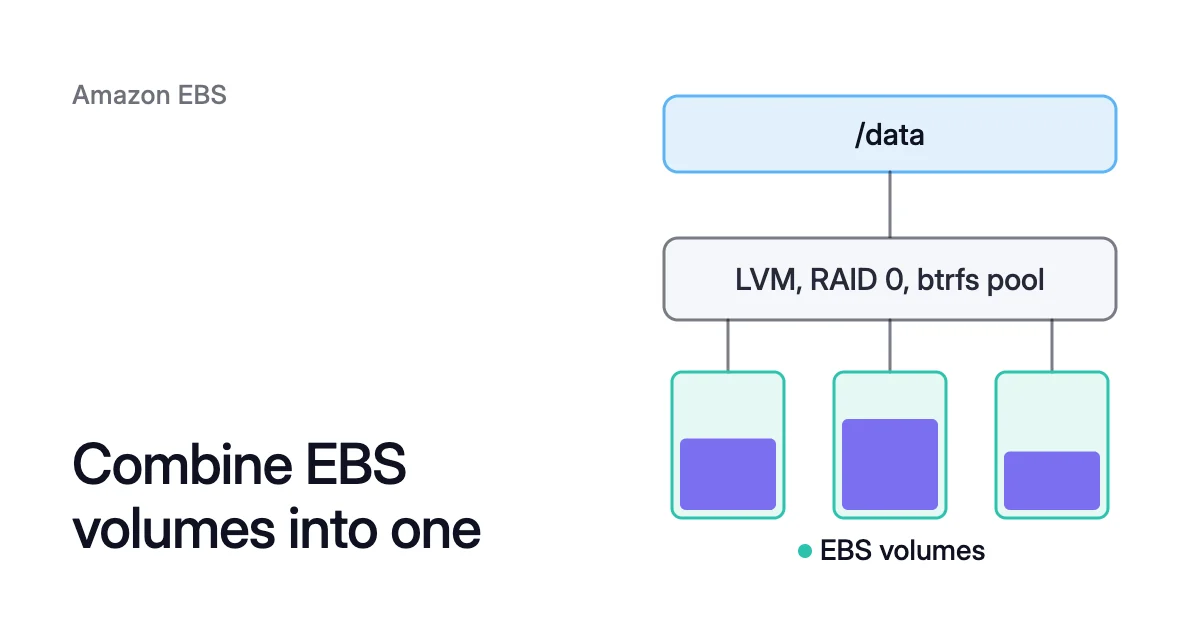
Short answer. To combine EBS volumes into one on Linux, you join them in the operating system with LVM, mdadm RAID 0 or a btrfs pool. They differ in speed, and most of all in what it takes to add a volume or give one back.
Why combine EBS volumes into one: a volume never shrinks and has a ceiling
Picture /data on three 500 GiB gp3 volumes, sized for a seasonal peak that has passed. The data is back to 600 GiB. You still pay for all 1,500 GiB, and 900 GiB of it is empty.
Two volumes can hold that data. So you can empty the third, delete it and pay for 1,000 GiB, with 400 GiB still free.
Whether that takes an unmount, a copy or neither depends on how you joined them.
You pay for every provisioned GB, and a volume can’t shrink
AWS charges Amazon Elastic Block Store (EBS) volume storage “by the amount of GB you provision per month until you release the storage.”
The EBS pricing calculator shows what a volume costs a month, and what its empty space costs.
Elastic Volumes, AWS’s way to change an attached volume, can increase a volume’s size but not decrease it. In AWS’s words, “You can’t decrease the volume size.”
That’s why shrinking an EBS volume takes a copy and a switch.
Volumes and instances have ceilings
A gp3 volume runs from 1 GiB to 64 TiB. Its price includes 3,000 IOPS and 125 MiB/s, and you can provision up to 80,000 IOPS and 2,000 MiB/s.
A filesystem that needs more has to span several volumes. For speed alone, the other way is a faster EBS volume type.
The instance has a ceiling too. AWS says not to build an array that exceeds the available bandwidth of your EC2 instance.
AWS also advises against parity and mirroring. RAID 5 and RAID 6 give 20 to 30 percent fewer usable IOPS than RAID 0. RAID 1 needs more EC2-to-EBS bandwidth without improving writes.
EBS already replicates each volume’s data within its Availability Zone. So these layouts join volumes for space and speed, not for a second copy.
LVM vs RAID 0 vs btrfs: where the volumes are joined decides what a change takes
All three join the volumes inside the instance. AWS says all RAID on EBS “is accomplished at the software level.”
Only btrfs joins them inside the filesystem itself.
| LVM (linear logical volume) | mdadm RAID 0 | btrfs pool | |
|---|---|---|---|
What joins the volumes | A volume group, then a logical volume | A striped md device | The filesystem itself |
Filesystem on top | ext4 or XFS | Your choice (AWS shows ext4) | btrfs |
Performance | Space adds up, I/O isn’t striped | IOPS and throughput add up, held to the slowest volume and the instance | single data isn’t striped, raid0 data is |
Copies of your data | One | One, and losing any volume loses the array | One with single data, metadata twice with raid1 |
Add a volume | vgextend, then lvextend --resizefs | A reshape through RAID 4, then grow the filesystem | btrfs device add, instant, while mounted |
Give a volume back | pvmove while in use, if the other volumes have free extents | Shrink the filesystem, then an irreversible reshape | btrfs device remove while mounted, if the rest has room |
Shrink the filesystem | ext4 only unmounted, XFS not in any useful way | Same as LVM | Not needed to remove a device |
LVM on AWS EBS volumes: growing is easy, giving a volume back needs free extents
LVM, the Logical Volume Manager, pools physical volumes (PVs) into a volume group (VG). It then carves logical volumes (LVs) out of the group. Here each PV is a whole EBS volume.
A linear LV, in Red Hat’s words, lets you “merge multiple physical storage units into one virtual storage space.”
Create the logical volume
The device names below are examples, so check yours with lsblk. Red Hat warns that formatting a logical volume erases all data on it. So use new, empty volumes.
$ sudo pvcreate /dev/nvme1n1 /dev/nvme2n1
$ sudo vgcreate data_vg /dev/nvme1n1 /dev/nvme2n1
$ sudo lvcreate --extents 100%FREE --name data_lv data_vg
$ sudo mkfs.ext4 -L data /dev/data_vg/data_lv
$ sudo mkdir -p /data
$ sudo mount LABEL=data /data
Add a volume to the volume group
To add a volume, make it a PV and add it to the VG. Then grow the LV and its filesystem in one command. Red Hat’s procedure for this has no unmount step.
$ sudo pvcreate /dev/nvme3n1
$ sudo vgextend data_vg /dev/nvme3n1
$ sudo lvextend --size +<added-size> --resizefs data_vg/data_lv
Give a volume back with pvmove
To give a volume back, pvmove moves its extents onto the other PVs. Red Hat says data “can be rearranged on disks while the disks are in use.”
Next, vgreduce drops the empty PV from the VG, and pvremove takes the device out of LVM use. Then you detach and delete the volume in AWS. A deleted volume’s data is gone, so keep a snapshot until you’re sure.
$ sudo pvmove /dev/nvme2n1
$ sudo vgreduce data_vg /dev/nvme2n1
$ sudo pvremove /dev/nvme2n1
Red Hat’s procedure unmounts the LV, runs e2fsck -f and then lvreduce --resizefs. So ext4 shrinks only while unmounted.
XFS can’t shrink in any useful way. Red Hat says “XFS does not support reducing the size of a volume formatted with an XFS file system.”
With XFS on LVM you can swap a volume for another, but the LV never gets smaller. Neither does your cloud cost.
Shrinking XFS and shrinking ext4 with resize2fs have their own pages. So does removing a disk from LVM.
EBS RAID 0: IOPS add up, and the set stays fixed
AWS’s own RAID 0 steps use mdadm, the Linux software RAID tool. RAID 0 spreads I/O across the volumes in a stripe. In AWS’s words, “If you add a volume, you get the straight addition of throughput and IOPS.”
A stripe performs only as well as its worst volume. So AWS says to use volumes with identical size and IOPS. It also warns that “the loss of a single volume in the set results in a complete data loss for the array.”
AWS designs gp3 for an annual failure rate no higher than 0.2 percent. If failures are independent, the yearly chance of losing the array is at most 1 − 0.998⁴. That’s about 0.8 percent.
Create the RAID 0 array
These are AWS’s steps for Amazon Linux. Other distributions may keep mdadm.conf elsewhere.
mdadm --create writes its metadata to each volume, and mkfs.ext4 erases the array. So use empty volumes.
$ sudo mdadm --create --verbose /dev/md0 --level=0 --name=data_raid --raid-devices=2 /dev/nvme1n1 /dev/nvme2n1
$ sudo mkfs.ext4 -L data_raid /dev/md0
$ sudo mdadm --detail --scan | sudo tee -a /etc/mdadm.conf
$ sudo dracut -H -f /boot/initramfs-$(uname -r).img $(uname -r)
$ sudo mkdir -p /data
$ sudo mount LABEL=data_raid /data
To mount it at boot, edit /etc/fstab with care. AWS warns that errors in that file “can render a system unbootable.”
- Back up
/etc/fstabfirst. - Add the line
LABEL=data_raid /data ext4 defaults,nofail 0 2. - Test it with
sudo mount -a.
Keep the root volume out of the array. AWS advises against booting from one.
Why a RAID 0 set stays fixed
When you add a volume later, mdadm takes four steps:
- It converts the array to RAID 4.
- It adds the new volume.
- It runs a reshape.
- It converts the array back to RAID 0.
Then you grow the filesystem.
The mdadm manual warns that fewer devices also means a smaller array. Data in it “could get destroyed and this is not reversible.”
So taking a volume out follows a strict order:
- Shrink the filesystem.
- Shrink the array with
mdadm --grow --array-size. - Only then reduce the device count.
Step 1 is an unmounted shrink for ext4, and XFS can’t do it. Treat a RAID 0 set as fixed. When it has to get smaller, copy the data to a new array.
A btrfs pool takes EBS volumes in and out while mounted
btrfs manages its own devices, so one filesystem can span several. Its documentation says “The device management works on a mounted filesystem,” so adding or removing a volume needs no unmount.
Create the pool
mkfs.btrfs stores data and metadata in profiles. On several devices, data defaults to single: one copy, with no striping. That default dates from btrfs-progs 5.8, and data used raid0 before it.
Metadata defaults to raid1, two copies. Name both profiles on the command line, so the result doesn’t depend on the btrfs-progs version.
Check the device names with lsblk first. mkfs.btrfs writes a new filesystem over every device you list.
$ sudo mkfs.btrfs -L data -d single -m raid1 /dev/nvme1n1 /dev/nvme2n1 /dev/nvme3n1
$ sudo btrfs device scan
$ sudo mkdir -p /data
$ sudo mount /dev/nvme1n1 /data
btrfs device scan registers the devices with the kernel. You can then mount the pool by naming any one of them.
Add a volume with btrfs device add
Adding a volume “is instant and does not affect existing data,” in the btrfs documentation’s words. Then btrfs device usage shows what each device holds.
$ sudo btrfs device add /dev/nvme4n1 /data
$ sudo btrfs device usage /data
Give a volume back with btrfs device remove
Removing a volume first moves its data onto the rest of the pool. The documentation warns this “can take long as it needs to move all data from the device.”
So the other volumes need room for that data, and the profiles must still hold. With raid1 metadata, a pool needs at least two devices. Taking one out of a two-device pool fails with “unable to go below two devices on raid1.”
$ sudo btrfs device remove /dev/nvme2n1 /data
Once the command returns, the volume is ready to detach and delete in AWS. Removing a device from a btrfs pool walks through the checks. For the profiles, see btrfs on multiple disks.
How Amoeba runs a btrfs pool on EBS
Amoeba optimizes block storage on Azure and AWS. On AWS it builds a btrfs pool like the one above for you, then rightsizes the pool as your data changes.
What Amoeba does with your volumes
- The pool. It moves an instance’s EBS data volumes onto one btrfs pool of gp3 volumes, sized to your data with room to grow. Each data mount keeps its old path. It never touches the root volume.
- The move. Amoeba copies your data while your services run. Then it switches each mount to the pool, with a short restart of the services that use it. If the switch fails, it puts the original mounts back and tries again.
- Growing. It grows the pool before it fills, and sooner when data arrives fast. It enlarges the pool’s volumes or adds new ones while the pool stays mounted.
- Shrinking. When your data goes down and stays down, it empties one volume with
btrfs device remove, then detaches and deletes it. So you pay for close to what you use. - The old volumes. Once the switch is checked, Amoeba snapshots and deletes each old volume. It deletes each snapshot a few days later.
What an instance needs
Amoeba works on Windows and Linux instances. On AWS, the instance must be managed by AWS Systems Manager, and be a Nitro type that exposes EBS as NVMe. It also needs a few free attachment slots for the pool.
On Linux, the instance needs a recent kernel with btrfs. Every service that keeps a data mount open must run under systemd.
EBS cost optimization shows Amoeba on AWS end to end.
Sources: AWS, “Amazon EBS and RAID configuration” (opens in a new tab); AWS, “Amazon EBS volume types” (opens in a new tab); AWS, “Modify an Amazon EBS volume using Elastic Volumes operations” (opens in a new tab); AWS, “Amazon EBS pricing” (opens in a new tab); Red Hat, “Configuring and managing logical volumes” (opens in a new tab) (RHEL 9); man7.org, “mdadm(8)” (opens in a new tab); btrfs documentation, “mkfs.btrfs(8)” (opens in a new tab); btrfs documentation, “btrfs-device(8)” (opens in a new tab).