Published 1 November 2026 · By Sourabh Singh (opens in a new tab), Senior software engineer, Zoorik · Published by Zoorik
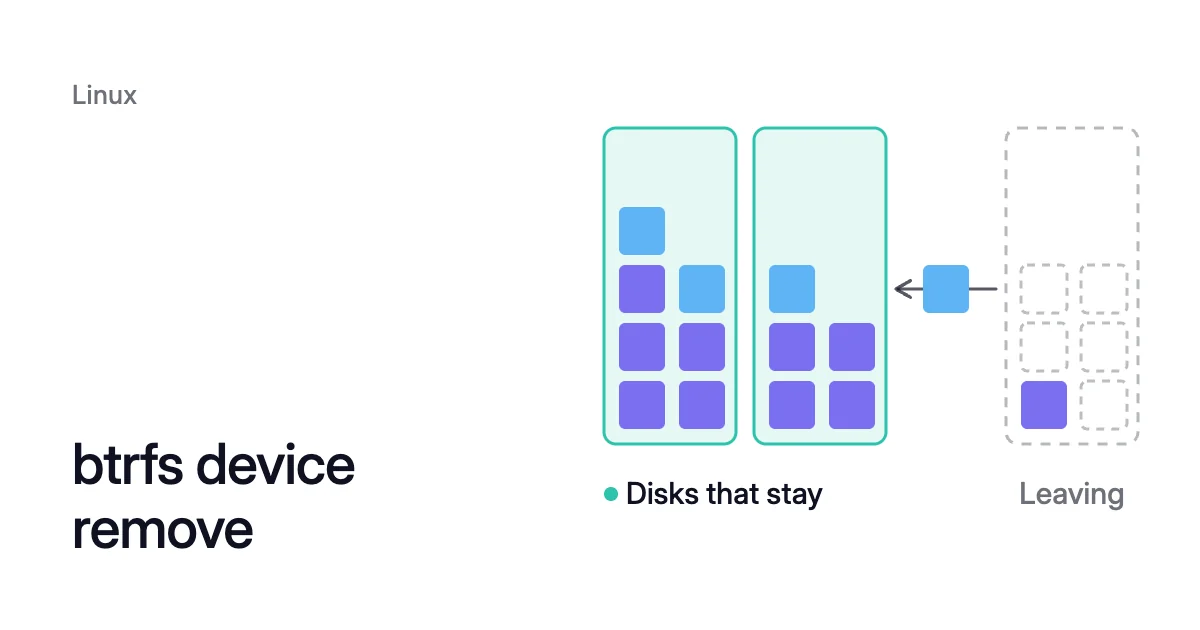
Short answer. btrfs device remove empties a disk in a mounted btrfs pool onto the other disks, then takes it out. They need room for its data, and the profile must hold with one disk fewer, so convert two-disk raid1 first. Moving hundreds of GiB can take an hour or more, and the cloud disk is charged until it’s deleted.
btrfs device remove empties a disk, but the cloud disk stays
Picture a VM whose data sits on a btrfs pool. The pool has three 256 GiB data disks, which btrfs numbers devid 1 to 3. Say you want devid 3 gone.
btrfs device remove can take it out while the filesystem stays mounted and in use. When the command returns, the filesystem is smaller by that disk. But the disk itself still exists, attached to the VM, and the cloud provider charges for it as before.
btrfs stores data and metadata in chunks, also called block groups. A pool spreads them across its disks, as btrfs on multiple disks explains. Removing a disk means emptying it of chunks, and the kernel’s removal code does that in a fixed order:
- It takes the disk off the list the allocator picks from, so no new chunk lands there.
- It sets the disk’s size inside the filesystem to zero.
- It walks the disk’s chunks from the end backwards and relocates each one onto the other disks.
- Once the last chunk has gone, it deletes the disk’s entry from the filesystem. As btrfs-progs notes, the btrfs signature is removed from the device too.
Before you remove a disk from the pool: room, profile and errors
Three readings tell you whether the removal can finish:
$ sudo btrfs filesystem show /data
$ sudo btrfs device usage /data
$ sudo btrfs device stats -c /data
btrfs filesystem show lists each disk with its devid, size and used space. The btrfs device usage command goes further: for each disk, it shows what each profile has allocated there, and what is still Unallocated. Run device usage as root, because a normal user doesn’t get the per-disk detail.
The disks that stay need room for all of it
Everything on the disk you remove needs a place on the disks that stay. That place is their unallocated space, plus any room left inside chunks they already hold. Count unallocated space alone and you keep a margin.
The kernel doesn’t check this before the removal starts. It relocates chunk after chunk, and a chunk that hits “No space left on device” gets one retry. Then it stops with that error.
When it stops, the disk stays in the filesystem. The chunks that already moved stay where they went.
Leave margin too: btrfs needs unallocated space to create new chunks and to relocate old ones, as btrfs unallocated space vs free space explains.
How to remove a device from btrfs raid 1
The man page is plain: “Device removal must satisfy the profile constraints, otherwise the command fails and cannot be enforced.”
Each profile has a minimum disk count in the kernel’s table: two for raid1, three for raid1c3.
raid1 keeps two copies of each chunk on two different disks. Removing one of three or more disks works when the disks that stay have room for the copies that move. The two copies of each chunk must still sit on two different disks.
When two disks will be left, each of them ends up holding one copy of everything. From two disks to one, raid1 can’t hold. btrfs refuses with “unable to go below two devices on raid1.”
The documentation’s fix is to convert first, then remove. Converting gives up redundancy: afterwards your data has one copy, and losing that disk loses the data. Like any balance, it needs unallocated space to work in.
$ sudo btrfs balance start -mconvert=dup -dconvert=single /data
$ sudo btrfs device remove /dev/sda /data
Check disk errors and /etc/fstab
btrfs device stats -c prints each disk’s error counters. It exits with 64 instead of 0 if any of them isn’t zero.
If the disk you’re removing is the one failing, the documentation says to use btrfs replace instead. It warns against converting to a less redundant profile to get the disk out. Rewritten chunks can land on the failing disk again.
A UUID= entry names the filesystem, not one disk, and keeps working.
How to run btrfs device remove, one disk at a time
The command runs in the foreground until the last chunk has moved. If that process gets a fatal signal such as Ctrl-C, the kernel stops the work.
- On a remote VM, start a tmux or screen session first, so a dropped SSH session doesn’t end the removal partway.
- Name the disk by its path or by its devid from
btrfs filesystem show, then the mount point. Either line works, andbtrfs device deleteis an older name for the same command.
$ sudo btrfs device remove /dev/sde /data
$ sudo btrfs device remove 3 /data
- When the command returns, check the result:
btrfs filesystem show /datano longer lists the disk. Only then start the next removal.
You can name several disks at once. Then btrfs-progs removes them one by one, and the disks still waiting can take new writes meanwhile.
With several disks named, btrfs-progs first prints a warning and counts down 10 seconds. Adding --force skips the countdown, though it doesn’t override the profile rule.
How to follow btrfs device remove progress
With one disk named, the command prints nothing until it finishes. It has no status subcommand. Progress shows in three places:
$ sudo watch -n 60 btrfs filesystem show /data
$ sudo journalctl -k -f | grep 'relocating block group'
$ cat /sys/fs/btrfs/<filesystem-uuid>/exclusive_operation
- The leaving disk’s used figure. The kernel set the disk’s size to zero at the start, so
btrfs filesystem showlists it with size 0.00B. Its used figure falls as each chunk leaves. That falling number is your progress bar. - The kernel log. It gets one “relocating block group” line for every chunk the kernel moves.
- The sysfs file. While the removal runs,
exclusive_operationreadsdevice remove. Its path takes the filesystem UUID thatbtrfs filesystem showprints.
To stop a removal, run sudo btrfs device remove cancel /data, which needs kernel 5.14 and btrfs-progs 5.13 or later. The disk gets its old size back and stays in the filesystem.
Chunks already moved aren’t moved back. So running the removal again later has less left to do.
Why btrfs device remove is very slow: every chunk moves
Removal is relocation, the same work a balance does. The btrfs-device man page warns that removal “can take long as it needs to move all data from the device.”
Three things set its pace:
- Every chunk on the disk moves, data and metadata, one block group at a time. For data, each move copies the extents, then updates every block pointer that refers to them. These are two separate stages in the kernel’s relocation code.
- Each cloud disk has its own throughput ceiling, set by its type and size, or by what you provision.
- Your application keeps using the same disks. Every read and write it makes competes with the relocation for the same IOPS and throughput. So a removal during the busy hours runs slower, and slows the application too.
For scale, say the leaving disk reads at 125 MiB/s. Just reading 500 GiB off it takes 500 × 1,024 MiB ÷ 125 MiB/s = 4,096 seconds, about 68 minutes. That’s before any pointer updates, and the writes land on disks with ceilings of their own.
A balance moves chunks the same way. The man page says that work “can take a while, because all metadata have to be moved and all block pointers updated.”
The same page names disk seeking as “the key factor affecting performance.”
Detach and delete the cloud disk to stop paying for it
Charges follow the Azure or AWS resource, not the filesystem. Microsoft’s warning reads: “If you detach a disk it is not automatically deleted.”
AWS says you are “still charged for volume storage” after a detach. It adds that you “must delete a volume to avoid incurring further charges.”
- Confirm the removal finished.
btrfs filesystem show /datano longer lists the disk. - Match the Linux device to its managed disk or EBS volume. On an Azure VM whose data disks attach over SCSI, the Azure Linux agent’s udev rules link each data disk’s LUN under /dev/disk/azure/scsi1/. The
az vm showcommand lists every data disk with itslunandname. On a Nitro-based EC2 instance,lsblk -o +SERIALshows the EBS volume ID as the serial number. It’s written without the hyphen aftervol. - Snapshot first if in doubt. Deleting is permanent, so take a snapshot if you’re not sure the disk you’re about to delete is the one you emptied.
- Detach the disk, then delete it. On Azure:
$ az vm disk detach --resource-group <resource-group> --vm-name <vm-name> --name <disk-name>
$ az disk delete --resource-group <resource-group> --name <disk-name>
On AWS, wait for the volume’s state to read available before you delete it, because AWS won’t delete an attached volume:
$ aws ec2 detach-volume --volume-id <volume-id>
$ aws ec2 describe-volumes --volume-id <volume-id> --query 'Volumes[*].State' --output text
$ aws ec2 delete-volume --volume-id <volume-id>
If the volume matches a Recycle Bin retention rule, AWS keeps it there instead of deleting it at once.
To make one large disk smaller instead, see shrinking an Azure managed disk and shrinking an EBS volume.
How Amoeba removes a disk from its pool
Amoeba optimizes block storage. It works on the data disks of running VMs: Azure managed disks and Amazon EBS volumes, on Windows and Linux VMs.
It moves a VM’s data disks onto one btrfs pool, sized to your data, with room to grow. When your data goes down and stays down, Amoeba shrinks the pool one disk at a time. Each shrink is this procedure, automated.
Amoeba moves the leaving disk’s data onto the other disks with btrfs device remove. Then it detaches the empty disk and deletes it, with no snapshot, so its charges stop.
Before a shrink, Amoeba checks that the disks that stay have room for the data and can carry the VM’s disk load. It never takes a disk out while the pool is nearly full, or while it’s growing the pool.
Shrinks start on their own with the shrink setting on Auto, and wait for you on Manual. The FAQ answers whether a shrink can lose data.
Sources: btrfs-progs source, the “btrfs-device(8)” man page (Documentation/btrfs-device.rst and the chapter it includes), “cmds/device.c” (opens in a new tab), “cmds/filesystem.c” and “CHANGES”; Linux kernel source, “fs/btrfs” (opens in a new tab) (volumes.c, relocation.c, ioctl.c, sysfs.c); Microsoft Learn, “Detach a data disk from a Linux VM” (opens in a new tab); Microsoft Learn, “az disk” (opens in a new tab) (Azure CLI reference); Microsoft Learn, “Troubleshoot Linux VM device name changes in Azure” (opens in a new tab); AWS, “Map Amazon EBS volumes to NVMe device names” (opens in a new tab); AWS, “Detach an Amazon EBS volume from an Amazon EC2 instance” (opens in a new tab); AWS, “Delete an Amazon EBS volume” (opens in a new tab).