Published 1 November 2026 · By Sourabh Singh (opens in a new tab), Senior software engineer, Zoorik · Published by Zoorik
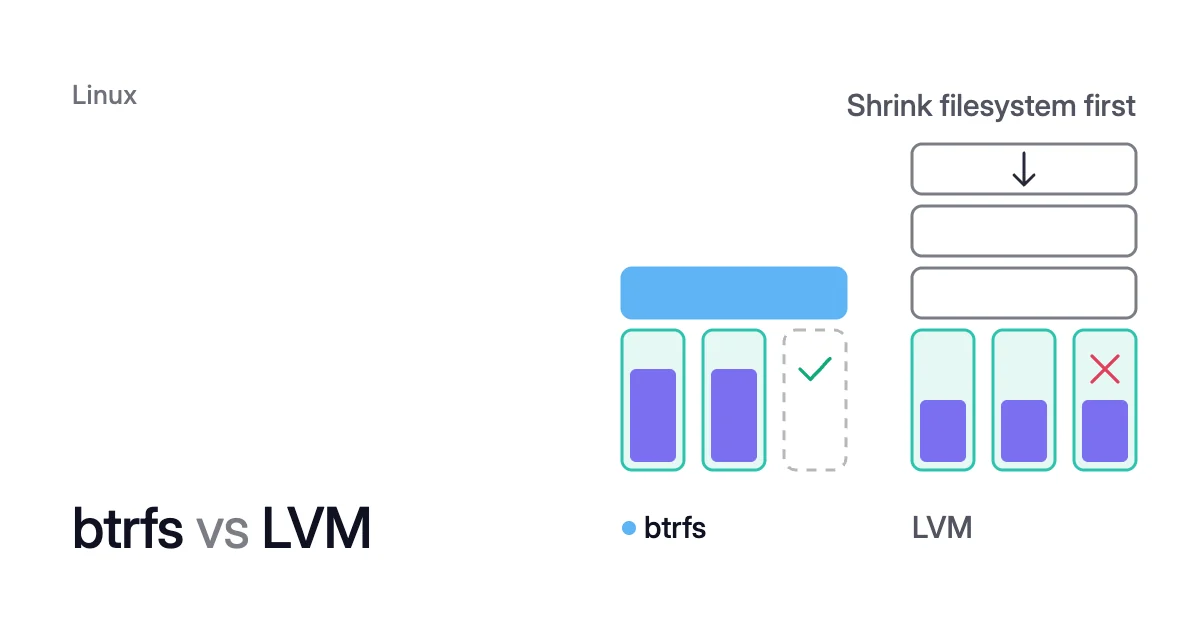
Short answer. In btrfs vs LVM, both can empty a disk while mounted, but only btrfs uses its own free space as room for that disk’s data. LVM’s pvmove needs free extents, and making them means shrinking the filesystem first: ext4 only while unmounted, XFS not in any useful way.
On a cloud VM, you pay for fewer GiB only when a disk leaves
Picture an Azure VM whose data mount spans four 512 GiB managed disks, 2,048 GiB in all, holding 1,000 GiB. You pay for all 2,048 GiB.
btrfs can empty one disk and let it go while mounted. LVM, with all four disks in one logical volume, can’t until the filesystem and the logical volume shrink.
Azure charges for managed disks “according to their provisioned size”. Its example adds “regardless of the amount of data written to the disk”. The Azure disk pricing calculator shows what that empty space costs.
Neither cloud shrinks a disk in place. Microsoft Learn says shrinking an existing disk “isn’t supported and might result in data loss”. The Amazon Elastic Block Store (EBS) guide says “You can’t decrease the volume size”.
So on a running VM, paying for fewer GiB takes three steps:
- Empty a whole disk.
- Take it out of the stack.
- Detach and delete it.
The Logical Volume Manager (LVM) pools block devices in layers:
- Each disk becomes a physical volume (PV).
- PVs join a volume group (VG).
- You carve logical volumes (LVs) out of the VG.
An LV is a block device, so it still needs a filesystem such as ext4 or XFS on top.
A btrfs filesystem does both jobs in one. It “can be created on top of single or multiple block devices”. Its device management “works on a mounted filesystem”.
| What you decide on | LVM with ext4 or XFS | btrfs |
|---|---|---|
Layers | PVs, a VG and LVs, then a filesystem on each LV | One filesystem across one or more devices |
Use a cloud disk you made larger | pvresize, then lvextend --resizefs, while mounted | btrfs filesystem resize <devid>:max, while mounted |
Add a disk | pvcreate, vgextend, then lvextend --resizefs | btrfs device add, while mounted |
Empty a disk and take it out | pvmove, vgreduce, pvremove, while the disks are in use | btrfs device remove, while mounted |
Where the disk’s data goes | Free extents on the other PVs | Free space on the other devices, within the profile’s rules |
Making that room | Shrink an LV and its filesystem first: ext4 only unmounted, XFS can’t | Nothing extra, unused space in the filesystem is the room |
Splitting space between mounts | LVs, each with its own fixed size | Subvolumes, which share the filesystem’s free space |
Snapshots | Thick: space set aside up front. Thin: from a thin pool, no size | A subvolume that starts out sharing its data blocks with the source |
btrfs vs LVM with ext4 or XFS: the filesystem decides the shrink
Red Hat’s guide says “you can move data while your system is active using the pvmove command”. So emptying a PV while its filesystem stays mounted is routine.
These commands take a disk out of LVM, so run them only on the disk you mean to delete. Before vgreduce, check in pvs that the disk’s PFree equals its PSize:
$ sudo pvs
$ sudo pvmove /dev/<old-disk>
$ sudo pvs
$ sudo vgreduce <vg-name> /dev/<old-disk>
$ sudo pvremove /dev/<old-disk>
The catch: pvmove needs free extents on the other PVs for that disk’s data. Red Hat’s procedure adds a new PV first “If there are not enough free extents on the other physical volumes in the existing volume group”.
LVM sees extents, not files. Say you once ran lvextend to give an LV the whole VG. Then every extent belongs to that LV, even when the filesystem inside it is mostly empty.
Free space in the filesystem isn’t free space in the VG.
On btrfs with single data (one copy), the roughly 2,048 − 1,000 = 1,048 GiB free is the room. The 1,000 GiB fits on three disks with roughly 1,536 − 1,000 = 536 GiB to spare. With disk 4 deleted, you pay for 1,536 GiB of data disks instead of 2,048.
On LVM, one LV holds every extent in the VG. So pvmove finds 0 GiB free until the filesystem and the LV shrink.
So making room means shrinking the LV, and an LV can only shrink after its filesystem does. Red Hat warns that the filesystem must not be “using the space in the logical volume that is being reduced”.
To keep pvmove possible, leave free extents in the VG and grow each LV with lvextend --resizefs only as its data needs. That helps until the data shrinks, because the LV doesn’t shrink with it. Removing a disk from LVM walks through both cases.
LVM with ext4: shrink only while unmounted
The resize2fs man page says it can “enlarge or shrink an unmounted file system”. On a mounted one, it can only expand.
Red Hat’s shrink procedure follows from that:
- Unmount the LV.
- Run
e2fsck -f. - Run
lvreduce --size <new-size> --resizefs. - Mount it again.
Every service on that mount stops for the check and the resize. The steps and the minimum size are in shrinking ext4 with resize2fs.
LVM with XFS: only a copy gives the space back
Red Hat states that “XFS does not support reducing the size of a volume formatted with an XFS file system”. With XFS on the LV, no LVM command can free those extents without losing data.
The route is a copy onto a new, smaller filesystem, with a stop while you switch over. Shrinking an XFS filesystem covers it.
btrfs takes a disk out while it stays mounted
A btrfs filesystem has no second layer to keep in step. Adding a device “is instant and does not affect existing data”. Removing one moves its data onto the others.
The docs warn “The operation can take long as it needs to move all data from the device”. Two rules decide whether a removal works:
- Space. The data has to fit on the devices that stay, with unallocated space to spare.
- Profile. The docs say “Device removal must satisfy the profile constraints, otherwise the command fails”. A profile is btrfs’s allocation policy for data and metadata, such as single or RAID1. In the docs’ example, a RAID1 filesystem can’t drop to one device until it’s converted to another profile. The error reads “unable to go below two devices on raid1”. For the profiles, see btrfs on multiple disks.
The removal moves every block off the device you name. So check the space first, and name only the disk you mean to delete:
$ sudo btrfs filesystem usage <mount-point>
$ sudo btrfs device remove /dev/<old-disk> <mount-point>
$ sudo btrfs filesystem show <mount-point>
Check that btrfs filesystem show no longer lists the device. Deleting is permanent, so first confirm the cloud disk’s name and resource ID, then detach and delete it.
Charges end with the delete, because Azure prorates a disk hourly, whatever it holds. The full steps are in btrfs device remove.
The docs say “The resize command does not manipulate the size of underlying partition”. Under it, the cloud disk can’t shrink at all. One btrfs filesystem across several smaller disks is the layout that pays.
btrfs subvolumes vs LVM logical volumes
LVM splits a VG into LVs, each a block device with its own size. Space one LV holds is free for another only after lvreduce, when “the freed up logical extents are returned to the volume group”.
btrfs subvolumes share the single storage pool of the whole filesystem instead. On a VM with several data mounts, they all draw on one pool of free space, not one per LV.
A subvolume looks like a directory and mounts on its own with the subvol or subvolid option. Capacity limits come from quota groups if you want them.
LVM vs btrfs snapshots, and why LVM thin still needs free extents
LVM has two kinds of snapshot, and btrfs has one:
- LVM thick snapshot. It “requires you to allocate some amount of storage space upfront”. Red Hat also warns “If a snapshot reaches 100% of its allocated space, it will become invalid”.
- LVM thin snapshot. Made from a thin LV, it needs nothing set aside and shares the same data blocks as its origin until the origin changes.
- btrfs snapshot. It’s “a subvolume like any other, with given initial content”. It starts out sharing all its data blocks with the original through copy-on-write.
On LVM thin vs btrfs, thin provisioning comes close to what btrfs does with subvolumes. Its LVs can be “larger than the available physical storage”, and “A thin pool allocates space on-demand to its LVs”.
What it doesn’t change is the cloud disk. The thin pool sits on PVs on managed disks or EBS volumes, charged at their provisioned size. Taking a disk out from under it is still a pvmove that needs free extents.
In a thin pool and in btrfs alike, a snapshot goes on referencing the blocks it shares with its origin. So deleting files that were there when you took it doesn’t give their space back while the snapshot exists.
btrfs or LVM: which to choose on a cloud VM
Of the stacks here, only btrfs across several disks hands a disk back with nothing unmounted, however large the data once grew.
- Data whose size moves both ways. Pick btrfs over several disks.
- Data that only grows, or a mount that can take a planned stop. LVM with ext4 suits it.
- LVM with XFS. It’s one-way. Size it for growth, and plan a copy if the data ever shrinks a lot.
Before you pick btrfs, check that your distribution ships it in its kernel, with the btrfs-progs tools. You must also trust the profile you plan to use, which how stable btrfs is goes through.
Moving an existing ext4 or XFS mount onto a new btrfs filesystem is a copy with a short stop at the switch. It’s the same route as moving to a smaller Azure disk.
How Amoeba uses a btrfs pool
Amoeba optimizes block storage on Azure and AWS, on the btrfs side of this comparison. It works on the data disks of running Windows and Linux VMs, and never touches the OS disk.
Amoeba moves a VM’s data disks onto one btrfs pool sized to your data, with room to grow. Each data mount becomes a subvolume on the pool, mounted at its old path. So applications read and write where they did.
The mounts it moves can be ext4, XFS or another block-backed filesystem, on LVM or not. Every disk under them must be a cloud data disk.
Getting there takes one copy, which Amoeba makes while your services run. Then it switches each mount to the pool, with a short restart of the services that use it.
Growing and shrinking the pool
After the move, the pool changes size while it stays mounted:
- Data grows. Amoeba grows the pool before it fills, and sooner when data arrives fast. It grows the pool’s disks or adds new ones, and the space goes in at once.
- Data shrinks. When your data goes down and stays down, Amoeba shrinks the pool one disk at a time. It moves that disk’s data onto the others with
btrfs device remove. Then it detaches the empty disk and deletes it, with no snapshot, so its charges stop. - The limit. Amoeba never detaches a disk while the pool is nearly full, or while an urgent expand runs.
On Linux, the VM needs a recent kernel with btrfs. Every service that keeps a data mount open must run under systemd, so Amoeba can stop it and start it again at the switch. The VM also needs a few free disk slots for the pool.
The pages on Azure managed disk cost optimization and EBS cost optimization cover each cloud in full.
Sources: BTRFS documentation, “btrfs-device(8)” (opens in a new tab); BTRFS documentation, “btrfs-filesystem(8)” (opens in a new tab); BTRFS documentation, “Subvolumes” (opens in a new tab); Red Hat, “Configuring and managing logical volumes” (opens in a new tab) (RHEL 9); man7.org, “resize2fs(8)” (opens in a new tab); Microsoft Learn, “Expand virtual hard disks on a Linux VM” (opens in a new tab); Microsoft Learn, “Select a disk type for Azure IaaS VMs” (opens in a new tab); AWS, “Modify an Amazon EBS volume using Elastic Volumes operations” (opens in a new tab).