Published 1 November 2026 · By Sujal Agrawal (opens in a new tab), Guest author · Senior software engineer at Fivetran · Published by Zoorik
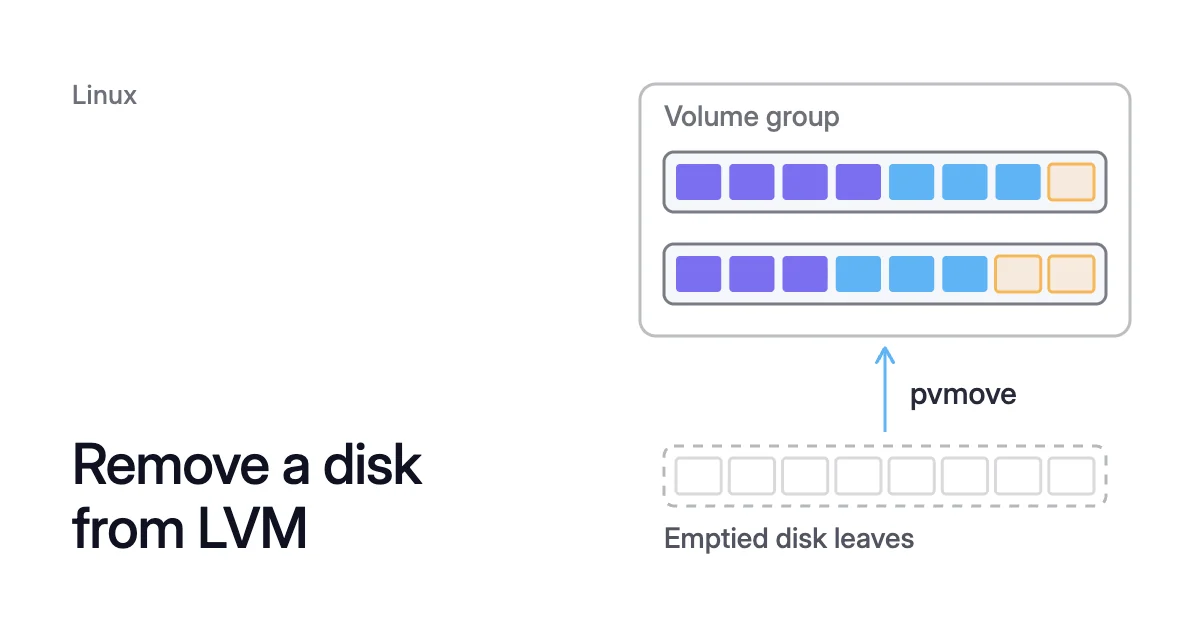
Short answer. To remove a disk from LVM without losing data, empty it with pvmove, then run vgreduce and pvremove, all while the filesystem stays mounted. The other disks need room for its extents, and you pay for the cloud disk until you detach and delete it.
LVM empties the disk before the cloud deletes it
Picture a VM whose data mount sits on an LVM volume. The volume spans three 512 GiB data disks, A, B and C, with 120 GiB of it on disk C.
You want disk C gone while the application runs. You pay for disk C until you delete it.
The Logical Volume Manager (LVM) builds storage in three layers:
- Each disk becomes a physical volume (PV).
- PVs join a volume group (VG).
- You carve logical volumes (LVs) out of the VG, then put a filesystem such as ext4 or XFS on each LV.
LVM hands out space in extents. Red Hat calls them “the smallest units of space that you can allocate in LVM.”
Extents are all the same size, 4 MiB each by default. An LV is a list of extents that can sit on any PV in the group.
Removing disk C means moving its 120 GiB of extents into free extents on disks A and B. The mount stays in use the whole time. Then LVM lets go of the disk at each layer.
Red Hat’s guide treats the move as routine: “Data can be rearranged on disks while the disks are in use.” Its example is to “empty a hot-swappable disk before removing it.”
Azure won’t shrink a disk in place. Microsoft says shrinking an existing disk “isn’t supported and might result in data loss.”
Shrinking an EBS volume covers the AWS side. So the unit you can stop paying for is a whole disk, and LVM’s job here is to empty one.
Check that the other disks have room first
Two commands show whether the move fits:
$ sudo pvs
$ sudo lvs -a -o +devices
In the pvs output, PSize is each PV’s size. PFree is, in Red Hat’s words, “Free space remaining on the physical volume.”
For the disk you’re removing, PSize minus PFree is what has to move. Add up the PFree of the PVs that stay. If that sum is at least as large, the move fits.
Disks A and B need at least 120 GiB of PFree between them. If they have less, a new 128 GiB disk can take those extents. That leaves about 128 − 120 = 8 GiB to spare.
A striped LV is stricter. Free space on a PV that already holds another stripe of that LV may not count. The normal allocation policy avoids “placing parallel stripes on the same PV.”
lvs -a -o +devices lists the devices each LV sits on, so you know which LVs are about to move.
Free space inside a filesystem doesn’t count here. LVM sees extents, not files.
Say you once ran lvextend to give an LV the whole VG. Then every extent belongs to that LV, even when its filesystem is mostly empty. PFree reads zero on every disk, so the LV has to shrink first.
How to remove a disk from LVM: pvmove, vgreduce, pvremove
Run these on the disk you mean to delete. Check its device name against lsblk first, since a wrong name moves the wrong data.
On an Azure VM with SCSI data disks, this command maps each LUN in the portal to its Linux device:
$ sudo ls -alF /dev/disk/azure/scsi1/
- Move the extents. With no destination named, the VG’s normal allocation rules pick free extents on the other PVs.
$ sudo pvmove /dev/<old-disk>
- Check that the disk is empty. The
vgreducecommand is for empty PVs only. Confirm inpvsthat the old disk’s PFree now equals its PSize, which means nothing on it is allocated.
$ sudo pvs
- Remove the physical volume from the volume group with
vgreduce. Red Hat says it “shrinks a volume group’s capacity by removing one or more empty physical volumes.”
$ sudo vgreduce <vg-name> /dev/<old-disk>
- Release the device from LVM use with
pvremove.
$ sudo pvremove /dev/<old-disk>
The move takes longer the more data is allocated on the old disk. You can stop it with pvmove --abort.
pvmove is built to survive interruption, such as a VM restart halfway through. The man page’s advice after a restart: “run pvmove again without any PV arguments to restart any operations that were in progress from the last checkpoint.”
When the disk is already unused
A PV that joined the VG but never got any extents skips the move. To have LVM remove unused disks, run vgreduce and then pvremove on each one.
Check pvs first. An empty PV can be one you added on purpose for an expand that hasn’t happened yet.
No room on the other disks: pvmove to a smaller disk
When “there are not enough free extents on the other physical volumes,” Red Hat’s procedure creates a new PV. It adds the PV to the VG, then moves the data onto it by name.
That is also how you swap a large disk for a smaller one. Only allocated extents have to fit. In the worked example, a new 128 GiB disk takes disk C’s 120 GiB of extents, so the 512 GiB disk C can go.
While both disks are attached, you pay for both. That’s the price of doing it without stopping the application.
- Attach the new disk, then make it a PV and add it to the VG.
$ sudo pvcreate /dev/<new-disk>
$ sudo vgextend <vg-name> /dev/<new-disk>
- Check its PFree in
pvs. It must be larger than the old disk’s used extents, with some margin. - Move the extents onto it by name.
$ sudo pvmove /dev/<old-disk> /dev/<new-disk>
- Take the old disk out of the VG and LVM.
$ sudo vgreduce <vg-name> /dev/<old-disk>
$ sudo pvremove /dev/<old-disk>
How to reduce LVM size in Linux when the LV fills the VG
lvreduce on its own never reduces what you pay. The extents it frees go back to the VG and stay on the same disks you’re paying for.
Here, though, every extent on the old disk is in use, and no smaller disk can take them. So the LV has to give extents back before pvmove can run.
Take the same three disks, with one LV given all 3 × 512 = 1,536 GiB. Its filesystem holds 300 GiB. To let disk C go, the LV must shrink under 2 × 512 = 1,024 GiB to fit on disks A and B.
The filesystem on the LV must not be using the space you take away. So it shrinks first, and what that takes depends on the filesystem.
ext4: shrink it unmounted
The resize2fs man page says it can “enlarge or shrink an unmounted file system.” A mounted one can only grow.
So in Red Hat’s procedure, every service using the mount stops for the check and the resize. Plan a window:
$ sudo umount /<mount-point>
$ sudo e2fsck -f /dev/<vg-name>/<lv-name>
$ sudo lvreduce --size <new-size> --resizefs <vg-name>/<lv-name>
$ sudo mount /<mount-point>
--resizefs resizes the filesystem together with the LV, so you don’t run resize2fs by hand. The last line mounts it again.
Pick a new size that fits on the disks you keep. Then run the pvmove steps above while the mount is back in use.
Shrinking ext4 with resize2fs covers the minimum size and the check in detail.
XFS: no supported shrink
Red Hat states that “XFS does not support reducing the size of a volume formatted with an XFS file system.”
The dependable route is a new, smaller filesystem and a copy, with a stop while you switch over. Shrinking an XFS filesystem walks through it.
Detach and delete the cloud disk to stop paying for it
A detached Azure disk “is not automatically deleted,” Microsoft warns. On Premium storage, “you will continue to incur storage charges for the disk.”
AWS says the same of a detached EBS volume: “You must delete a volume to avoid incurring further charges.” The charges end with the delete, not the detach.
Our EBS and Azure disk pricing calculator shows what that disk costs a month at list price.
Before you detach
After pvremove, the old disk holds no data LVM uses. Both clouds ask you to unmount a disk before you detach it. Microsoft also asks you to remove its /etc/fstab references.
An emptied PV has neither. Nothing mounts the disk itself. The fstab line for the data mount names the LV or the filesystem’s UUID, and those stay where they were.
Detaching is safe on its own, since the disk still exists and can be reattached. Deleting is permanent. So confirm the disk name or volume ID against the device you emptied before you run the delete.
On Azure
$ az vm disk detach -g <resource-group> --vm-name <vm-name> -n <disk-name>
$ az disk delete --resource-group <resource-group> --name <disk-name>
On AWS
A volume must be detached before you can delete it. AWS is blunt about the result: “After deletion, its data is gone.”
You can store a snapshot first if you want a way back. Run the delete once the volume’s state reads available. The delete guide checks that with describe-volumes:
$ aws ec2 detach-volume --volume-id <volume-id>
$ aws ec2 describe-volumes --volume-id <volume-id> --query 'Volumes[*].State' --output text
$ aws ec2 delete-volume --volume-id <volume-id>
If the volume stays in detaching, AWS offers Force Detach as a last resort. It’s meant for a failed instance or a volume you mean to delete. AWS warns that the instance “doesn’t get an opportunity to flush file system caches or file system metadata.”
Try a plain detach first.
Check your Recycle Bin retention rules too. A volume that matches one is kept there “instead of being immediately deleted.”
How Amoeba does the same job with a btrfs pool
Amoeba optimizes block storage on the data disks of running VMs. That means Azure managed disks and Amazon EBS volumes, on Windows and Linux VMs. It never touches the OS disk or root volume.
Amoeba moves a VM’s data disks onto one btrfs pool sized to your data, with room to grow. The pool is one btrfs filesystem across several data disks, so the volume manager and the filesystem are one layer.
Each data mount becomes a subvolume mounted at its old path. A data mount on LVM can move onto the pool too, as long as every disk under it is a cloud data disk.
Amoeba copies your data while your services run. Then it switches each mount to the pool, with a short restart of the services that use it.
When your data goes down and stays down, Amoeba shrinks the pool one disk at a time. No filesystem shrink comes first:
- Drain. Amoeba moves the leaving disk’s data onto the other disks with
btrfs device remove. - Delete. It detaches the empty disk and deletes it, with no snapshot, so you stop paying for it.
It never takes a disk out while the pool is nearly full, or while it’s growing the pool. The pool stays mounted while it shrinks. The FAQ answers whether a shrink can lose data.
On Linux, the VM needs a recent kernel with btrfs. Every service that keeps a data mount open must run under systemd. The VM also needs a few free disk slots for the pool.
Sources: Red Hat, “Configuring and managing logical volumes” (opens in a new tab) (RHEL 9); man7.org, “pvmove(8)” (opens in a new tab); man7.org, “resize2fs(8)” (opens in a new tab); Microsoft Learn, “Detach a data disk from a Linux VM” (opens in a new tab); Microsoft Learn, “Expand virtual hard disks on a Linux VM” (opens in a new tab); Microsoft Learn, “az disk” (opens in a new tab) (Azure CLI reference); AWS, “Detach an Amazon EBS volume from an Amazon EC2 instance” (opens in a new tab); AWS, “Delete an Amazon EBS volume” (opens in a new tab).