Published 1 November 2026 · By Ravi Kumar (opens in a new tab), Guest author · SDE II at Expedia · Published by Zoorik
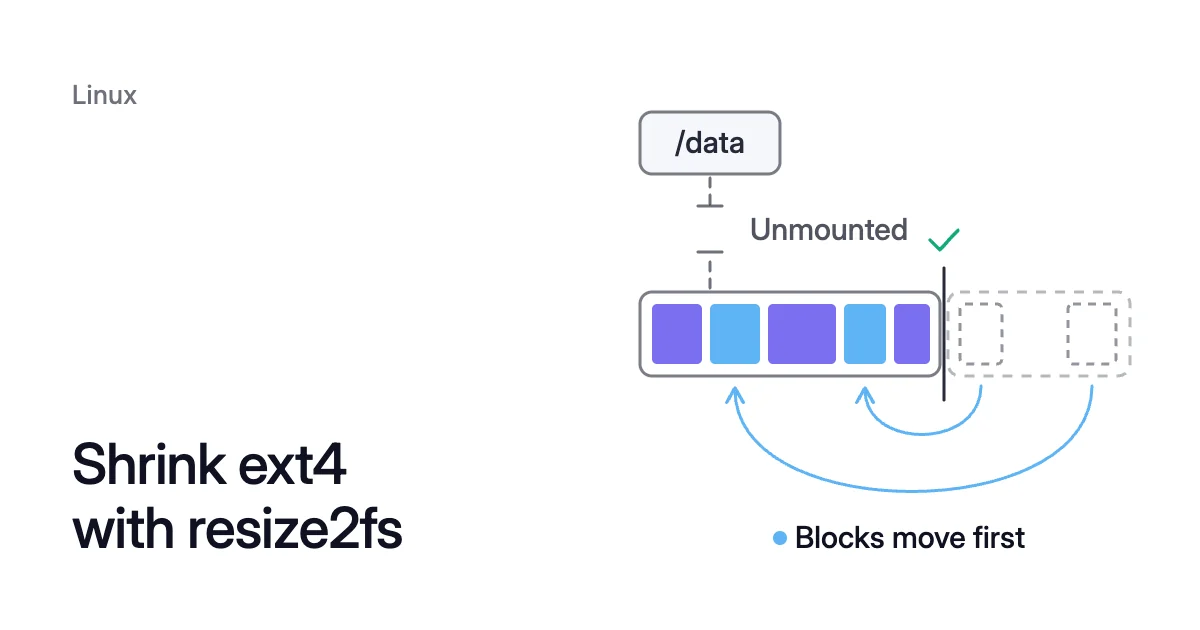
Short answer. resize2fs shrinks an ext4 filesystem only while it’s unmounted, so stop its services and unmount it first. Run e2fsck -f, check the minimum with resize2fs -P, then shrink the filesystem before the logical volume or partition under it. On a cloud disk, a smaller filesystem doesn’t reduce what you pay.
Why resize2fs won’t shrink a mounted ext4
Picture /data on a cloud VM. It’s a 500 GiB ext4 filesystem that fills a logical volume, or LV, on a 512 GiB data disk. After a cleanup, about 100 GiB of data is left.
Ask resize2fs for 150 GiB while the application runs, and it refuses:
Filesystem at /dev/<device> is mounted on /data; on-line resizing required
resize2fs: On-line shrinking not supported
resize2fs notices the mount and prints the first line. It exits with the second as soon as the new size is smaller than the current one.
Getting to 150 GiB means stopping every service on /data for the whole shrink. Afterwards, you still pay for all 512 GiB.
The resize2fs man page states the rule in its first paragraph. resize2fs can “enlarge or shrink an unmounted file system”. On a mounted one, it “can be used to expand the size of the mounted file system”.
A mounted grow adds block groups after the current end of the filesystem. No file uses that space yet.
Shrinking is the other direction. Files can sit in any block, including the last ones. Before the end can go, resize2fs must move every block and inode there into the part that stays.
It also rewrites the metadata that points at them. resize2fs does that only when no application can write to those blocks.
No flag gets past this refusal. The -f flag overrides “some safety checks”, and this refusal isn’t one of them.
Run e2fsck -f, then size the shrink with resize2fs -P
Why resize2fs asks for e2fsck -f
Before it moves anything, resize2fs wants evidence that the filesystem is consistent. It reads the superblock, and stops with Please run 'e2fsck -f /dev/<device>' first. when the filesystem:
- has recorded errors
- wasn’t cleanly unmounted
- has orphan inodes or a journal waiting for recovery
- has been mounted since its last full check
That last condition holds for nearly any data disk in daily use. Run e2fsck -f every time.
Find the minimum with resize2fs -P
resize2fs -P prints Estimated minimum size of the filesystem: and a count of filesystem blocks. Multiply the count by the Block size that tune2fs -l shows.
With -P, resize2fs opens the device read-only. It exits once it has printed the estimate. So it works on a mounted filesystem too, and you can run it to plan the stop.
Ask for less than the estimate and resize2fs refuses with New size smaller than minimum (<blocks>). The -f flag would push past it. Nothing good comes from forcing a filesystem below the space its own data needs.
The figure is also only an estimate. The man page’s known-bugs section says it “may be incorrect, especially for file systems with 1k and 2k blocksizes”.
Pick a target well above the minimum
A filesystem shrunk to its minimum has next to no free space, so writes soon fail. The -M option shrinks straight to the minimum. That suits a filesystem you’re about to image and set aside, not a data mount that keeps receiving writes.
One feature blocks a shrink outright. resize2fs refuses to shrink a filesystem with the stable_inodes feature flag.
- A GiB holds 1,073,741,824 ÷ 4,096 = 262,144 such blocks.
- So the estimate is 26,214,400 ÷ 262,144 = 100 GiB.
- The 150 GiB target is 150 × 262,144 = 39,321,600 blocks, 50 GiB above the estimate.
- In the shrink step, that’s
150G.
How to shrink an ext4 filesystem with resize2fs
These steps stop every service on the mount and rewrite the filesystem’s layout. Replace /data, <device> and <service> with your own.
- Take a snapshot of the disk first. resize2fs can write an undo file with
-z. But the man page warns that the undo file “cannot be used to recover from a power or system crash”. - Find the device behind the mount and its filesystem type.
$ df -Th /data
- Read the block size and the minimum, and choose the new size.
$ sudo tune2fs -l /dev/<device> | grep 'Block size'
$ sudo resize2fs -P /dev/<device>
- Stop each service that uses
/data. The downtime starts here.$ sudo systemctl stop <service>
- Unmount the filesystem so nothing can write to it.
$ sudo umount /data
- Run the full check that resize2fs asks for.
$ sudo e2fsck -f /dev/<device>
- Shrink the filesystem to the new size. The size argument takes
K,M,GorTas power-of-two units, orsfor 512-byte sectors. With no suffix, it’s a count of filesystem blocks, the same unit-Pprints. The-poption shows a progress bar for each phase.$ sudo resize2fs -p /dev/<device> <new-size>G
If the resize stops partway, resize2fs says to run
e2fsck -fyon the device “after the aborted resize operation”. Do that before you mount it again. - Mount it, check the new size, and start the services again.
$ sudo mount /data
$ df -Th /data
$ sudo systemctl start <service>
resize2fs shrink with LVM or a partition: the filesystem first
Shrink the filesystem first, and the LV or partition under it second. Never take the LV or partition below the filesystem’s new size. The resize2fs man page gives that order for a partition, and an LV takes the same order.
Red Hat’s logical volume guide agrees. “Data stored in the reduced area is lost,” it warns. Its advice is to “Always back up the data and resize the file system before proceeding”.
For a resize2fs shrink on LVM (Logical Volume Manager), let lvreduce drive both layers. Red Hat’s procedure unmounts the LV and runs e2fsck -f. Then it runs lvreduce with --resizefs, which resizes “the LV and the file system” in one command.
The same order, with your volume group and LV names:
$ sudo umount /data
$ sudo e2fsck -f /dev/<vg-name>/<lv-name>
$ sudo lvreduce --size <new-size>G --resizefs <vg-name>/<lv-name>
$ sudo mount /data
The freed extents go back to the volume group, ready for another LV. They don’t leave the disk. A smaller partition gains you nothing on a cloud data disk either, because the disk under it stays the size you provisioned.
Can you shrink ext4 while it’s mounted?
No. resize2fs refuses before any change is made, and no option turns the refusal off. Two routes keep a service running for most of the job instead.
The first is a copy. Use rsync to copy the data to a smaller filesystem on a new disk while the application runs. Then stop the services for a final pass over what changed, and mount the new filesystem at the old path.
The stop covers only that final pass and the remount. Shrinking an Azure managed disk and shrinking an Amazon Elastic Block Store (EBS) volume walk through it.
The second is a Linux filesystem that shrinks while mounted, and btrfs is one. Its man page describes btrfs filesystem resize as able to “Resize a mounted filesystem identified by path”. A size with a - prefix makes it smaller.
A btrfs pool across several disks can also take one disk out while it stays mounted. The btrfs device documentation says device management “works on a mounted filesystem”. The btrfs device remove command moves all the data off a disk before the disk leaves.
Taking a disk out of a btrfs pool covers the steps. Moving an ext4 mount onto btrfs takes one copy. An XFS mount has its own limits, set out in can you shrink an XFS filesystem?
A smaller filesystem doesn’t reduce the disk cost
On a cloud VM, you pay for the disk, not the filesystem. Azure charges a managed disk for the capacity you provision. A 1 TiB Premium SSD, for example, has the P30 tier by default.
AWS charges each EBS volume as configured, size included. After a change, AWS says “You are charged for the new volume configuration”. Shrinking ext4 from 500 GiB to 150 GiB on a 512 GiB disk still leaves you paying for 512 GiB.
The EBS and Azure disk pricing calculator shows what a disk costs a month at list price, and what its empty space costs.
Neither cloud shrinks the disk itself. Microsoft Learn says “Shrinking an existing disk isn’t supported and might result in data loss”. The EBS guide says “You can’t decrease the volume size”, and points to a smaller volume and a copy with rsync instead.
So paying for fewer GiB means one of three routes:
- Copy to a smaller disk. It takes one stop at the switch, and then you delete the old one.
- Empty a disk under LVM. With LVM across several disks, shrink the filesystem and LV until a whole disk’s worth of extents is free. Move that disk’s data with
pvmove, remove it from the volume group withvgreduce, then detach and delete the disk. With ext4 that still needs the unmount above, and removing a disk from LVM has the steps. - Take a disk out of btrfs. Keep the data in a btrfs pool across several disks. Remove one disk while the filesystem stays mounted, as the btrfs and LVM comparison shows.
When the data only grows, the first route once is enough. When it grows and shrinks, each ext4 shrink brings the stop back, and the third route avoids that.
How Amoeba avoids the offline shrink
Amoeba optimizes block storage on Azure and AWS. It works on Azure managed disks and Amazon EBS volumes, the data disks of running Windows and Linux VMs. It never touches the OS disk.
Amoeba takes the copy route once, then the btrfs route from there.
- The move. Amoeba moves a VM’s data disks onto one btrfs pool, sized to your data, with room to grow. It copies your data while your services run.
- The switch. Then it switches each mount to the pool, with a short restart of the services that use it. Each mount keeps its path. If the switch fails, Amoeba puts the original mounts back and tries again.
- The old disks. Once the switch is checked, Amoeba snapshots each old disk and deletes the disk. It keeps each snapshot for a few days, then deletes it too.
- Rightsizing. Amoeba grows the pool before it fills, and sooner when data arrives fast. When your data goes down and stays down, it shrinks the pool one disk at a time, without any downtime. So you pay for close to what you use.
The guide explains what happens at the switch. You pay for both sets of disks only while the move runs, and then for the snapshots while they’re kept.
On Linux, the VM needs a recent kernel with btrfs. Every service that keeps a data mount open must run under systemd. The VM also needs a few free disk slots for the pool.
EBS cost optimization and Azure managed disk cost optimization show Amoeba on each cloud.
Sources: man7.org, “resize2fs(8)” (opens in a new tab); kernel.org, “e2fsprogs source tree” (opens in a new tab) (resize/main.c, resize/online.c, lib/e2p/ls.c); Red Hat, “Configuring and managing logical volumes” (opens in a new tab) (RHEL 9), “Shrinking logical volumes” and “Removing physical volumes from a volume group”; BTRFS documentation, “btrfs-filesystem(8)” (opens in a new tab); BTRFS documentation, “btrfs-device(8)” (opens in a new tab); Microsoft Learn, “Expand virtual hard disks on a Linux VM” (opens in a new tab); Microsoft Learn, “Understand Azure Disk Storage billing” (opens in a new tab); AWS, “Modify an Amazon EBS volume using Elastic Volumes operations” (opens in a new tab).