Published 1 November 2026 · By Vineet (opens in a new tab), Infrastructure engineer, Zoorik · Published by Zoorik
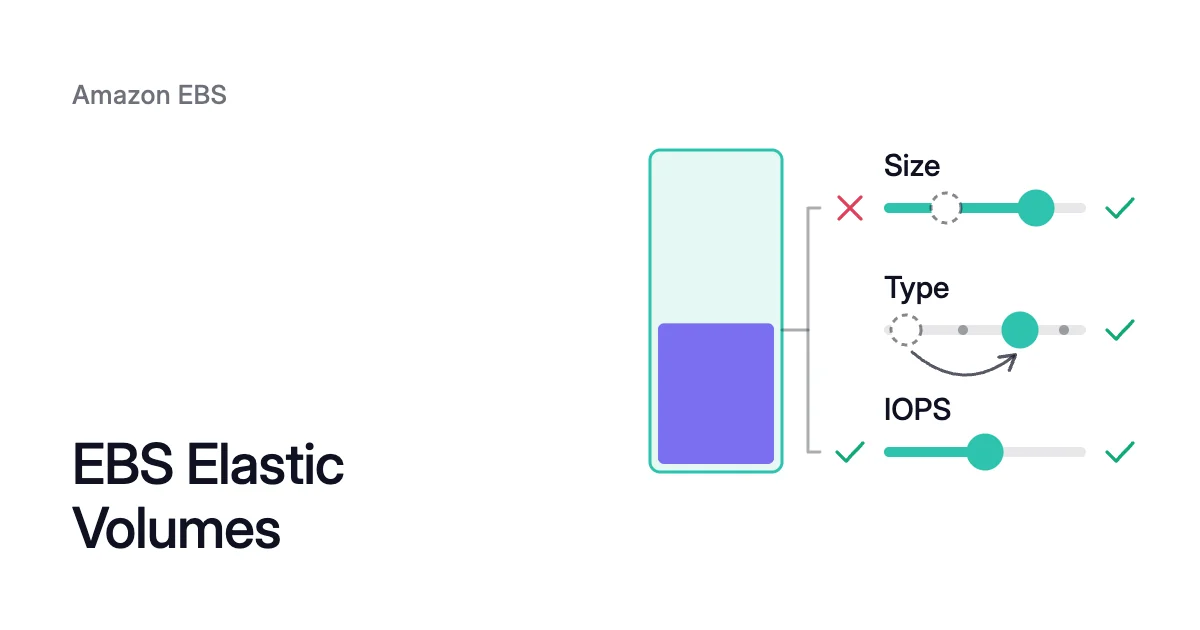
Short answer. EBS Elastic Volumes is AWS’s name for changing an Amazon Elastic Block Store (EBS) volume in use: its size, type, IOPS and throughput. On a current-generation instance, nothing is detached or restarted, size only grows, and a volume takes up to four changes in a rolling 24 hours.
What EBS Elastic Volumes can change on a volume in use
Picture a 500 GiB gp2 EBS volume under a database. The database needs more than the 1,500 input/output operations per second (IOPS) that gp2 gives a volume that size.
One modification, made while the database runs, can turn it into gp3, with 3,000 IOPS included at any size. The volume keeps the same 250 MiB/s of throughput.
If the data later shrinks, the volume stays at 500 GiB.
Each change has its own range:
| Change | Which way | Volume types and range | When it takes effect |
|---|---|---|---|
Size | Up only | gp2 and io1 up to 16,384 GiB; gp3 and io2 up to 65,536 GiB; st1 and sc1 from 125 to 16,384 GiB | At optimizing, usually within seconds |
Volume type | From one type to another, within the target type’s limits | Multi-Attach volumes: io1 to io2 and back only | Full performance at completed |
IOPS | Up or down | gp3 3,000 to 80,000; io1 100 to 64,000; io2 100 to 256,000 | Full performance at completed, minutes to hours |
Throughput | Up or down | gp3 only, 125 to 2,000 MiB/s | Full performance at completed, minutes to hours |
A gp3 volume raises IOPS and throughput without adding a GiB, within two ratios. It allows up to 500 IOPS per GiB, and up to 0.25 MiB/s of throughput per provisioned IOPS. The 256,000 IOPS ceiling of io2 needs an instance built on the Nitro System.
On a previous-generation instance type that doesn’t support Elastic Volumes, or when a modification returns an error, AWS gives a fallback. Detach a data volume, modify it and attach it again, or stop the instance to modify its root volume.
How to modify an EBS volume type without downtime
You can change an EBS volume type without downtime on a current-generation instance. With the AWS Command Line Interface (CLI), it takes three steps.
1. Check that the volume fits the target type
- Over 16,384 GiB, a volume can’t become gp2, io1, st1 or sc1.
- A volume with Multi-Attach enabled, which lets several instances share it, can only move between io1 and io2. It can make that move while attached.
- st1 and sc1 need at least 125 GiB, and neither can take a root volume, even a detached one.
2. Submit the change, naming every value
To modify an EBS volume, pass only what you want to change. The rest keeps its current value, unless a type change sets a default.
The EBS User Guide says a gp2 volume moved to gp3 without them gets the higher of its gp2-equivalent performance and the gp3 baseline. So the guide’s own 500 GiB example keeps 250 MiB/s.
AWS’s CLI reference instead gives a flat default of 3,000 IOPS and 125 MiB/s. For the volume from the opening, name both:
$ aws ec2 modify-volume \
    --volume-id <volume-id> \
    --volume-type gp3 \
    --iops 3000 \
--throughput 2503. Confirm that it started
The response should show a ModificationState of modifying, the first of three states. Then come optimizing and completed.
To choose a type, see EBS volume types. Two pages compare the common moves: gp2 vs gp3 and io2 vs gp3.
What the EBS volume optimizing state means
A size increase takes effect once the modification reaches optimizing, which AWS says usually takes a few seconds. So you can grow the partition and filesystem without waiting for completed.
Performance takes longer. While a volume is optimizing, its performance sits between the old and the new configuration. It never drops below the old one, or below the new one when you’re reducing IOPS.
AWS gives a few minutes to a few hours for performance changes. Its figure for a fully used 1 TiB volume is about 6 hours. That time doesn’t always scale with size in a straight line.
To follow a modification, run:
$ aws ec2 describe-volumes-modifications \
--volume-ids <volume-id>The response shows the ModificationState and a Progress percentage. If you’d rather not poll, an Amazon EventBridge rule can notify you of modification events.
When a modification is slow or fails
A volume that isn’t fully initialized is one known cause of a long optimizing state. A volume created from a snapshot or another volume reaches full performance only after its data blocks are written to it. An empty volume skips that step.
AWS says modifications take longer on such a volume. A new performance configuration can then take more than 24 hours. So let a restored volume finish initializing before you modify it.
When you create a volume from a snapshot, you can also pay for a Provisioned Rate for Volume Initialization. Set from 100 to 300 MiB/s, it makes initialization end at a predictable time. Volume copies don’t support it.
Rarely, a transient AWS fault ends a modification as failed. AWS says this isn’t a sign of trouble with the volume, so retry it.
Is there still a 6-hour wait between EBS volume modifications?
No. Search suggestions and older guides still pair EBS volume modification with 6 hours. That comes from an old rule of six hours between changes.
On 15 January 2026, AWS announced up to four Elastic Volumes modifications per volume in a rolling 24-hour window. It applies in every commercial Region, GovCloud (US) and China, with nothing to turn on.
The two rules now
- One at a time. A new modification starts only after the last one on that volume has reached completed.
- Four a day. A volume, which must be
in-useoravailable, takes at most four in a rolling 24 hours. Over the limit, the error message says when the next one can start.
The other 6 hours is still in the docs, as a duration rather than a wait. A 1 TiB volume can typically take up to six hours to modify. The next change waits for completed, so a slow change blocks it that long, whatever the daily limit allows.
Where you can, put size, type, IOPS and throughput changes in one modify-volume call.
Four a day as a performance schedule
Four a day is enough to schedule performance around a workload. AWS’s July 2026 storage blog describes a customer on 250 GiB gp3 volumes. Each weekday, the customer changed IOPS and throughput on this schedule, in UTC:
- At 11:00 pm, it raised them for a nightly batch.
- At 3:00 am, it went back to the 3,000 IOPS and 125 MiB/s baseline.
- At 5:30 am, it set them high again for the morning peak.
- At 11:00 am, it returned to baseline.
Each change must complete before the next is due. So time your own modifications before you rely on a schedule.
So the 3:00 am change must reach completed within 2.5 hours. Now say it took 6 hours, the time AWS gives for a fully used 1 TiB volume. The 5:30 am raise couldn’t start until 9:00 am.
Elastic Volumes pricing: what a change costs
There’s no separate EBS Elastic Volumes pricing. In AWS’s words, “There is no charge to modify the configuration of a volume.”
What changes is the volume’s own price. You pay for the new configuration from the moment the modification starts, not when it completes.
Storage is charged by the GB you provision per month, until you release it. On top of that, gp3 costs extra only for IOPS and throughput above its included 3,000 IOPS and 125 MiB/s. On io1 and io2, you pay for the provisioned IOPS, and io2’s IOPS rates are tiered.
For gp3, provisioned storage, IOPS and throughput are charged per second, with a 60-second minimum. So IOPS you raise for a batch window, then reduce, cost that window at the higher rate, not a month.
Size works the other way. A GiB you add stays in the volume’s monthly cost. The changes that reduce a volume’s cost are a cheaper type and less provisioned IOPS or throughput.
For example, gp3 costs 20 percent less per GiB than gp2. Our EBS pricing calculator shows what a volume costs a month at list price, and what its empty space costs.
When a volume needs to change:
- It’s filling up. Increase the size by enough to last until this modification completes and the next can start.
- It’s too slow. Raise IOPS on gp3, io1 or io2, and throughput on gp3 only. Or move gp2 to gp3, rather than adding GiB for the IOPS that come with them.
- It’s much bigger than the data. No modification helps. Check its EBS volume usage to see by how much.
Why Elastic Volumes can’t make a volume smaller
AWS’s guide is plain: “You can’t decrease the volume size.” An attached EBS volume is a block device.
The filesystem on it can keep data in any block, including the last ones. Removing the end of the device would remove part of the filesystem. Only the operating system inside the instance can move that data away first.
The way to a smaller size is the one AWS names. Create a smaller volume, then migrate the data with an application-level tool such as rsync.
That means paying for two volumes while you copy. It also means stopping the services on the mount for the switch, as shrinking an EBS volume explains. Until you do, every size increase is a new floor for what the volume costs.
How Amoeba works with volumes that only grow
Because EBS volumes only grow, Amoeba, which optimizes block storage on Azure and AWS, changes how many volumes hold the data instead.
- The pool. Amoeba moves an instance’s EBS data volumes onto one btrfs pool of gp3 volumes, sized to your data with room to grow. Each data mount keeps its path, and the root volume is never touched.
- The move. Amoeba copies your data while your services run. Then it switches each mount to the pool, with a short restart of the services that use it. If the switch fails, it puts the original mounts back and tries again.
- Growing. It grows the pool before it fills, and sooner when data arrives fast. It enlarges the pool’s gp3 volumes, or adds new ones, while the pool stays mounted.
- Shrinking. When your data goes down and stays down, it shrinks the pool one volume at a time. So you pay for close to what you use.
- The old volumes. Once the switch is checked, Amoeba snapshots and deletes each old volume. It deletes each snapshot a few days later.
You pay for both sets of volumes only while the move runs, and then for the snapshots while they’re kept.
Amoeba works on Windows and Linux instances. On AWS, the instance must be managed by AWS Systems Manager, and be a Nitro type that exposes EBS as NVMe. It also needs a few free attachment slots for the pool.
On Linux, the instance needs a recent kernel with btrfs. Every service that keeps a data mount open must run under systemd. EBS cost optimization shows Amoeba on AWS end to end.
Sources: AWS, “Modify an Amazon EBS volume using Elastic Volumes operations” (opens in a new tab); AWS, “Monitor the progress of Amazon EBS volume modifications” (opens in a new tab); AWS CLI Command Reference, “modify-volume” (opens in a new tab); AWS, “Amazon EBS General Purpose SSD volumes” (opens in a new tab); AWS, “Initialize Amazon EBS volumes” (opens in a new tab); AWS What’s New, “Amazon EBS now supports up to four Elastic Volumes modifications in 24 hours” (opens in a new tab) (15 January 2026); AWS Storage Blog, “Optimize Amazon EBS volumes to get the right performance at the right time” (opens in a new tab) (20 July 2026); AWS, “Amazon EBS pricing” (opens in a new tab).