Published 1 November 2026 · By Sheldon Julius (opens in a new tab), Sales engineer, Zoorik · Published by Zoorik
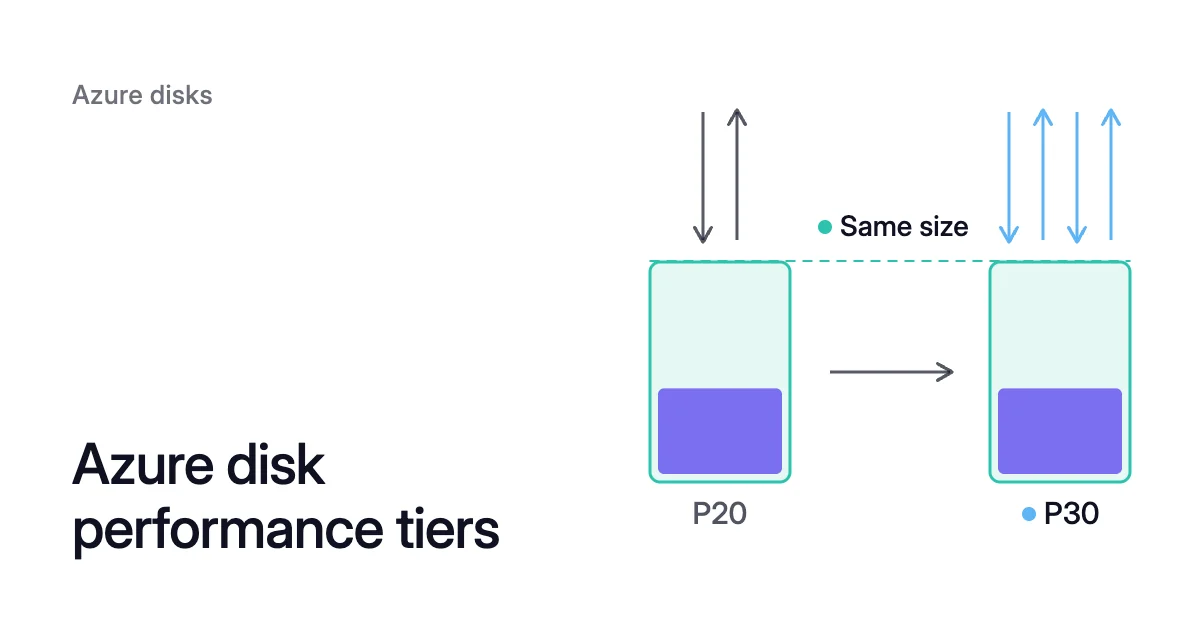
Short answer. Azure disk performance tiers give a Premium SSD the IOPS (input/output operations per second) and throughput of a bigger size, without adding space. You pay the higher tier’s price by the hour, but peaks of up to 30 minutes on P20 and smaller burst for free.
Azure disk performance tiers set IOPS apart from size
Picture a 512 GiB Premium SSD data disk under a database. As a P20, it’s allowed 2,300 IOPS. For one busy week, the database needs 5,000.
You could grow the disk to a 1,024 GiB P30 and keep paying for that size after the week. Or you could raise its performance tier to P30 for the week, then set it back.
Every Premium SSD starts at the tier its size sets
Premium SSD comes in size tiers from P1 to P80, or 4 GiB to 32,767 GiB. Each tier has its own IOPS and throughput limits.
Azure charges a disk at the smallest tier that holds its size, and that tier is its baseline performance tier. A 128 GiB disk gets P10, with 500 IOPS and 100 MB/s. Raising the performance tier changes the limits and leaves the size alone.
Azure managed disk performance tiers apply to Premium SSD only. Standard SSD and Standard HDD have size tiers too, but no performance tier you can change. On Premium SSD v2 and Ultra Disk, you set IOPS and throughput directly.
How far each disk size can go
Each disk size moves up only to the tiers Microsoft lists for it. The P1 to P6 sizes (4 to 64 GiB) can reach P50 too. P60 to P80 are open only to disks larger than 4,096 GiB.
| Disk size | Baseline tier | Baseline IOPS, MB/s | Highest tier | Highest tier’s IOPS, MB/s |
|---|---|---|---|---|
128 GiB | P10 | 500, 100 | P50 | 7,500, 250 |
256 GiB | P15 | 1,100, 125 | P50 | 7,500, 250 |
512 GiB | P20 | 2,300, 150 | P50 | 7,500, 250 |
1 TiB | P30 | 5,000, 200 | P50 | 7,500, 250 |
2 TiB | P40 | 7,500, 250 | P50 | 7,500, 250 |
4 TiB | P50 | 7,500, 250 | None | |
8 TiB | P60 | 16,000, 500 | P80 | 20,000, 900 |
16 TiB | P70 | 18,000, 750 | P80 | 20,000, 900 |
32 TiB | P80 | 20,000, 900 | None |
Every disk of 4 TiB or less tops out at P50, and Microsoft’s per-disk limits give P50 the same base numbers as P40. So without the performance plus option, a tier change can’t take a disk below 4 TiB past P40’s 7,500 IOPS and 250 MB/s. Microsoft’s higher, expanded limits from P30 up need performance plus enabled.
How to change a disk’s performance tier with the VM running
You can change an Azure disk’s performance tier while it’s attached to a running VM. There’s no deallocation and no detach. With the Azure CLI, for the 512 GiB P20 above:
- Raise the tier from P20 to P30.
$ az disk update -n <disk-name> -g <resource-group> --set tier=P30
- Confirm that the disk now reports P30.
$ az disk show -n <disk-name> -g <resource-group> --query tier -o tsv
- When the busy week ends, run the same update with the baseline tier,
tier=P20.
PowerShell does the same with New-AzDiskUpdateConfig -Tier and Update-AzDisk. In the portal, use the disk’s Size + performance page.
Microsoft’s rules for tier changes:
- Stepping down. A disk’s tier can be downgraded only once every 12 hours.
- The floor. You can’t set a tier below the disk’s baseline.
- Shared disks. The tier can’t change while a shared disk is attached to running VMs, so stop all of them first.
- Terraform. It shuts a running VM down and tries to restart it when it changes the tier. The CLI, PowerShell and the portal avoid that.
- Older disks. Disks created before June 2020 show no tier until you update them with their baseline tier.
Azure disk performance tier pricing: the higher tier’s rate, by the hour
While a disk runs at a higher tier, Azure charges that tier’s rate. Once you set it back, the baseline rate applies again.
Azure charges by the hour from the monthly price, which the pricing page bases on 730 hours. So the Azure disk performance tier cost is the gap between the two tiers’ monthly prices. You pay it only for the hours you hold the higher tier.
These are East US pay-as-you-go list prices for locally redundant storage (LRS), October 2026:
- P20: $73.22 a month
- P30: $135.17 a month
- P40: $259.05 a month
- P50: $495.57 a month
Prices differ by region and change, so check the managed disks pricing page for yours. The Azure disk pricing calculator shows a disk’s monthly cost at list price.
A busy week at P30, or a bigger disk for good
For the 512 GiB P20, P30 costs $135.17 − $73.22 = $61.95 a month more. Holding it for the busy week’s 168 hours adds $61.95 × 168 ÷ 730, about $14.
Growing the disk to 1,024 GiB gives the same IOPS. But then the $61.95 stays in your cloud cost every month after the week. A grown disk stays at 1,024 GiB, because Microsoft says shrinking an existing disk “isn’t supported and might result in data loss.”
For a permanent need the comparison flips. A raised tier then costs the bigger disk’s price without its space.
Grow the disk if you’ll use the space. If you won’t, price Premium SSD v2, which charges for capacity, IOPS and throughput separately.
Azure disk bursting covers short peaks without a tier change
Bursting lets a disk go above its tier’s limits for a while. Premium SSD supports both models below, and Standard SSD gets only the first.
Credit-based bursting: free, for up to 30 minutes
Azure turns this model on by default, at no extra charge. It covers Premium SSD of 512 GiB or less (P20 and below) and Standard SSD through E30 (1,024 GiB).
Each disk has a credit bucket that starts full. The bucket fills while the disk runs below its target and empties while it runs above.
A full bucket lasts up to 30 minutes at the maximum burst rate, in one go or spread through the day. An empty one refills in less than a day. Microsoft calls it best effort, not guaranteed.
Every Premium SSD from P1 to P20 bursts to 3,500 IOPS and 170 MB/s. That’s a large step for a P4 with 120 IOPS.
Credits build at the disk’s own unused rate. An idle P20 earns 2,300 IOPS of credit each second, an idle P1 just 120.
Standard SSD bursts less. It reaches 600 IOPS and 150 MB/s up to E20, and 1,000 IOPS and 250 MB/s on E30.
On-demand bursting: no time limit, charged by use
Azure disk on-demand bursting is for Premium SSD disks larger than 512 GiB, and you enable it yourself. The disk can then burst to 30,000 IOPS and 1,000 MB/s whenever the workload asks, for as long as it asks. For a 1 TiB P30, that’s six times its 5,000 provisioned IOPS.
It’s charged in two parts. A flat enablement fee runs from the moment you enable it until you disable it, whether the disk is attached or not. Burst transactions above the provisioned target come on top.
In East US in October 2026, the pricing page lists the fee at $24.576 a month. Burst transactions cost $0.005 per 10,000.
Enabling it on an existing disk means downtime for that disk, so detach it or stop its VM first. Once on, it can be disabled only after 12 hours, and a tier change doesn’t turn it off.
$ az disk update --name <disk-name> --resource-group <resource-group> --enable-bursting true
To disable it later, run the same command with --enable-bursting false.
Tier change or burst: which costs less for a busy period
| Credit-based bursting | On-demand bursting | Higher performance tier | |
|---|---|---|---|
Disks | Premium SSD up to 512 GiB, Standard SSD up to 1,024 GiB | Premium SSD over 512 GiB | Premium SSD, any size, up to the tiers its size allows |
Peak | 3,500 IOPS and 170 MB/s on Premium SSD | 30,000 IOPS and 1,000 MB/s | The tier’s limits, at most 20,000 IOPS and 900 MB/s |
How long | Up to 30 minutes from a full bucket, best effort | No time limit | Until you set it back |
Extra cost | None | Enablement fee plus burst transactions | The tier’s price, by the hour |
Turning it on | On by default | Disk detached or VM stopped | One command, VM running |
Going back | Nothing to do | Disable 12 hours after enabling | One downgrade every 12 hours |
- The burst. On-demand bursting counts 2,500 × 3,600 seconds = 9,000,000 burst transactions an hour. That’s 900 units of 10,000, so each hour costs 900 × $0.005 = $4.50 in East US.
- The tier. P40 for the whole month adds $259.05 − $135.17 = $123.88.
- The break-even. After the $24.576 fee, $123.88 − $24.576 = $99.30 is left. That pays for $99.30 ÷ $4.50 = about 22 hours of burst a month.
Past that break-even, P40 costs less, on IOPS alone.
Microsoft’s guidance points the same way: a workload that often runs above its target is better served by a higher tier.
How to choose for your own disk
Take these in order:
- Find the limit. When the disk metric Data Disk IOPS Consumed Percentage or Data Disk Bandwidth Consumed Percentage reaches 100%, the disk is the limit. When VM Uncached IOPS Consumed Percentage does, the VM is the limit, and a higher disk tier won’t lift it.
- Leave short peaks to credits. Credit-based bursting fits peaks of up to 30 minutes on a P20 or smaller. They must need no more than 3,500 IOPS and 170 MB/s. Data Disk Used Burst IO Credits Percentage, reported every 5 minutes, shows how much of the bucket they use.
- Burst on demand for unpredictable peaks. On a disk over 512 GiB, this fits while the peaks add up to fewer hours a month than your break-even.
- Raise the tier for a busy period you can see coming. Raise it at the start, and set it back at the end.
- Grow the disk for a need that won’t go away. Do this if you’ll use the space. If you won’t, price a type that charges for performance apart from capacity.
How Amoeba sizes block storage to your data
Premium SSD ties performance to size. So a disk grown for IOPS carries space its data doesn’t use, and you pay for that space every month.
Amoeba optimizes block storage on Azure and AWS from the data side. It moves a VM’s data disks onto one btrfs pool sized to your data, with room to grow. It works on running Windows and Linux VMs, and never touches the OS disk.
- The move. Amoeba copies your data while your services run. Then it switches each mount to the pool, with a short restart of the services that use it.
- Rightsizing. It grows the pool before it fills, and sooner when data arrives fast. When your data goes down and stays down, it shrinks the pool one disk at a time. So you pay for close to what you use.
- Disk type. On Azure the pool uses Premium SSD v2 where your VM’s region and zone offer it, and Premium SSD otherwise.
- Performance. Amoeba picks pool disks that carry the VM’s measured disk load. A shrink goes ahead only if the disks that stay can still carry it.
Azure managed disk cost optimization covers Amoeba on Azure in full.
Sources: Microsoft Learn, “Performance tiers for Azure Premium SSD managed disks” (opens in a new tab); Microsoft Learn, “Change the performance of Azure managed disks” (opens in a new tab); Microsoft Learn, “Managed disk bursting” (opens in a new tab); Microsoft Learn, “Enable on-demand disk bursting” (opens in a new tab); Microsoft Learn, “Scalability and performance targets for VM disks” (opens in a new tab); Microsoft Learn, “Disk metrics” (opens in a new tab); Microsoft Learn, “Expand virtual hard disks on a Linux VM” (opens in a new tab); Microsoft Azure, “Managed Disks pricing” (opens in a new tab).