Published 1 November 2026 · By Ajay Roy, Guest author · Infrastructure engineer at HCL · Published by Zoorik
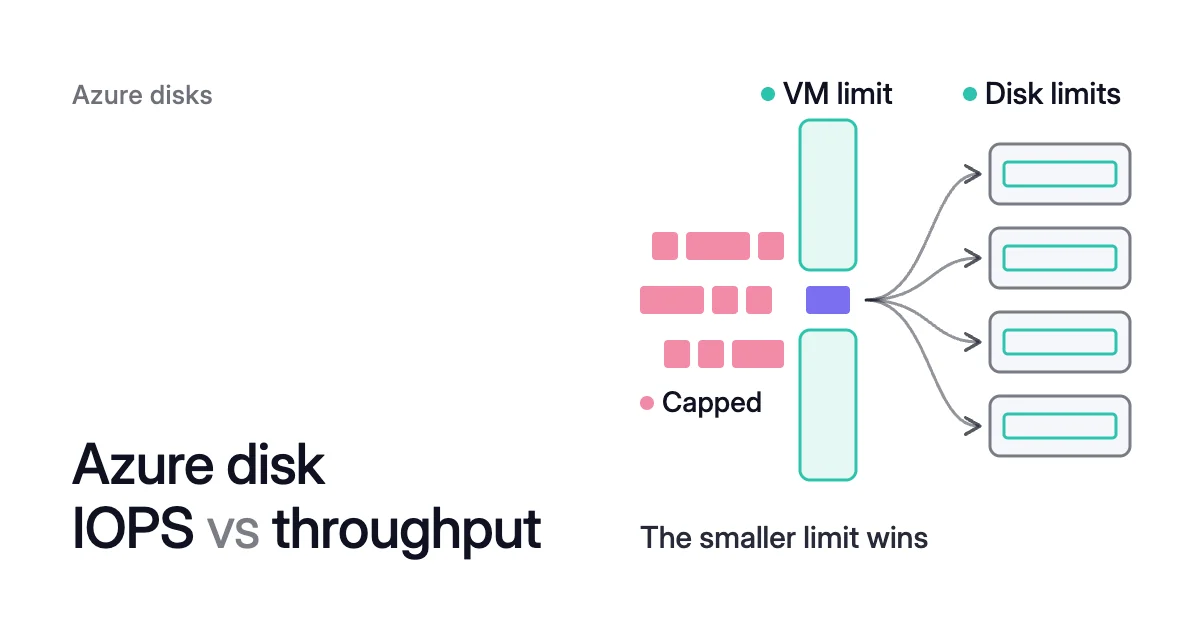
Short answer. Azure disk IOPS vs throughput compares two limits, IOPS (input/output operations per second) and throughput, the megabytes per second those operations move. Azure caps both on every managed disk and again on every VM size, and the smaller limit sets your speed.
Azure disk IOPS vs throughput: the smaller limit sets your speed
Take a Standard_D4s_v5 VM with four 512 GiB P20 Premium SSD data disks. Together, the four disks allow 9,200 IOPS and 600 MB/s. The VM allows 6,400 IOPS and 145 MB/s of uncached traffic outside bursts, however many disks you attach.
A database on the VM sending 8 KB requests still stops at 6,400 IOPS, moving roughly 50 MB/s. A backup reading 1,024 KB at a time tops out at 145 MB/s, under 150 requests a second.
Latency, the time one request takes, is what your application feels. Microsoft’s performance page warns that capping “can lead to negative consequences like increased latency.”
Azure disk IOPS and throughput limits apply at two levels. Each managed disk has its own pair. Azure VM disk IOPS limits are the second level: each VM size sets a pair for all its disks together, OS disk included.
Microsoft’s design guide says the per-VM and per-disk limits “are different and independent of each other.” Traffic must fit under both:
| Limit | IOPS | Throughput |
|---|---|---|
One P20 data disk | 2,300 | 150 MB/s |
Four P20 data disks together | 9,200 | 600 MB/s |
Standard_D4s_v5, uncached | 6,400 | 145 MB/s |
Three P20s already give 3 × 2,300 = 6,900 IOPS, past the VM’s 6,400. So the fourth adds space and no usable IOPS. Throughput runs out sooner: one P20 alone can move 150 MB/s, more than the VM allows across all four.
Premium SSD v2 doesn’t support host caching. The D4s_v5 can also burst uncached traffic to 20,000 IOPS and 1,200 MB/s for up to 30 minutes at a time. That covers short peaks, not a steady load.
Request size decides which limit you reach first
An I/O operation is one read or write request, and requests come in different sizes. Microsoft’s performance guide ties the two measures together: IOPS multiplied by I/O size equals throughput.
So the same disk can hit either limit first. Microsoft’s worked example uses a P30 Premium SSD, provisioned for 5,000 IOPS and 200 MB/s.
With 8 KB requests, the P30 reaches 5,000 IOPS at only 40 MB/s. With 1,024 KB requests, it gets to 200 MB/s at only 200 IOPS.
Small random requests, typical of a transactional database, meet the IOPS cap first. Large sequential reads from a backup meet the throughput cap.
Request size also changes how Azure counts. On Premium SSD and Standard SSD, a request of up to 256 KiB counts as one I/O operation. A larger one counts as several operations of 256 KiB, so a 1 MiB write counts as four.
How to check disk IOPS in an Azure VM
Read the Azure disk IOPS consumed percentage metrics
Azure Monitor’s storage I/O utilization metrics divide use by the limit, on VM series that support premium storage. For each, Microsoft says: “If this value reaches 100%, your application is I/O capped” by that limit.
The metrics come in pairs:
- Disk level. Data Disk IOPS Consumed Percentage with Data Disk Bandwidth Consumed Percentage. The OS disk gets the same two.
- VM level. VM Uncached IOPS Consumed Percentage, VM Uncached Bandwidth Consumed Percentage and a cached pair for I/O through the host cache.
In the Azure portal:
- Open the VM and select Metrics in the left pane.
- Add Data Disk IOPS Consumed Percentage and set the aggregation to Max.
- Apply splitting by LUN (logical unit number, the slot a data disk sits in), so each disk gets its own line.
- Repeat for Data Disk Bandwidth Consumed Percentage, then add the two VM Uncached metrics without splitting.
Splitting matters. In Microsoft’s example, the data disks averaged about 42% of their IOPS, while LUN 2 and LUN 3 each used about 85%.
From the Azure CLI, this lists each data disk’s peak in every five-minute window over the last 24 hours:
$ az monitor metrics list \
  --resource <vm-name> \
  --resource-group <resource-group> \
  --resource-type Microsoft.Compute/virtualMachines \
  --metrics "Data Disk IOPS Consumed Percentage" "Data Disk Bandwidth Consumed Percentage" \
  --dimension LUN \
  --top 64 \
  --aggregation Maximum \
  --interval 5m \
  --offset 24h
For the VM level, drop --dimension and use the VM Uncached pair. Most of these metrics arrive once a minute, while the guest’s counters can report every few seconds.
Data Disk Latency (in preview) adds the average time per I/O in milliseconds. It covers disks on a SCSI controller, not NVMe.
Check from inside the VM
On Linux, iostat from the sysstat package reports each device at the interval you choose:
$ iostat -d -x -m -y 5
- IOPS. Add r/s and w/s.
- Throughput. Add rMB/s and wMB/s. The iostat MB is a mebibyte, while Azure’s is 10^6 bytes, so the D4s_v5’s 145 MB/s shows as about 138.
- Latency. The r_await and w_await columns give it in milliseconds, queue time included.
- Request size. The average in KiB is in rareq-sz and wareq-sz, and shows which cap you’re nearer.
On a SCSI controller, list the disks with their HCTL address to match each one to its LUN in the portal. The last number is the LUN:
$ lsblk -o NAME,HCTL,SIZE,MOUNTPOINT | grep -i "sd"
On an NVMe controller, sudo azure-nvme-id from the azure-vm-utils package prints each data disk’s LUN. On Windows, the matching PerfMon counters are:
- Disk reads/sec and Disk writes/sec, for IOPS;
- Disk read bytes/sec and Disk write bytes/sec, for throughput.
What to change when a disk or the VM is capped
Read both levels together:
- A disk metric at 100%, VM metrics below. The disk is the limit. A larger Premium SSD tier, higher settings on a Premium SSD v2 disk or more disks striped together all raise it. Microsoft’s example stripes two P30 disks for 10,000 IOPS or 400 MB/s, which helps only while the VM can carry the total.
- A VM metric at 100%. A faster disk won’t help. Moving to a Standard_D8s_v5 doubles the D4s_v5’s limits to 12,800 IOPS and 290 MB/s. On a size that supports host caching, Microsoft also recommends ReadOnly caching on read-heavy disks for higher read IOPS.
- IOPS capped, throughput low. The requests are small. The reverse means they’re large.
- Neither at 100%, latency still high. Look past the disk limits. Microsoft notes that an apparent disk problem is sometimes a network bottleneck.
- Both far below 100% for weeks. The disk has more IOPS and throughput than its workload uses. On Premium SSD, the tier that supplies them also sets the size you pay for, so check used space inside the VM too. Azure can’t shrink a managed disk in place.
How Amoeba handles disk load in a pool
Amoeba, Zoorik’s block storage optimization, works on that last case. On running Windows and Linux VMs, it moves the data disks onto one btrfs pool sized to your data, with room to grow. Amoeba never touches the OS disk.
- Disk type. On Azure the pool uses Premium SSD v2 where your VM’s region and zone offer it, and Premium SSD otherwise. On AWS it uses gp3.
- Disk load. Amoeba picks pool disks that carry the VM’s measured disk load, within the VM size’s own disk limits.
- Rightsizing. It grows the pool before it fills, and sooner when data arrives fast. When your data goes down and stays down, it shrinks the pool one disk at a time.
- Shrinks. Each disk removed takes its IOPS and throughput with it. So a shrink goes ahead only if the disks that stay can still carry the VM’s disk load.
- The move. Amoeba copies your data while your services run. Then it switches each mount to the pool, with a short restart of the services that use it.
Azure managed disk cost optimization covers Amoeba on Azure in full.
Sources: Microsoft Learn, “Virtual machine and disk performance” (opens in a new tab); Microsoft Learn, “Disk performance metrics” (opens in a new tab); Microsoft Learn, “Azure managed disk types” (opens in a new tab); Microsoft Learn, “Azure premium storage: Design for high performance” (opens in a new tab); Microsoft Learn, “Dsv5 sizes series” (opens in a new tab); Microsoft Learn, “az monitor metrics” (opens in a new tab); Microsoft Learn, “Use the portal to attach a data disk to a Linux VM” (opens in a new tab); man7.org, “iostat(1), Linux manual page” (opens in a new tab).