Published 1 November 2026 · By Sheldon Julius (opens in a new tab), Sales engineer, Zoorik · Published by Zoorik
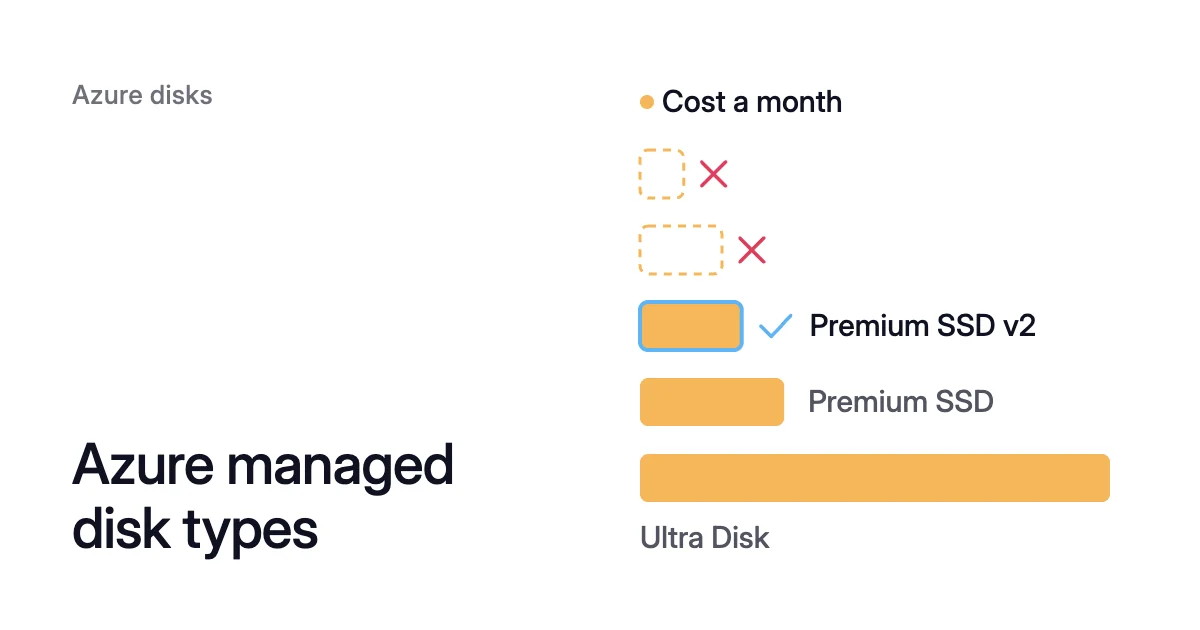
Short answer. The five Azure disk types, all managed disks, are Ultra Disk, Premium SSD v2, Premium SSD, Standard SSD and Standard HDD. For most general-purpose data disks, Premium SSD v2 gives the best price performance, and Premium SSD is the fastest OS disk type.
Azure disk types compared
Microsoft offers five disk types for Azure virtual machines (VMs), and each one is a managed disk. Azure keeps three copies of every managed disk’s data. The types differ in what you pay for, how fast they go and where you can use them.
The Azure disk types comparison below uses Microsoft’s published limits for each type.
| What you decide on | Ultra Disk | Premium SSD v2 | Premium SSD | Standard SSD | Standard HDD |
|---|---|---|---|---|---|
What you pay for | Capacity, plus every IOPS and MB/s you set | Each GiB, plus IOPS above 3,000 and MB/s above 125 | The size tier, P1 to P80 | The size tier, E1 to E80, plus transactions | The size tier, S4 to S80, plus transactions |
Largest disk | 64 TiB | 64 TiB | 32,767 GiB | 32,767 GiB | 32,767 GiB |
Highest IOPS | 400,000 | 80,000 | 20,000 | 6,000 | 2,000, or 3,000 with performance plus |
Highest throughput | 10,000 MB/s | 2,000 MB/s | 900 MB/s | 750 MB/s | 500 MB/s |
OS disk | No | No | Yes | Yes | Yes, until September 8, 2028 |
Zone-redundant storage (ZRS) | No | No | Yes | Yes | No |
Microsoft’s suggested use | SAP HANA, top-tier databases and transaction-heavy workloads | Production workloads that need low latency, high IOPS and high throughput | Production workloads that need high performance and low latency | Web servers, lightly used enterprise applications, dev and test | Backup and noncritical, infrequently accessed workloads |
Latency follows the same order. Microsoft designs Ultra Disk and v2 for under a millisecond, and Premium SSD and Standard SSD for single-digit milliseconds. Standard HDD aims for writes under 10 ms and reads under 20 ms, for most I/O.
Some limits come before price. Premium SSD v2 and Ultra Disk work only as data disks, and neither is offered in every region. In most regions with availability zones, v2 attaches only to VMs deployed in a zone.
Premium SSD needs a VM size that supports Premium storage, while Standard SSD and Standard HDD work on every Azure VM.
How Azure disk types pricing works
Three types charge a size tier
Premium SSD, Standard SSD and Standard HDD come in fixed size tiers, such as P30, E30 and S30 for 1,024 GiB. Azure rounds the size you provision up to the next tier. It charges that tier by the hour, however much data the disk holds.
In Microsoft’s own example, a 200 GiB Standard SSD is charged as an E15, the 256 GiB tier.
The tier also sets the speed. A P30 gets 5,000 IOPS (input/output operations per second) and 200 MB/s of throughput. Every Standard SSD from E1 to E50 gets up to 500 IOPS.
Standard SSD and Standard HDD also charge per transaction. On 1 November 2026, East US lists $0.002 per 10,000 transactions for Standard SSD on locally redundant storage (LRS), and $0.0005 for Standard HDD. Each caps the transactions it charges in an hour.
Standard SSD counts each I/O of up to 256 KiB once. Standard HDD counts in 16 KiB units, so a large I/O counts several times.
Premium SSD v2 and Ultra Disk charge what you set
A Premium SSD v2 disk has no tiers. You set its capacity in 1 GiB steps, up to 64 TiB, then set IOPS and throughput on their own. Every v2 disk includes 3,000 IOPS and 125 MB/s at no extra charge.
At the same East US list prices, v2 charges three meters by the hour:
- Capacity, at $0.00011 per GiB, which is $0.0803 per GiB over a 730-hour month.
- Each IOPS above 3,000, at $0.000007.
- Each MB/s above 125, at $0.000055.
Ultra Disk charges for capacity, IOPS and throughput too, with no free baseline. In East US it lists at $0.000164 per GiB, $0.000068 per IOPS and $0.000479 per MB/s, each by the hour.
A VM with Ultra Disk compatibility turned on but no Ultra Disk attached also pays $0.006 per vCPU per hour. On v2 and Ultra Disk, you can change a disk’s performance four times in 24 hours.
What one disk costs on each of the five types
A 1,024 GiB database disk
| Disk type | Set up as | Cost a month | Gives 5,000 IOPS and 200 MB/s? |
|---|---|---|---|
Standard HDD | S30, 1,024 GiB | $40.96, plus transactions | No: up to 500 IOPS and 60 MB/s, or 1,500 and 150 with performance plus |
Standard SSD | E30, 1,024 GiB | $76.80, plus transactions | No: up to 500 IOPS and 100 MB/s, or 1,500 and 150 with performance plus |
Premium SSD v2 | 1,024 GiB, 5,000 IOPS, 200 MB/s | $95.46 | Yes |
Premium SSD | P30, 1,024 GiB | $135.17 | Yes |
Ultra Disk | 1,024 GiB, 5,000 IOPS, 200 MB/s | $440.73 | Yes |
The two standard types can’t reach 5,000 IOPS at this size. Of the three that can, v2 costs least. Its $95.46 adds up from three meters:
- Capacity: 1,024 × $0.0803 = $82.23.
- IOPS: 2,000 above the included 3,000, × $0.000007 × 730 = $10.22.
- Throughput: 75 MB/s above the included 125, × $0.000055 × 730 = $3.01.
That’s $39.71 a month less than the P30, or 29%, for the same performance.
Ultra Disk charges for every IOPS you set. Its 5,000 IOPS alone cost 5,000 × $0.000068 × 730 = $248.20 a month, more than the whole P30.
A 128 GiB disk with light I/O
On a small, quiet disk, v2 and Standard SSD sit close. A 128 GiB v2 disk costs 128 × $0.0803 = $10.28 a month, with its 3,000 IOPS included. A 128 GiB Standard SSD, an E10, costs $9.60 plus transactions, for up to 500 IOPS.
A P10 of the same size costs $19.71 for 500 IOPS. That’s nearly twice the v2 price, for a sixth of its included IOPS.
Prices differ by region and change over time, so check yours on the managed disks pricing page. The Azure disk pricing calculator shows what a Premium SSD or Standard SSD disk costs a month at list price.
Which Azure disk type to choose for each disk
A VM boots from its OS disk and keeps application data on data disks. So the Azure VM disk types you need depend first on each disk’s job.
The Azure OS disk type
An OS disk can be Premium SSD, Standard SSD or Standard HDD. Microsoft says Standard HDD doesn’t suit OS disks, and retires its use as one on September 8, 2028.
Use Premium SSD for the OS disk when uptime matters. A single VM gets Microsoft’s highest uptime service level agreement (SLA) only on premium disks. The OS disk must be Premium SSD, and data disks Premium SSD, v2 or Ultra Disk.
Azure data disk types, in order
All five types work as data disks. Take these in order for each one:
- Start at Premium SSD v2. Microsoft says v2 can give the best price performance for most general-purpose workloads. The worked example shows why.
- Use Standard HDD for backups. Microsoft suggests it for backup and noncritical, infrequently accessed workloads, and for large, sequential I/O.
- Use Standard SSD for light I/O. It suits web servers and dev and test disks within 500 IOPS and 100 MB/s. Busy disks pay more in transactions, and Premium SSD vs Standard SSD on Azure works out the break-even.
- Keep Premium SSD where v2 can’t go. That means a disk that needs host caching or ZRS, or one used with Azure Compute Gallery. It also means a VM whose region or zone doesn’t offer v2. Premium SSD v2 vs Premium SSD covers each limit.
- Pick Ultra Disk only past v2’s ceiling. Choose it when one disk needs more than 80,000 IOPS or 2,000 MB/s.
Settings that sit on top of the disk type
Three settings come after the type, and only some types offer them:
- Redundancy. Every type offers LRS, which keeps the three copies in one datacenter. Only Premium SSD and Standard SSD also offer ZRS, which spreads them across three availability zones. In East US a P20 lists at $109.81 a month on ZRS, 1.5 times its LRS price of $73.22. Azure disk LRS vs ZRS covers when that’s worth it.
- Performance tiers. A Premium SSD can run at a higher tier’s IOPS and throughput without growing. Most tier changes need no downtime. You pay that tier’s price while it runs there, as Azure disk performance tiers explains.
- Bursting. Premium SSD up to 512 GiB and Standard SSD up to 1,024 GiB can burst on credits at no extra cost, on a best-effort basis. A larger Premium SSD can use on-demand bursting, which you enable and pay for.
How to change a disk type in Azure later
You can switch a disk between Premium SSD, Standard SSD and Standard HDD directly. Microsoft calls the conversion instantaneous, but it requires a restart of the VM, so plan a maintenance window. You can change a disk’s type twice a day.
Moving to Premium SSD also needs a VM size that supports Premium storage.
A data disk can move to Premium SSD v2 the same way, after a few checks such as turning off host caching and bursting. Its performance is degraded until the conversion completes.
Two more checks apply to a move to v2:
- Backups. A VM with Azure Backup needs the Enhanced Backup policy first. Azure Backup then takes a full snapshot of the new disk, and that snapshot is charged.
- Batches. For many disks, Microsoft suggests converting 50 to 100 at a time per subscription per region.
Where Amoeba fits
Disk type sets the rate per GiB, and the provisioned size sets how many GiB you pay it on. Azure lets a managed disk grow but not shrink, as the article on how to reduce Azure disk size explains.
Amoeba optimizes block storage on Azure and AWS by working on the size. It moves a VM’s data disks onto one btrfs pool sized to your data, with room to grow. It works on running Windows and Linux VMs, and never touches the OS disk.
- Disk type. On Azure the pool uses Premium SSD v2 where your VM’s region and zone offer it, and Premium SSD otherwise. Pool disks are locally redundant, so data on ZRS disks loses its zone redundancy.
- Rightsizing. It grows the pool before it fills, and sooner when data arrives fast. When your data goes down and stays down, it shrinks the pool one disk at a time.
- The move. Amoeba copies your data while your services run. Then it switches each mount to the pool, with a short restart of the services that use it.
On Azure, Amoeba prices disks from the same Azure Retail Prices API as this guide. Azure managed disk cost optimization covers Amoeba on Azure in full. Amoeba is in early access.
Sources: Microsoft Learn, “Select a disk type for Azure IaaS VMs - managed disks” (opens in a new tab); Microsoft Azure, “Pricing - Managed Disks” (opens in a new tab); Microsoft Learn, “Azure Retail Prices REST API overview” (opens in a new tab); Microsoft Learn, “Best practices for high availability with Azure VMs and managed disks” (opens in a new tab); Microsoft Learn, “Redundancy options for Azure managed disks” (opens in a new tab); Microsoft Learn, “Performance tiers for Azure Premium SSD managed disks” (opens in a new tab); Microsoft Learn, “Managed disk bursting” (opens in a new tab); Microsoft Learn, “Convert managed disks storage between different disk types” (opens in a new tab).