Published 2 November 2026 · Published by Zoorik
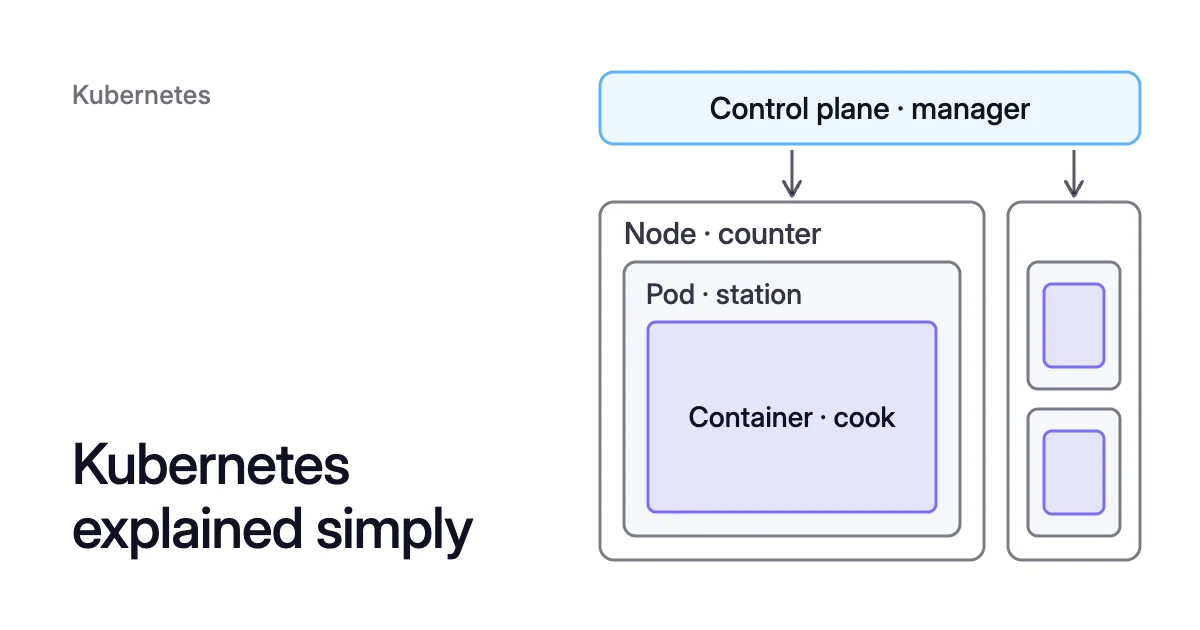
Short answer. Kubernetes is open-source software that runs your app’s containers across a cluster of machines. You say what should run, such as 3 copies of a service, and it keeps it so. When a container fails, Kubernetes restarts or replaces it, and it sends traffic only to copies that are ready.
What is Kubernetes used for?
K8s means Kubernetes: the 8 counts the eight letters between the “K” and the “s”. The name Kubernetes comes from Greek, meaning helmsman or pilot.
Day to day, Kubernetes does jobs like these:
- Restarting or replacing containers that fail.
- Spreading traffic over the copies of a service.
- Rolling a new version out at a controlled rate, and back again if needed.
- Packing containers onto machines by the CPU and memory each one needs.
- Adding or removing copies as load changes, by hand or automatically on CPU use.
What is a Kubernetes cluster?
Take a shop’s app of 5 services: website, catalog, cart, orders and payments. A Kubernetes cluster runs them on a control plane plus at least one worker machine, called a node. The control plane manages the nodes and what runs on them.
In the restaurant, the cluster is the whole restaurant. The control plane is its manager, and the nodes are its kitchen counters.
Kubernetes clustering means running many machines as one. You hand work to the cluster, and the scheduler, a part of the control plane, picks a node for each piece.
Kubernetes architecture goes one level deeper, into each part of the control plane and of a node.
How many Kubernetes clusters do I need? Design yours in 7 steps
List your services. For the shop, that’s website, catalog, cart, orders and payments.
See who depends on whom. Cart, orders and payments work as a chain. The website and catalog still show products while checkout is down.
Split by environment first. Live, test and development make 3 clusters, with all 5 services in each. A small team can stop here.
Look for special rules. Payments handles card data, so a growing business may give it its own cluster for stronger isolation.
Look at where your users are. Users in one country can share one region. Users across continents may need a cluster in each region, near them.
Ask what breaks if this breaks. That’s its blast radius. Keep together what fails together, like cart and orders, since one cluster per service adds no safety.
Weigh the cost. Each extra cluster brings its own control plane, nodes and work to run it. Split only when the reason is worth that.
A growing business may split live into 3 clusters: shopping (website, catalog), checkout (cart, orders) and payments. Payments is kept apart for its rules.
A large company runs these steps for many teams, regions and rules. So it ends with many clusters, each split for one of the reasons above.
Inside one cluster, namespaces keep teams and services apart. Names don’t clash, and access rules can stop at a namespace. Services still reach each other across namespaces by name.
Nodes: the machines that do the work
A node is one worker machine in the cluster. On Azure Kubernetes Service (AKS), each node is an Azure virtual machine. On Amazon Elastic Kubernetes Service (EKS), it’s usually an Amazon EC2 instance.
Like a kitchen counter shared by cooks making different dishes, one node runs parts of many services at once. The cart can sit beside the catalog.
In production, a cluster usually runs several nodes, so one failure doesn’t stop the app. If a node fails, Kubernetes starts the lost copies again, and the scheduler places them on a healthy node.
Image, container, pod and workload: how they fit together
An image is the recipe: a ready-to-run package of a service’s code, runtime, libraries and default settings. The cart service is built once, as a cart image.
A container is a cook following that recipe: one running copy of one image. Because the image carries everything, a container behaves the same wherever it runs.
A pod is the cook’s station: the smallest unit you can run in Kubernetes, which the scheduler places on a node. It usually holds one app container, sometimes with a sidecar helper.
A pod isn’t a physical thing. It’s an environment on one machine, where its containers share one IP address and, where they need it, storage.
A workload is the standing order “always keep 3 pizza cooks”. A Deployment running 3 copies of the cart image is one workload: 3 pods, kept at 3.
Pods are generally created by a workload such as a Deployment, not by hand. If a service’s pods need to track state, the Kubernetes docs suggest a StatefulSet instead.
How one click reaches the right container
The browser looks up the shop’s address in DNS and gets the address of a cloud load balancer.
The load balancer passes the click to the Ingress: the restaurant’s front door, and the cluster’s entry point for web traffic.
The Ingress matches the path, such as
/cart, and sends the click to the cart Service, the order counter.The Service hands the click to one of the ready cart pods, as the order counter passes each order to an open station.
The Service’s target port leads to the cart container inside that pod.
The answer goes back to the browser the same way.
Kubernetes keeps a list of each Service’s ready pods, updated whenever the set of pods changes. So a copy that isn’t ready yet gets no clicks.
Where Kubernetes cost comes from
You pay for the nodes. On AKS, compute is priced by each virtual machine’s type and running time. On EKS, you pay for the EC2 instances behind the nodes, plus an hourly fee per cluster.
A node costs the same each hour, whether its pods are busy or idle. Pods on your nodes add no charge of their own. You pay for disks and public IP addresses separately.
Each container asks for CPU and memory: its request. Kubernetes fits containers onto nodes by those amounts. Ask for more than a container uses, and the extra fills nodes you pay for.
In the restaurant, that’s counter space held for a cook who never uses it, paid for all the same. Kubernetes pod right sizing sets requests from real use.
Sources: Kubernetes, “Overview” (opens in a new tab); Kubernetes, “Cluster Architecture” (opens in a new tab); Kubernetes, “Containers” (opens in a new tab); Kubernetes, “Pods” (opens in a new tab); Kubernetes, “Service” (opens in a new tab); Kubernetes, “Multi-tenancy” (opens in a new tab); Microsoft Azure, “Azure Kubernetes Service (AKS) pricing” (opens in a new tab); AWS, “Amazon EKS pricing” (opens in a new tab).