Published 1 November 2026 · By Prashant Soni (opens in a new tab), Guest author · SDE at SITA · Published by Zoorik
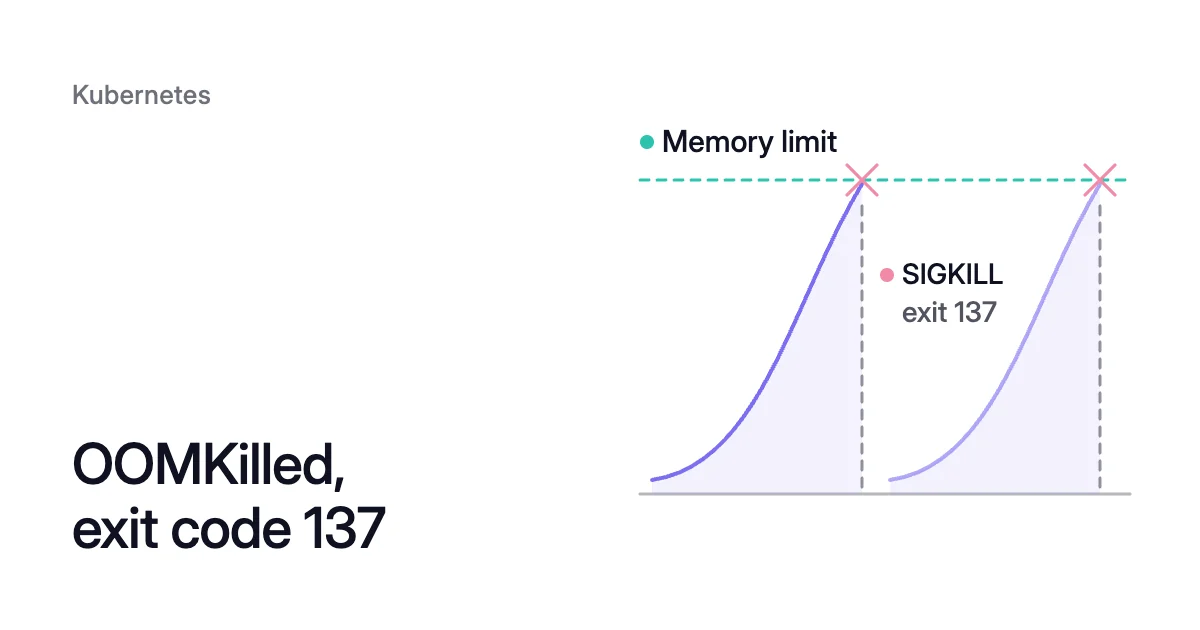
Short answer. OOMKilled exit code 137 means the kernel’s out-of-memory (OOM) killer sent SIGKILL because a container passed its memory limit or the node ran out. The code alone only proves SIGKILL, so confirm OOMKilled with kubectl describe pod, then raise the limit or, if memory keeps climbing, find the leak.
How to confirm OOMKilled exit code 137 with kubectl
Picture a pod whose container has restarted five times. Nothing in its log says why.
After each kill, the kubelet restarts the container under the pod’s restartPolicy. It waits 10 seconds by default, then 20, then 40, up to a cap of 5 minutes.
A container that keeps getting killed shows CrashLoopBackOff. One that runs for 10 minutes without trouble resets that back-off.
Start with the pod list:
$ kubectl get pods -n <namespace>
The STATUS column can read OOMKilled just after a kill, then CrashLoopBackOff while the kubelet waits. So read the record of the last run:
$ kubectl describe pod <pod-name> -n <namespace>
Every OOMKilled Kubernetes container leaves the same record under its name. Here is the Kubernetes documentation’s example, trimmed:
    Limits:
      cpu:          100m
      memory:       50Mi
    State:          Running
    Last State:     Terminated
      Reason:       OOMKilled
      Exit Code:    137
    Ready:          False
    Restart Count:  5
Read it from the top:
- State is the current run, and Last State records the run that ended.
Reason: OOMKilledwithExit Code: 137confirms that the kernel’s OOM killer ended it.- Limits shows the container’s limit, 50Mi here.
- In a pod with several containers, check which one carries the record. A sidecar can be the one running out.
Two more commands help: the killed run’s log, and the namespace’s events in time order.
$ kubectl logs <pod-name> -n <namespace> --previous
$ kubectl get events -n <namespace> --sort-by=.lastTimestamp
What is OOMKilled in Kubernetes?
An OOM kill gives the application no chance to clean up or to log why it stopped. The kill is SIGKILL (signal 9), which a process can’t catch, block or ignore. Exit code 137 means a container received it.
A memory limit is a ceiling the kernel enforces. On Linux nodes, the container runtime writes each container’s limits into kernel cgroups. When a container tries to allocate beyond its limit, the OOM subsystem steps in.
The Kubernetes documentation calls memory limits “enforced reactively”. The kernel acts when it detects memory pressure, so a container that goes over its limit may not be killed at once.
OOM kills are scoped to one container, not the whole pod. On nodes that use cgroup v2, the kubelet sets memory.oom.group on each container’s cgroup. One OOM event then kills every process in that container together.
Kubernetes 1.35 and later don’t start the kubelet on a cgroup v1 node by default. So with default settings, expect the whole container to go.
Kubernetes exit code 137 has more than one cause
Microsoft’s guide to memory saturation on AKS states the rule: “Exit code 137 indicates that a container received a SIGKILL signal, but this code can have more than one cause.”
The Reason field tells the causes apart.
| What the pod shows | What sent the kill | Look next at |
|---|---|---|
Last State: Terminated, Reason: OOMKilled, Exit Code: 137 | The kernel, because the container went past its memory limit or the node ran out of memory first | The container’s memory use against its limit, and the node’s memory |
Last State: Terminated, Reason: Error, Exit Code: 137 | Another SIGKILL, for example after a failed liveness probe, or when the app outlasted its grace period on a deletion | The pod’s events, its probes, and how long the app takes to stop |
Pod status Failed, reason Evicted | The kubelet, because the node ran short of memory | The node’s memory, and the pod’s use against its request |
When a pod is deleted, the kubelet asks the runtime to send SIGTERM to the main process of each container. It then waits, 30 seconds by default (terminationGracePeriodSeconds). Once that time is up, the KILL signal goes to any processes still running.
Why a container can be killed below its memory limit
A container can also be killed under its own limit when the node fills up around it.
The request is mainly used to schedule the pod. The kubelet reserves at least that much for the container, while the limit is the kill point. A container that uses more than its request, on a node that runs short of memory, is likely to see its pod evicted.
When the kubelet evicts the pod
Eviction works on the whole pod. The kubelet watches the node’s available memory and acts when it falls below a threshold. Its built-in default is memory.available<100Mi on Linux nodes, and its configuration can set another.
Below the threshold, the kubelet sets chosen pods to Failed and terminates them. Here it doesn’t respect PodDisruptionBudgets (PDBs), and under a hard threshold it gives no grace period. If a Deployment or StatefulSet manages the pod, a replacement is created.
The kubelet ranks pods for eviction by three tests, in this order:
- whether their use exceeds their requests
- their Priority
- how far over their requests they are
When the kernel’s OOM killer picks a container
A fast spike can beat the kubelet. It polls memory statistics at an interval, so it can miss the pressure. Then the kernel’s OOM killer picks a container itself.
Each container gets an OOM score from its share of the node’s memory, plus an adjustment per Quality of Service (QoS) class. The kubelet sets that adjustment, and the OOM killer ends the highest score first.
| QoS class | When a pod gets it | oom_score_adj |
|---|---|---|
Guaranteed | Every container sets CPU and memory requests and limits, each request equal to its limit | -997 |
Burstable | Anything between the other two | Between 2 and 999, smaller for a larger memory request |
BestEffort | No container sets a CPU or memory request or limit | 1000 |
The Kubernetes documentation sums up the effect: containers in low-QoS pods that use a lot of memory compared with their requests go first.
How to fix OOMKilled in Kubernetes
The Reason field, then the memory curve, decides the fix.
Find the cause
- Confirm the reason. Memory is the fix only when it reads OOMKilled. For
Reason: Errorwith 137, look at the probe, or at a shutdown that runs past its grace period. - Read memory use over the hours before the kill. Microsoft’s guide separates two shapes. Memory that stays high but steady means the workload needs that much, or its requests and limits are wrong. Memory that climbs and doesn’t return to a baseline after load falls typically means a leak, or something accumulating. On a cgroup v2 node, read the current figure in bytes:
$ kubectl exec -it <pod-name> -n <namespace> -- cat /sys/fs/cgroup/memory.current
Change the size, or fix the leak
- If the use is expected, give the container more memory. Raise the limit, and the request with it. The Kubernetes documentation puts it in that order: rule out a memory leak, then set a higher memory limit (and possibly request). Size it from the peak of a window that includes the workload’s busiest day, not from an average. Then put the same values in your manifest or Git, or the next deploy brings the old ones back. For a single-container Deployment:
$ kubectl set resources deployment <deployment-name> -n <namespace> --limits=memory=<limit>Mi --requests=memory=<request>Mi
- If memory keeps climbing, treat it as a leak. A bigger limit only moves the kill later. Microsoft suggests raising the limit as a stopgap while the application team looks for the leak.
- Make the workloads that should go last Guaranteed. Set CPU and memory requests equal to their limits in every container. The kubelet never evicts a Guaranteed pod because of another pod’s use. Its containers also get an oom_score_adj of -997.
- Count everything the limit covers. A memory-backed emptyDir volume is tmpfs, and the kubelet tracks it as container memory use, so files written there can count toward the limit. For a Java or .NET app, Microsoft also asks you to check that it runs the latest runtime version.
Requests sized from real use are also the first step of Kubernetes cost optimization, before any change to nodes.
OOMKilled on AKS and EKS: where the memory history lives
The kubectl steps are the same on both clouds. The memory history lives in each cloud’s monitoring.
AKS: Container insights in the Azure portal
On Azure Kubernetes Service (AKS), Container insights in the Azure portal shows that history:
- Open the cluster, then Monitoring, Insights and the Nodes tab.
- Pick the metric Memory working set (computed from Allocatable).
- Set the sample to Max.
Read the memory figures, not the percentages. A pod’s percentage is based on its memory request, not on the node.
For an OOMKilled AKS system pod in kube-system, Microsoft gives specific fixes:
- metrics-server. When it’s OOMKilled for lack of resources, configure the Metrics Server VPA to give it more.
- CoreDNS. When traffic spikes get it OOMKilled, customize CoreDNS scaling.
- Other system pods. Keep memory-heavy user workloads off the system node pool, and give that pool at least three nodes.
EKS: Container Insights in Amazon CloudWatch
On Amazon Elastic Kubernetes Service (EKS), OOM killed containers leave a trail in Amazon CloudWatch. It appears once Container Insights with enhanced observability is collecting. Two of its metrics help:
pod_container_status_terminated_reason_oom_killedappears only when a pod is terminated for exceeding its memory limit.pod_memory_utilization_over_pod_limitgives a pod’s memory use as a share of its limit. It’s missing for any pod in which a container doesn’t set a memory limit.
How Coral sets memory and responds to OOM kills
Coral is Zoorik’s Kubernetes optimization for AKS and EKS, and it rebalances each container’s CPU and memory requests from observed use. Until you switch on “Automatically optimize” for a policy or a workload, it only recommends.
Its memory rules work like this:
- The size. Coral sets memory from the peak of recent use, plus a margin. It uses a peak, not a percentile, because running out of memory kills the container.
- The limit. On the built-in policies, Coral never reduces a memory limit on regular pods. When it changes a memory request, it keeps your limit or raises it, so the limit is never below the request. A container with no memory limit keeps none.
- Policy choices. A custom policy can keep, remove or set limits its own way. Where a policy keeps a pod Guaranteed, its limit stays equal to its request.
- After a kill. With automation on, Coral raises that container’s memory request straight away. The limit rises with it, so the new size isn’t killed at the old limit. With automation off, Coral records the kill and changes nothing.
- How the new size lands. Crash-looping pods, and pods not Ready after a recent kill, are recreated at the new size. Other pods are resized in place or restarted within their PDBs.
- Cap and fade. Raises stop at a cap. If repeated kills look like a memory leak, Coral stops raising and holds memory at the cap for a set time. The extra margin fades after the last kill, and a Job keeps it through its next clean runs.
- What stays yours. Coral changes a container’s CPU and memory, never application settings such as JVM heap or Redis maxmemory. A leak stays a fix in the application.
On the console’s Dashboard, the cluster’s OOM kills show alongside its nodes and pods.
What Coral did on our own cluster
We run Coral on our own AKS development cluster. By 12 October 2026 it had rebalanced the requests of 14 of the cluster’s apps. Most were reserving more than they used.
One app needed more memory, and Coral gave it more. The memory the apps reserve went from 6.4 to 5.4 GiB, 16% less. Our case study has the full run.
Sources: Kubernetes, “Resource Management for Pods and Containers” (opens in a new tab); Kubernetes, “Node-pressure Eviction” (opens in a new tab); Kubernetes, “Pod Lifecycle” (opens in a new tab); Kubernetes Blog, “The Shift to cgroup v2 in Kubernetes: What You Need to Know” (opens in a new tab) (6 October 2026); Linux man-pages, “signal(7)” (opens in a new tab); Microsoft Learn, “Troubleshoot memory saturation in AKS clusters” (opens in a new tab); Microsoft Learn, “Troubleshoot OOMKilled errors in AKS clusters” (opens in a new tab); AWS, “Amazon EKS and Kubernetes Container Insights with enhanced observability metrics” (opens in a new tab).