Published 1 November 2026 · By Anuragee (opens in a new tab), Guest author · Data engineer · Published by Zoorik
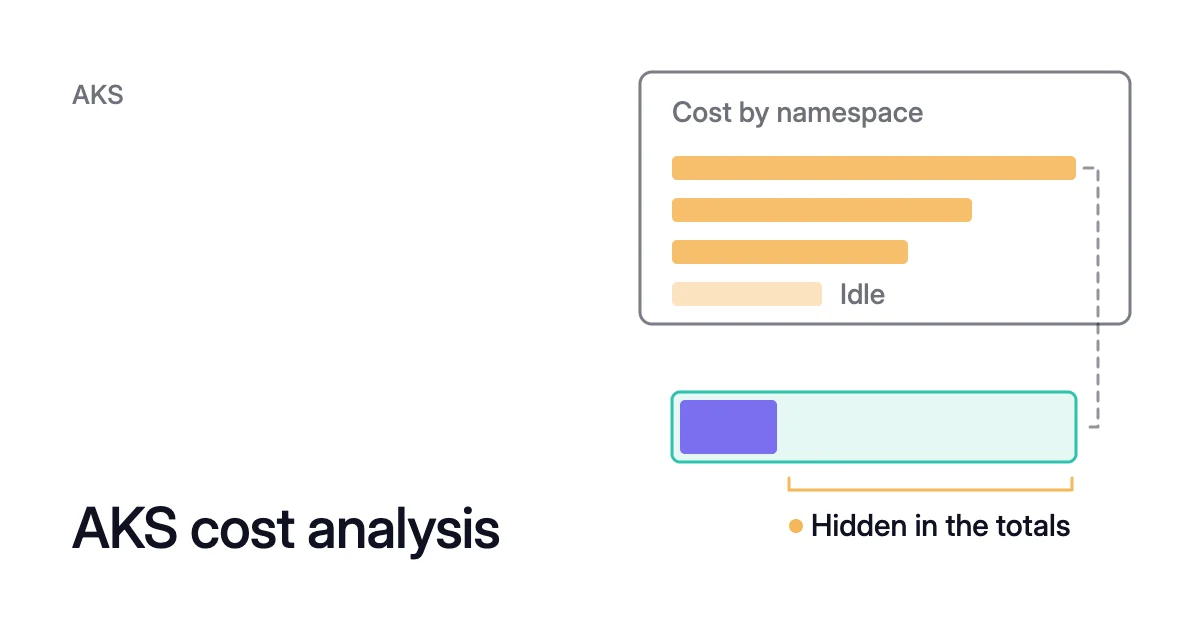
Short answer. AKS cost analysis is an add-on that shows an Azure Kubernetes Service (AKS) cluster’s cost by namespace and asset in Microsoft Cost Management. It needs the Standard or Premium tier and an Enterprise Agreement or Microsoft Customer Agreement, and it changes no request or node.
The AKS cost analysis add-on splits cost by cluster, namespace and asset
Picture one AKS cluster that three teams share, each in its own namespace. The invoice lists the Azure resources the cluster runs on: virtual machines, managed disks, load balancers and public IP addresses. Nothing on it says which team’s work a node is paying for.
One team’s application may also span several clusters. Azure Kubernetes Service cost analysis fills that gap.
When you enable it, AKS deploys an agent: the cost-analysis-agent pod in kube-system. It collects usage data with OpenCost, an open-source Cloud Native Computing Foundation incubating project.
Microsoft reconciles that usage with your Azure invoice data and fills three views in Cost Management, at the subscription scope:
- Kubernetes clusters: what each cluster in the subscription costs.
- Kubernetes namespaces: the cost of each namespace across the subscription’s clusters, with idle, system and service charges beside them. This is where each of the three teams finds its own figure.
- Kubernetes assets: each cluster’s assets under Compute, Networking and Storage, with the uptime service level agreement (SLA) under Service.
The views cover only the clusters that run the add-on. With several clusters in one subscription, you enable it on each of them.
Data flows one way. Usage goes in and cost comes out, while requests stay as they are. No pod is resized and no node goes.
What the add-on needs before you enable it
Microsoft Learn lists these as prerequisites and limits, so check them before you run the command:
- Tier: Standard or Premium. The Free tier, which Microsoft recommends for clusters with fewer than 10 nodes, isn’t supported. Standard and Premium include an uptime SLA, and that appears in the views as a service charge.
- Agreement: an Enterprise Agreement or a Microsoft Customer Agreement. Microsoft says “other agreement types aren’t supported.”
- Cluster settings: a managed identity, and the Azure Disk Container Storage Interface (CSI) driver turned on.
- Azure CLI: version 2.61.0 or later, which
az --versionchecks. - Network: access from the cluster to the Azure APIs, including Azure Resource Manager. The cluster must reach the domain names that Microsoft’s AKS outbound network page lists as required.
- Region and nodes: any region but
usnateast,usnatwest,usseceastandussecwest, and no virtual nodes. - Access to the views: one of these roles on the subscription: Owner, Contributor, Reader, Cost Management Contributor or Cost Management Reader.
Cluster size matters as well. Microsoft says the agent’s 4 GB memory limit supports about 7,000 containers per cluster. It marks that figure as subject to change.
Past that, the agent can be OOMKilled, which means stopped for going over its memory limit. The limit can’t be raised, so the fix Microsoft gives is to disable the add-on.
How to enable AKS cost analysis
On a cluster that’s already on Standard or Premium, one update turns the add-on on:
$ az aks update --resource-group <resource-group> --name <cluster-name> --enable-cost-analysis
A Free-tier cluster can move to Standard and take the add-on in the same update. Microsoft lists this among the operations for the flag. A new cluster gets the add-on at creation:
# A Free-tier cluster: move to Standard and enable the add-on in one update
$ az aks update --resource-group <resource-group> --name <cluster-name> --tier standard --enable-cost-analysis

# A new cluster on the Standard tier
$ az aks create --resource-group <resource-group> --name <cluster-name> --tier standard --enable-managed-identity --generate-ssh-keys --enable-cost-analysis
If the update is refused, the error code names the missing piece:
| Error code | Cause | Fix |
|---|---|---|
InvalidManagedClusterSKUForFeature | The cluster is on the Free tier | Add --tier standard, or --tier premium with --k8s-support-plan AKSLongTermSupport |
InvalidDiskCSISettingForCostAnalysis | The Azure Disk CSI driver is off | az aks update with --enable-disk-driver |
InvalidManagedIdentitySettingForCostAnalysis | The cluster has no managed identity | az aks update with --enable-managed-identity |
CostAnalysisNotEnabledInRegion | The region doesn’t offer the add-on | None. Run the cluster in a supported region |
Once the update succeeds, give it a day. Microsoft allows up to 24 hours for the first data. Cost and usage data is usually finalized within 8 to 24 hours.
The add-on also locks the tier. While it’s on, the cluster can’t go back to the Free tier, so turn the add-on off first:
$ az aks update --resource-group <resource-group> --name <cluster-name> --disable-cost-analysis
How to read AKS cost analysis per namespace
- In the Azure portal, open the subscription that hosts the cluster.
- Go to Cost Management → Cost analysis, and pick Kubernetes clusters from the View list.
- Open the ellipsis (…) on a cluster for its namespaces and assets views.
Every view shows actual cost by default. If you hold reservations or a savings plan, Customize → “Amortize reservation and savings plan purchases” switches the view to amortized cost.
In the namespaces and assets views, the add-on can show four kinds of charge. Microsoft’s definitions are short, and each one points somewhere different:
| Charge | Microsoft’s definition | What it tells you |
|---|---|---|
Idle charges | “The cost of available resource capacity that isn’t used by any workloads.” | Capacity you pay for that no workload is charged for. It falls when nodes go. |
System charges | “The cost of capacity reserved by AKS on each node to run system processes required by the cluster, including the kubelet and container runtime.” | A reservation paid on every node, so fewer nodes means less of it. |
Service charges | “The charges associated with the service, like Uptime SLA, Microsoft Defender for Containers, etc.” | The tier and the services on the cluster, not its capacity. |
Unallocated charges | “The cost of resources that couldn’t be allocated to namespaces.” | Cost the add-on can’t tie to any namespace. |
For AKS cost monitoring month on month, the namespaces view answers the allocation question well. It shows which team’s namespace costs what on a shared cluster.
AKS cost management needs more than that. To see how many nodes you could do without, you need the numbers behind each line.
What the views leave out: the requests behind each cost
Microsoft describes its views only in cost, not in the requests and use behind each figure. Its add-on pages don’t give the allocation formula either.
They say only that OpenCost collects the usage data and that Microsoft reconciles it with your invoice data. They define Idle charges as the cost of capacity “that isn’t used by any workloads.”
They don’t say which of these a namespace is charged for:
- What its pods request.
- What its pods use.
- Some mix of the two.
The namespaces view gives that namespace one cost. Nothing in the views says which line pays for those 6 CPU: the namespace’s own, or Idle charges. So before you read a small Idle charge as well-used nodes, compare requests with use in the cluster.
Why requests, not use, set the node count
Requests also decide how many nodes run. The Kubernetes scheduler keeps the sum of requests on each node within its capacity.
Even at very low real use, the scheduler “still refuses to place a Pod on a node if the capacity check fails,” the documentation says. So oversized requests keep nodes full on paper, and you keep paying for those nodes.
Removal follows requests too. The Cluster Autoscaler removes a node only when its pods’ CPU and memory requests are both under 50% of what the node can allocate.
That 50% is the default threshold. Every pod on the node must also be able to move to another node, DaemonSet and mirror pods aside.
How to turn the report into fewer nodes
Use the namespaces view to decide where to look, then take the measurements from the cluster itself:
- Pick a starting point. Start with the namespaces that cost the most, and with any cluster whose Idle charges stay high for a week.
- Compare requests with use. Run
kubectl top podfor each container’s current CPU and memory use. Thenkubectl describe nodeslists each pod’s requests, and the node’s Allocated resources against its Allocatable:
# Use per container, then requests per node
$ kubectl top pod --namespace=<namespace> --containers
$ kubectl describe nodes <node-name>
- Set requests from a week or more of use. Never set them from one reading. Use a high percentile of CPU plus headroom, and the peak of memory plus headroom. Memory needs its peak. If a container goes over its memory request and its node runs short of memory, its Pod is likely to be evicted. Kubernetes pod right sizing covers how to choose them.
- Check the nodes again. A node can go once its CPU and memory requests are both under the autoscaler’s threshold and every pod on it can move. Cluster Autoscaler not scaling down lists the pods and settings that hold a node.
- Read the views a day later. System charges should fall with the node count, and so should the cluster’s Compute cost in the assets view.
To put a figure on the change first, count the nodes your requests need. Then price the difference at list price, as Kubernetes cost estimation shows. The EKS and AKS pricing calculator gives a node’s monthly cost at list price.
This order, requests first and nodes second, is the one the Kubernetes cost optimization guide follows.
How Coral works from the same cluster
AKS cost analysis tells you where the cost sits. Coral starts from the other end, on AKS and EKS. It shows what each cluster would cost on the capacity its workloads need, then rebalances the cluster toward it.
- The figures: Overview shows each cluster’s running cost today, its cost at the optimum, and the difference as Recoverable, all monthly. The Node list adds every node’s monthly price and the capacity no pod has claimed. It also lists the nodes Coral can’t empty, with the reason for each.
- The prices: your cloud’s published list price for the region, with spot nodes at the spot rate and a 730-hour month. Discounts, reservations and savings plans are left out. So expect Coral’s figures to differ from the add-on’s, which are reconciled with your invoice. The Coral FAQ shows how the saving is worked out.
- Requests: Coral rebalances each container’s CPU and memory requests to what it really uses. Where a CPU-based HPA scales the workload, Coral picks the CPU request by replaying past load through that HPA’s own settings. Pod sizing starts when you switch on “Automatically optimize” for a policy or a workload.
- Nodes: node optimization is on from install. Coral drains spare nodes one at a time so your autoscaler can remove them.
Eight days after we connected Coral to our own AKS development cluster, the cluster cost $154.76 a month instead of $368.65. That is 58% less, and the case study walks through each step.
AKS cost optimization covers what Coral does on AKS and what connecting a cluster sets up. To see your own figure first, the free assessment takes one command and writes one PDF with your estimated saving at list price.
Sources: Microsoft Learn, “Azure Kubernetes Service (AKS) cost analysis” (opens in a new tab); Microsoft Learn, “View Kubernetes costs” (opens in a new tab); Microsoft Learn, “Troubleshoot Azure Kubernetes Service cost analysis add-on issues” (opens in a new tab); Microsoft Learn, “Azure Kubernetes Service (AKS) Free, Standard, and Premium Pricing Tiers” (opens in a new tab); Kubernetes, “Resource Management for Pods and Containers” (opens in a new tab); Kubernetes, “kubectl top pod” (opens in a new tab); Kubernetes autoscaler, “Cluster Autoscaler FAQ” (opens in a new tab).