Published 1 November 2026 · By Swapnil Srivastav (opens in a new tab), Software development manager, Zoorik · 11 years’ experience · Published by Zoorik
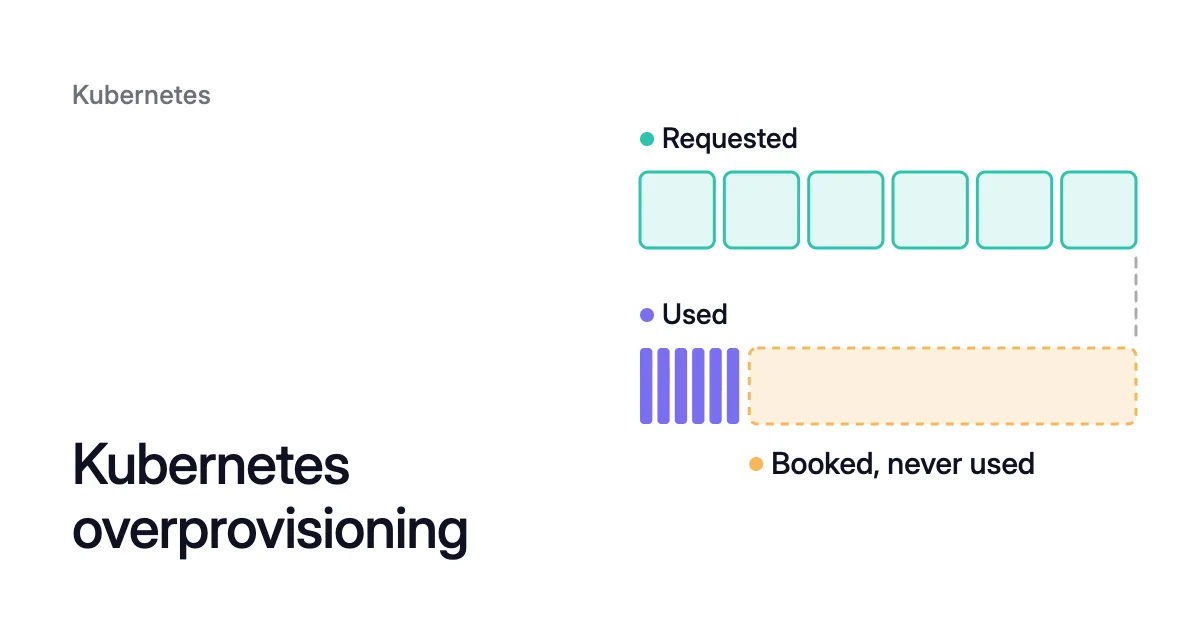
Short answer. Kubernetes overprovisioning means containers request more CPU and memory than they use, and node autoscalers keep nodes running for those requests. To reduce it, set requests from a week or more of measured use, then let your autoscaler remove the nodes that empty.
Kubernetes overprovisioning is requested capacity your containers never use
Picture a Deployment of 6 replicas, each requesting 1 CPU and using about 200m, a fifth of that, at its busiest. You pay for all 6 CPU of node capacity.
A container’s request is the CPU and memory Kubernetes sets aside for it on a node. CPU is counted in cores, so 1 is one physical or virtual core and 100m (100 millicpu) is a tenth of one. Memory is measured in bytes.
A request is a floor, not a ceiling. A container can use more when the node has room, up to its limit. At the limit, CPU is throttled, and memory use past the limit can end in an out-of-memory (OOM) kill.
Kubernetes overprovisioning, which you’ll also see written as Kubernetes over provisioning, is the part of a request the container never uses. Some gap is deliberate, because a busy hour needs room. It becomes overprovisioning when the gap is far bigger than any peak, repeated on every container, and nobody chose its size.
No other pod can be scheduled into the remaining 6 − 1.2 = 4.8 CPU, 80% of what the Deployment books. Once the rest of the cluster is booked, the next pod that needs room makes your autoscaler add a node.
The deliberate kind: placeholder pods
The Kubernetes documentation uses the same word for a different, deliberate practice. Its task page “Overprovision Node Capacity For A Cluster” runs placeholder pods with a negative priority to reserve spare capacity. Real pods preempt them when they need room.
That headroom is sized on purpose, in one place, and Cluster Autoscaler overprovisioning with placeholder pods covers it. This page is about the accidental kind, spread across every container’s requests.
Why requests, not use, set your cloud cost
On AKS and EKS, each node in a node pool or node group is a virtual machine. You pay for it while it runs, busy or idle. The EKS and AKS pricing calculator shows what a node pool costs a month at list price.
Requests decide how many nodes you buy, at three points: placing a pod, adding a node and removing one.
Placing a pod
The scheduler puts a pod on a node only if the pod fits in the node’s allocatable capacity. That check adds the new pod’s requests to the requests already there. Allocatable is what’s left for pods after the system daemons take their share.
Low real use on the node doesn’t change that. In the Kubernetes docs’ words, the scheduler “still refuses to place a Pod on a node if the capacity check fails.”
Adding a node
Node autoscalers buy capacity for requests that don’t fit, however idle the existing nodes are. The Cluster Autoscaler adds a node when a pod is unschedulable, for example because no node has room for its requests.
Karpenter picks an instance type large enough for the pending pods’ requests. It also counts the requests of every DaemonSet that would run on the new node.
Removing a node
Removal follows requests too. A node whose pods request 60% of its CPU stays, even if they use 5% of it.
The Cluster Autoscaler checks requests, not use. A node is unneeded only when its pods’ CPU and memory requests are both under 50% of its allocatable (the default --scale-down-utilization-threshold of 0.5). Every pod on it must also be able to run somewhere else.
Once a node has stayed unneeded for more than 10 minutes (the --scale-down-unneeded-time default), the autoscaler removes it.
Where the extra requests come from
A request keeps its value until someone changes it. Extra requests often start in one of these places:
- A container sets a limit but no request. If nothing applies a default at admission, Kubernetes copies the limit and uses it as the request. A
cpu: 2limit meant as a ceiling then becomes a 2 CPU reservation. - The namespace has a LimitRange with default requests. Its admission controller writes them into every container that sets none. A default chosen for the largest service lands on the smallest one too.
- The request was sized for a peak. A request set for a startup burst, a nightly batch or a load test reserves that much for every other hour of the day.
- The request is multiplied. Every replica carries the full request, and a DaemonSet puts its pod on every node it targets. A DaemonSet that requests 500m on 20 nodes books 10 CPU. The Cluster Autoscaler counts DaemonSet pods in a node’s utilization by default.
VMs sized for the expected peak instead of measured demand cost more the same way, as how poor architecture increases your cloud cost shows.
How to measure the gap in your cluster
1. See what one node’s pods request
kubectl describe nodes lists the CPU and memory requests of every pod on the node. Under “Allocated resources”, it also shows the totals as a percentage.
$ kubectl describe nodes <node-name>
2. See what they use now
kubectl top reads the Metrics API and shows what each container uses:
$ kubectl top pod --containers --namespace <namespace>
3. Read a week of history in Prometheus
kube-state-metrics exposes each container’s requests as kube_pod_container_resource_requests. The kubelet exposes CPU time as container_cpu_usage_seconds_total and memory as container_memory_working_set_bytes. This query gives the share of its requested CPU that each namespace uses:
sum by (namespace) (rate(container_cpu_usage_seconds_total{container!=""}[5m]))
/
sum by (namespace) (kube_pod_container_resource_requests{resource="cpu"})
A result of 0.2 means the namespace uses a fifth of the CPU it books, like the Worked example’s Deployment at its busiest. Graph it over at least a full week.
For memory, compare the request with the highest working set in that window, not the average. Memory needs the peak because a container that goes past its memory limit can be killed rather than slowed.
That metric also counts pod-level resources (beta since 1.34). Use it if your Prometheus scrapes the scheduler’s /metrics/resources endpoint.
How to reduce Kubernetes overprovisioning safely
Work in this order, one workload at a time:
- Set requests from measured use. CPU can follow a high percentile of the measured window plus headroom, since a container short of CPU is slowed, not killed. Memory should follow the peak plus headroom. Kubernetes pod right sizing covers how to pick the numbers and how requests and limits differ. Leave limits alone until you know why they were set.
- Give every container that has only a limit a request of its own. Check each namespace’s LimitRange defaults against what its workloads use.
- Check for a Horizontal Pod Autoscaler (HPA). If one scales the workload on CPU, change the request with it in mind. VPA vs HPA explains how the two autoscalers interact and why requests come first.
- Let the nodes go. A smaller request reduces nothing until a node empties and your autoscaler removes it. Cluster Autoscaler not scaling down walks through what keeps a node. At upstream defaults, the usual blockers are:
- A restrictive PodDisruptionBudget.
- A kube-system pod that has no PodDisruptionBudget and doesn’t run on every node by default.
- A pod with local storage.
- A pod with no controller behind it.
- A pod that fits on no other node.
- A node group already at its minimum size.
- Keep headroom on purpose. If you need warm capacity for sudden growth, size it once with placeholder pods instead of padding every request.
Across a whole cluster, the Kubernetes cost optimization guide takes the same order: requests first, then nodes.
How Coral rebalances requests to real use
Coral optimizes Kubernetes on AKS and EKS clusters running Kubernetes 1.30 or later, and does steps 1 and 4 for you. It rebalances each container’s CPU and memory requests to what it uses. Then it drains the nodes this frees so your autoscaler can remove them.
- Sizing. Coral sets each request from the container’s measured use, plus headroom. For a workload with a CPU-based HPA, Coral instead picks its CPU request by replaying past load through that HPA’s own settings.
- Opt-in. Nothing is resized until you switch on “Automatically optimize” for a policy or a workload. Coral sizes pods as they start, so your manifests and Git stay as they are. Where possible, running pods are resized in place on nodes at Kubernetes 1.33 or later. Otherwise Coral restarts them one at a time within their PodDisruptionBudgets.
- Limits and OOM kills. On the built-in policies, Coral never reduces the CPU or memory limit of a regular pod. With automation on, an OOM kill raises that container’s memory request straight away, up to a cap. A memory limit, where there is one, rises with it.
- Spare nodes. Node optimization is on from install and uses pod requests to work out how many nodes each pool needs. It checks on the live cluster that every pod on a node fits on another Ready node. It then cordons and drains one node at a time for your Cluster Autoscaler, Karpenter or AKS node auto-provisioning (NAP) to remove.
- What it leaves alone. Pools that Karpenter or NAP already consolidates are left to them, and Coral never creates machines itself. When a node is removed, a pod whose replacement can’t start first gets a short restart.
- Headroom. Coral keeps no idle spare nodes, and the headroom sits inside each pod’s request. To keep warm spare capacity, run a low-priority placeholder deployment. Put it on the Read-only policy so Coral doesn’t shrink it, as the FAQ answer on how much spare capacity is kept explains.
What Coral did on our own cluster
We ran Coral on our own AKS development cluster first. On 6 October it removed a spare 4-CPU worker, $147.46 a month less.
We switched workload optimization to automatic on 8 October. By 12 October, Coral had rebalanced the requests of 14 apps. Most reserved more than they used, and one needed more memory, which Coral gave it.
The CPU the apps reserve went from 0.78 cores to 0.43, which is 45% less. Memory went from 6.4 GiB to 5.4 GiB, 16% less.
On 12 October, with one click, Coral swapped the remaining worker for a cheaper machine of the same size, $66.43 a month less. The monthly machine cost went from $368.65 to $154.76 at Azure pay-as-you-go list prices.
All $213.89 of that monthly reduction came from one machine removed and one swapped for a cheaper one, as the case study shows.
Sources: Kubernetes, “Resource Management for Pods and Containers” (opens in a new tab); Kubernetes, “Overprovision Node Capacity For A Cluster” (opens in a new tab); Kubernetes, “Limit Ranges” (opens in a new tab); Kubernetes Cluster Autoscaler, “Frequently Asked Questions” (opens in a new tab); Karpenter, “Scheduling” (opens in a new tab); Kubernetes, “kubectl top pod” (opens in a new tab); kube-state-metrics, “Pod Metrics” (opens in a new tab); Kubernetes, “Kubernetes Metrics Reference” (opens in a new tab).