Published 1 November 2026 · By Sonu Kumar (opens in a new tab), Data engineer, Zoorik · Published by Zoorik
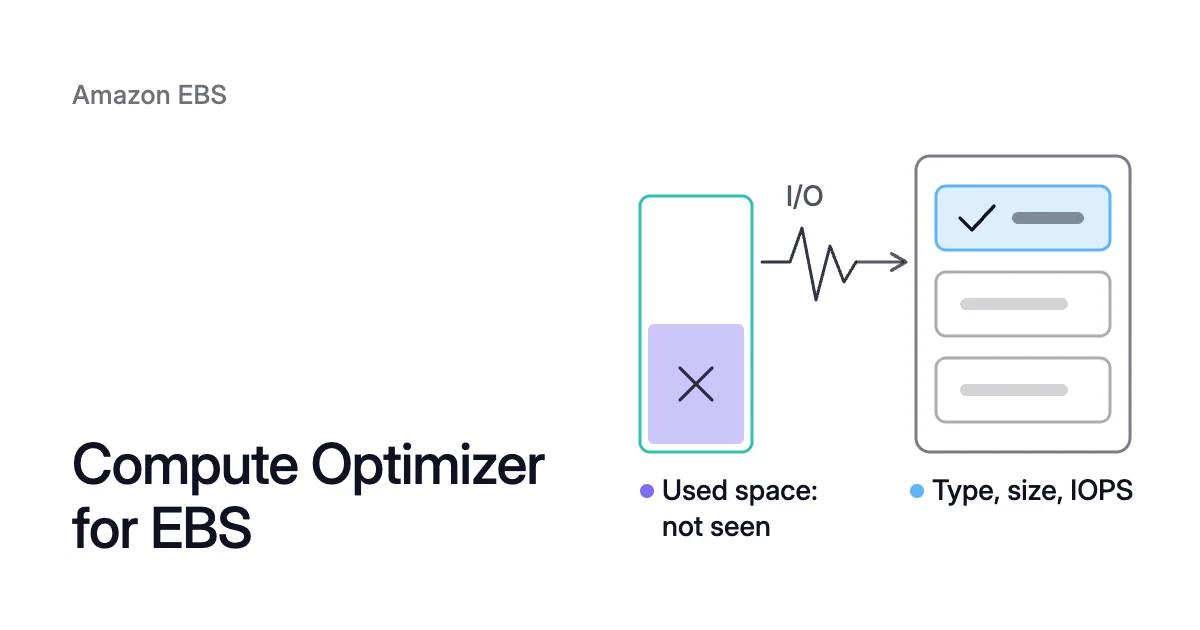
Short answer. AWS Compute Optimizer EBS recommendations give each EBS volume a finding and up to three options for its type, size, IOPS and throughput. They read 14 days of CloudWatch I/O metrics by default, which show the I/O a volume served but not the data it holds.
Compute Optimizer EBS recommendations give a finding and up to three options
Picture a 1,000 GiB data volume that holds 90 GiB. Compute Optimizer judges the volume on the reads and writes it served. So nothing in its recommendation shows that the volume is mostly empty.
Compute Optimizer is an AWS service that reads the specifications and utilization metrics of your resources, then recommends changes. For Amazon Elastic Block Store (EBS), it recommends a volume type, size, input/output operations per second (IOPS) and throughput. It covers these volume types:
- the General Purpose SSD types gp2 and gp3;
- the Provisioned IOPS SSD types io1, io2 and io2 Block Express;
- the HDD types st1 and sc1.
It also recommends moving data off previous-generation magnetic volumes.
What each recommendation gives you
Each recommendation has four parts:
- A finding. Not optimized means Compute Optimizer has found a volume type, size or IOPS setting that “can provide better performance or cost” for your workload. Optimized means the volume is correctly provisioned for its workload. Even then, Compute Optimizer might suggest a newer-generation volume type.
- Up to three options. The Compute Optimizer EBS volumes recommendations page shows each volume’s top option next to its current type and price. The volume’s details page lists every option with its monthly price.
- A performance risk for each option. It runs from very low to very high, and it’s the likelihood that the option won’t meet your workload’s requirements. The higher the risk, the more AWS advises you to check the option against your workload before you migrate.
- An estimated monthly saving for each option. It comes with a savings opportunity percentage. Without the savings estimation mode preference, both use On-Demand prices. With AWS Cost Optimization Hub enabled, Compute Optimizer uses Cost Optimization Hub data instead, which includes your specific pricing discounts.
The recommendations read I/O metrics, so they can’t see used space
Recommendations refresh daily. By default they use the last 14 days of metrics, a window AWS calls the lookback period. You can extend it to 32 days at no charge.
Over that window, Compute Optimizer reads six CloudWatch metrics for each volume, in three pairs:
- VolumeReadOps and VolumeWriteOps count read and write operations.
- VolumeReadBytes and VolumeWriteBytes count the bytes read and written.
- VolumeIOPSExceededCheck and VolumeThroughputExceededCheck report 1 when, in the last minute, an application consistently tried to exceed the volume’s provisioned IOPS or throughput.
None of the six measures how much of the volume your filesystem uses. Only the filesystem inside the instance knows that figure. So a recommendation can’t tell you whether your data would fit in a smaller volume.
Within the lookback period, Compute Optimizer uses the maximum utilization point in each five-minute interval, not the average. The two exceeded checks work only on volumes attached to Nitro instances. They don’t work on magnetic volumes.
Two volumes that look the same to Compute Optimizer
The first is 90 ÷ 1,000 = 9% full, with 1,000 − 90 = 910 GiB empty. The second is 90% full, with 100 GiB empty.
To the six metrics, the two volumes look the same. Nothing Compute Optimizer reads shows the first volume’s 910 − 100 = 810 GiB of extra empty space. Nor does it show that a smaller size for the second must still hold 900 GiB.
The Compute Optimizer guide says its recommendations page “can help you to decide if you should up-size or down-size your volume.”
For a smaller size, that decision needs a figure the page doesn’t show: your used space. Measure it inside the instance, mount by mount, with the steps in how to check EBS volume usage. The EBS pricing calculator shows what the empty space costs a month at list price.
Idle and unattached volumes get findings of their own
Compute Optimizer also lists idle resources, EBS volumes among them. A volume can get one of two findings:
- Idle. Its read and write operations add up to less than 1 per day over the lookback period, and it isn’t a root volume.
- Unattached. It wasn’t attached to any EC2 instance over a 32-day lookback. Changing the lookback period doesn’t change those 32 days.
For both, the recommended action is the same. Check whether you need the volume. If you don’t, create a snapshot of it and consider deleting it.
Compute Optimizer’s Automation feature can do this for a volume unattached for at least 32 days. It takes the snapshot, then deletes the volume. If you roll the action back, it restores the data from that snapshot to a new volume with a new volume ID.
EBS snapshot cost explains what you pay for that snapshot while you wait.
How Trusted Advisor’s EBS checks differ from Compute Optimizer
AWS Trusted Advisor inspects your account and flags the resources that match its checks. Three of its cost optimization checks cover EBS.
| Check | Data it uses | Flags a volume when | Recommended action |
|---|---|---|---|
Underutilized Amazon EBS volumes | Trusted Advisor’s own volume check | It’s unattached, or had less than 1 IOPS per day for the past 7 days, boot volumes excluded | Consider a snapshot, then deleting the volume |
Amazon EBS over-provisioned volumes (legacy) | Compute Optimizer, once you opt in | It was over-provisioned during the lookback period, judged on all default CloudWatch metrics, IOPS and throughput included | Consider downsizing volumes that have low utilization |
Amazon EBS cost optimization recommendations for volumes | AWS Cost Optimization Hub | A cost savings action has been identified for it | Consider implementing the recommendation |
The underutilized check is the closest to Compute Optimizer’s idle finding. It looks back 7 days, against Compute Optimizer’s 14-day default.
With Compute Optimizer opted in, AWS recommends the over-provisioned check instead. That check is now marked legacy. AWS names Amazon EBS cost optimization recommendations for volumes as its replacement.
The newest check shows only the top recommended action for each volume. To use it, you opt in to both Cost Optimization Hub and Compute Optimizer. For the detail on cost and performance, it points you back to Compute Optimizer.
Access is the other difference. Trusted Advisor checks are available with an AWS Business Support+, AWS Enterprise Support or AWS Unified Operations plan. On Basic Support, the console gives you the Service Limits checks and selected Security and Fault tolerance checks.
So on Basic Support, the three EBS checks above aren’t included.
Is AWS Compute Optimizer free?
Yes. “There is no additional charge for AWS Compute Optimizer,” says its pricing page. Its recommendations from the last 14 or 32 days of CloudWatch metrics are free.
You opt in first. You still pay for the AWS resources you run, and for CloudWatch monitoring fees.
Enhanced infrastructure metrics is the paid option, charged per resource-hour. It extends the analysis to up to three months for EC2 instances, EC2 Auto Scaling groups and Amazon RDS. EBS volumes aren’t on that list, so their recommendations stay on the free 14-day or 32-day lookback.
Compute Optimizer applies two EBS actions, and you apply the rest
Compute Optimizer’s Automation feature applies two kinds of EBS action. You opt in to it on its own.
- One snapshots and deletes volumes unattached for at least 32 days.
- The other upgrades a volume to a newer-generation type, such as io1 to io2.
You can apply each action from the Recommended actions page. You can also create automation rules that apply matching actions on a recurring schedule. To undo one, roll it back from the Automation events page.
The rest stops at the recommendation. A new size, IOPS or throughput is yours to request. Compute Optimizer’s guidance on performance risk points you to the EBS steps for requesting a volume modification.
Each Trusted Advisor action in the table also begins with “Consider.”
New type, IOPS or throughput
These apply in place, through Elastic Volumes, AWS’s name for changing a volume in place. On an instance that supports it, Elastic Volumes can increase the size, change the type or adjust the performance. It does this without detaching the volume or restarting the instance.
You can modify one volume up to four times in a rolling 24-hour period. Each change needs the previous one to have completed.
Say you change gp2 to gp3 without naming IOPS or throughput. EBS then provisions the gp2 volume’s equivalent performance or the gp3 baseline, whichever is higher. EBS Elastic Volumes covers the commands and the limits.
Larger size
This applies in place too. Then you extend the filesystem so it can use the new space. How to increase EBS volume size shows each step.
Smaller size
A smaller size can’t be applied in place. “You can’t decrease the volume size,” say the Elastic Volumes limits.
AWS’s alternative is to create a smaller volume and migrate the data to it with an application-level tool such as rsync. That copy route, and the service stop it needs, are in how to shrink an EBS volume.
How Amoeba rightsizes from used space
Amoeba optimizes block storage on Azure and AWS. It starts from used space, the figure Compute Optimizer doesn’t read. Where Compute Optimizer leaves size changes to you, Amoeba makes them as your data grows and shrinks.
What Amoeba does on AWS
Amoeba moves a running instance’s EBS data volumes onto one btrfs pool of gp3 volumes. It never touches the root volume. EBS cost optimization shows Amoeba on AWS end to end.
- Rightsizing. The pool is sized to your data, with room to grow. Amoeba grows it before it fills, and sooner when data arrives fast. When your data goes down and stays down, it shrinks the pool one volume at a time.
- The move. Amoeba copies your data while your services run. Then it switches each mount to the pool, with a short restart of the services that use it. If the switch fails, it puts the original mounts back and tries again.
- The old volumes. Once the switch is checked, Amoeba snapshots each old volume and deletes it. It keeps each snapshot for a few days, then deletes it too. You pay for both sets of volumes only while the move runs, then for the snapshots while they’re kept.
- Your control. You choose whether shrinks start on their own or wait for you. Growing the pool always runs on its own.
So you pay for close to what you use. After the one switch, Amoeba grows and shrinks the pool without any downtime.
What an instance needs
Amoeba works on Windows and Linux VMs. On AWS, an instance must be running, managed by AWS Systems Manager and a Nitro type, with at least one EBS data volume. It also needs a few free attachment slots for the pool.
On Linux, the instance needs a recent kernel with btrfs. Every service that keeps a data mount open must run under systemd.
Sources: AWS Compute Optimizer User Guide, “Viewing Amazon EBS volume recommendations” (opens in a new tab); AWS Compute Optimizer User Guide, “EBS volume metrics” (opens in a new tab); AWS, “AWS Compute Optimizer FAQs” (opens in a new tab); AWS Compute Optimizer User Guide, “Viewing idle resource recommendations” (opens in a new tab); AWS Support User Guide, “Cost optimization” (opens in a new tab) (Trusted Advisor checks); AWS Support User Guide, “AWS Trusted Advisor” (opens in a new tab); AWS, “AWS Compute Optimizer pricing” (opens in a new tab); AWS, “Modify an Amazon EBS volume using Elastic Volumes operations” (opens in a new tab).