Published 21 October 2026 · Updated 1 November 2026 · By Udit Sharma (opens in a new tab), Sales engineer, Zoorik · Published by Zoorik
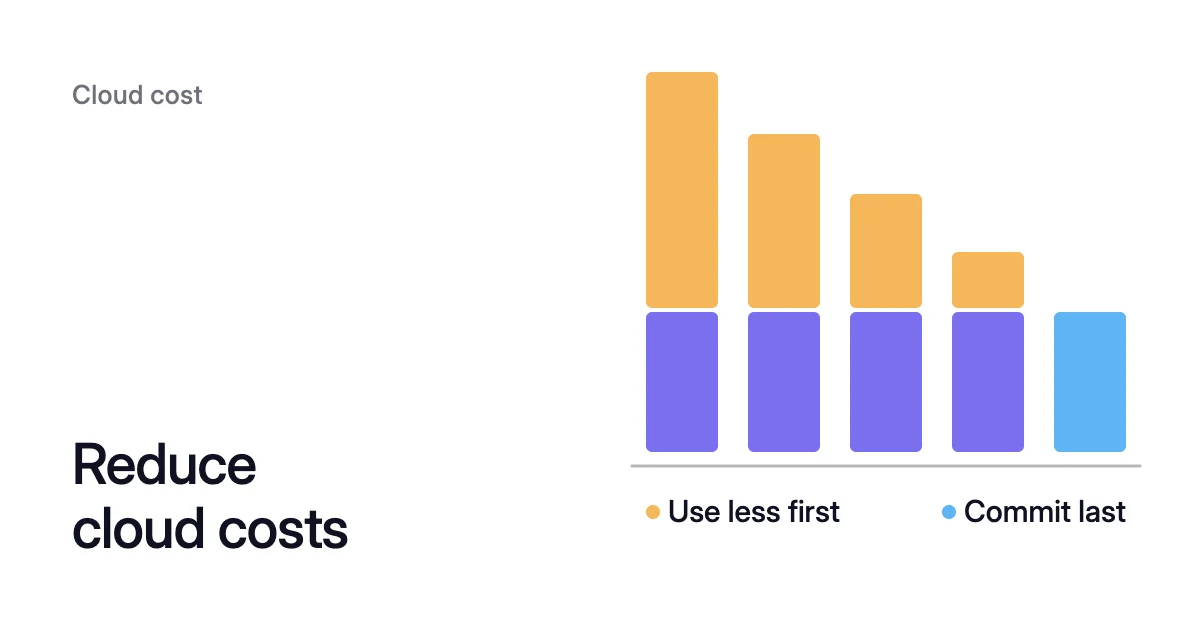
Short answer. Cloud cost optimization on Azure and AWS comes down to six fixes, made in order. To reduce cloud costs, see where the money goes, fix the architecture and remove idle resources. Then reduce Kubernetes requests and oversized disks, and buy reservations or savings plans last, sized to what’s left.
Cloud cost optimization: see the spend first, commit last
Picture a team that buys a one-year Azure savings plan, a fixed hourly spend sized to this month’s compute, then deallocates its development VMs every night and lets two spare nodes go. You still pay for the plan in full every hour, though part of the usage it was sized for is gone. Whatever an hour doesn’t use expires.
Take the ways to reduce cloud costs in order:
- See where the money goes.
- Fix the architecture.
- Remove what nothing uses.
- Reduce Kubernetes requests, then nodes.
- Bring disks back to the size of their data.
- Commit to the baseline that’s left.
See where the money goes
First, find out who owns each line in your cost reports. Tags let Cost analysis in Microsoft Cost Management and AWS Cost Explorer split your spend by team, application and environment. On Azure, four rules decide whether and when a tag shows up:
- Cost Management applies a tag only to usage while it’s on the resource.
- A resource group’s tags reach its resources’ usage records only if you turn on tag inheritance.
- Some resource types don’t carry tags into usage data at all.
- Cost data arrives late: typically within 8 to 24 hours for Enterprise Agreement and Microsoft Customer Agreement subscriptions, and up to 72 hours for pay-as-you-go.
So tag first and analyze a few days later. In cost reports, a Kubernetes cluster shows up as its machines. Splitting it by team needs a view from inside the cluster, which AKS cost analysis covers.
Cloud cost management needs standing rules, or the spend drifts back up. For cloud governance to reduce costs, start with three: every resource carries the tags your reports group by, every subscription or account has a budget with an alert, and someone reads the biggest lines every month.
Let those lines pick the fix that reduces your cost most: VM compute points to architecture and idle VMs, cluster node VMs to Kubernetes, and disks to block storage.
Fix the architecture that sets your cloud cost
An app on its own VM is sized for its own peak. A running VM is charged for that peak around the clock, so three apps on three VMs carry three peaks.
A shared pool such as a Kubernetes cluster holds what its apps reserve. Once that follows each app’s demand, for example with the Horizontal Pod Autoscaler (HPA) adding and removing pods, the pool needs room only for the combined demand, which is smaller whenever the peaks don’t line up.
How poor architecture increases your cloud costs walks through the decisions that cost most, such as leaving development and test environments running all day. Architecture changes need a pilot, so start them early and run the quicker fixes below alongside.
Remove what nothing uses
A VM that looks off can still be charged. Azure charges a VM in the Stopped state, also called Stopped (allocated), for instance usage. That’s where a shutdown from inside the guest OS leaves it.
Only a deallocated VM, shown as Stopped (deallocated), has released the hardware and stopped that charge. In the Azure CLI, az vm stop keeps the compute resources and az vm deallocate releases them. A deallocated VM still pays for its disks and networking.
Then the leftovers: disks and snapshots of deleted VMs. Finding unattached disks in Azure shows how to list the disks. The snapshot guides for Azure and Amazon Elastic Block Store (EBS) explain what you pay for in a snapshot.
Deleting a disk deletes its data, so confirm the owner from its tags before you remove it.
Reduce Kubernetes requests, then nodes
In Kubernetes, a request is the CPU and memory a container asks the cluster to set aside for it. A request set for a worst case that never comes holds node capacity that nothing uses, and no node autoscaler will give it back.
Node autoscalers such as the Cluster Autoscaler and Karpenter add nodes until every pod’s requests fit and remove underused nodes. The Kubernetes documentation says this removal (consolidation), like provisioning, considers only Pod requests and not real usage.
The fix has two steps:
- Bring each container’s requests close to what it uses, from its own usage history, with headroom for its peaks. Kubernetes pod right sizing shows how, and Kubernetes overprovisioning shows where the extra tends to sit.
- Let the nodes go. Once smaller requests give a node’s pods room elsewhere, the autoscaler can drain the node and remove it. If a node stays, Cluster Autoscaler not scaling down lists what holds a node in place and what releases it.
VPA vs HPA covers how requests and the HPA meet on CPU. Kubernetes cost optimization on AKS and EKS is the full walk-through.
Bring block storage back to the size of its data
Space bought for a migration or a one-off import is still charged after the data has gone. Block storage is charged for the space you provision, and the size only goes one way.
Microsoft Learn says shrinking an existing managed disk “isn’t supported and might result in data loss.” EBS Elastic Volumes can increase a volume’s size, change its type or adjust its performance, but can’t decrease its size.
Start by comparing used with provisioned space on every disk, on Azure VMs and on EBS. The EBS and Azure disk pricing calculator prices one disk or volume.
Some fixes need no copy. On an instance that supports Elastic Volumes, a type change runs while the volume stays attached, which makes a move from gp2 to gp3 a small job. On Azure, every Premium SSD v2 includes 3,000 IOPS and 125 MB/s at no charge, so compare it with Premium SSD before you resize.
Making a disk smaller is the hard part. You copy the data to a new, smaller disk and switch the mount over, which stops the services that use it. Can you shrink an Azure managed disk? and how to shrink an EBS volume walk through it.
Commit to the baseline that’s left
Reservations and savings plans reduce cloud computing costs through the price per hour, not the amount you use. Savings plans on both clouds run for one or three years. AWS Savings Plans trade a commitment to an amount of compute, measured per hour, for savings of up to 72% on compute.
An Azure savings plan is a fixed hourly spend. Each hour, Azure applies it to eligible usage and charges anything beyond it at pay-as-you-go rates. Azure lets any unused part expire without rolling over.
Azure savings plans can’t be canceled or refunded, and the one for compute doesn’t cover storage.
So measure the steady usage the steps above leave, and commit to that floor. Azure Advisor recommends a savings plan commitment from your eligible on-demand usage, and AWS Cost Explorer shows a recommended Savings Plans commitment. Before you act on either, wait until the usage behind it comes from after your last fix.
Where Coral and Amoeba fit
Two of these steps, requests and disks, never finish, because usage keeps moving.
Coral for Kubernetes
Coral optimizes Kubernetes on AKS and EKS:
- Requests: it rebalances each container’s CPU and memory requests to what it uses, once you switch on “Automatically optimize” for a policy or a workload.
- Nodes: from install, it drains spare nodes one at a time, on the node pools you choose, so your Cluster Autoscaler, Karpenter or AKS node auto-provisioning (NAP) can remove them. Coral never adds nodes for demand. Pools that Karpenter or NAP already consolidate are left to them.
- Disruption: pods resize in place on nodes running Kubernetes 1.33 or later, or restart one at a time within their PodDisruptionBudgets. When Coral drains a node, an eligible Deployment or Argo Rollout gets a warm handover, even with one replica: a new copy is Ready on another node before the old pod goes. Any other app with a single copy restarts when it moves.
On our own AKS development cluster, Coral removed a spare 4-CPU worker on its own, rebalanced the requests of 14 apps, and swapped the remaining worker for a cheaper machine of the same size. Eight days after we connected it, the cluster’s machines cost $154.76 a month instead of $368.65 at Azure list prices, 58% less. None of its single-copy apps qualified for a warm handover, so during the swap each restarted once and was back up within 5 to 82 seconds. Coral prices each saving at list price and leaves discounts, reservations and savings plans out, so check its figures against your own rates before you size a commitment.
AKS cost optimization and EKS cost optimization show what Coral does on each cloud.
Amoeba for block storage
Amoeba optimizes block storage on Azure managed disks and Amazon EBS. It moves a Windows or Linux VM’s data disks onto one btrfs pool sized to your data, with room to grow. Then it rightsizes the pool one disk at a time, so you pay for close to what you use.
On Linux, the systemd services that use the data mounts restart at the switch onto the pool, and every resize after it runs without unmounting.
We estimate it takes 50–60% off block storage cost. It is an estimated range, not a promise. Amoeba is in early access, and the free block storage assessment works out your own figure.
To compare Coral and Amoeba with other options, see cloud cost optimization tools.
Every Learn article, by subject
Each step above has articles of its own. Here they all are, by subject.
Cloud cost
Kubernetes cost basics
- Kubernetes cost optimization: rebalance requests, then remove spare nodes
- AKS cost analysis: what the add-on shows and what it doesn’t
- AKS vs EKS cost: what you pay for each cluster
- How to change an AKS node pool VM size
- How to change an EKS node group instance type
- How to choose AKS node sizes
- How to choose EKS instance types
- In-place pod resize: change CPU and memory without a restart
- Kubernetes allocatable vs capacity: what pods can use
- Kubernetes cost estimation: count the nodes, then price them
- Kubernetes node size best practices: large or small nodes
- Kubernetes overprovisioning: what it is and how to measure it
- Kubernetes pod right sizing: set requests from real use
- LimitRange vs ResourceQuota: what caps namespace requests
- OOMKilled exit code 137: why Kubernetes kills a container
Kubernetes autoscaling
- AKS node auto provisioning (NAP): what it is, how to enable
- Cluster Autoscaler not scaling down: what keeps nodes running
- Cluster Autoscaler overprovisioning with placeholder pods
- HPA vs VPA vs Cluster Autoscaler: what each one scales
- Karpenter consolidation: policies, budgets and limits
- Karpenter cost optimization: the requests it can’t fix
- Karpenter vs Cluster Autoscaler: how each removes nodes
- KEDA vs HPA vs VPA: where event-driven scaling fits
- KEDA vs Karpenter: pods, nodes and the requests in between
- VPA vs HPA: when to use which, and why to rebalance first
- What is Karpenter? How it picks and removes nodes
- What is KEDA in Kubernetes? Event-driven scaling explained
Node lifecycle and scheduling
- Cordon vs drain in Kubernetes: what each does to a node
- How to drain a Kubernetes node without downtime
- Kubernetes bin packing: fewer nodes for the same pods
- Kubernetes descheduler: what it moves and when to use it
- Pod affinity vs node affinity: what each rule decides
- Pod disruption budget best practices for AKS and EKS
- The safe-to-evict and do-not-disrupt annotations explained
- Topology spread constraints: maxSkew, zones and scale-down
Kubernetes storage
- AKS storage classes: which Azure disk each one creates
- How to resize a PVC in Kubernetes, and why it can’t shrink
Azure block storage
- Azure disk cost optimization: stop paying for empty space
- Azure disk IOPS vs throughput: what limits your disks
- Azure disk LRS vs ZRS: what zone redundancy costs
- Azure disk performance tiers: more IOPS without more space
- Azure disk snapshot cost: incremental vs full snapshots
- Azure managed disk types: pricing and how to choose
- Azure VM disk space alert: how to set one up in Azure Monitor
- Azure VM disk usage: how to check used vs provisioned space
- Can you shrink an Azure managed disk?
- How to expand an Azure disk without downtime
- How to find unattached disks in Azure and stop paying for them
- Premium SSD v2 vs Premium SSD: which one costs less?
- Premium SSD vs Standard SSD on Azure: what you pay for
AWS block storage
- EBS Elastic Volumes: what you can change, and what you can’t
- EBS snapshot cost: what you pay for and how to reduce it
- EBS volume types: pricing and how to choose
- gp2 vs gp3: pricing, performance and how to migrate
- How to check EBS volume usage: used space vs paid space
- How to combine EBS volumes into one: LVM, RAID 0 or a btrfs pool
- How to increase EBS volume size without downtime on Linux
- How to shrink an EBS volume when AWS only lets it grow
- io2 vs gp3: when Provisioned IOPS is worth the price
- What AWS Compute Optimizer recommends for EBS volumes
Linux filesystems
- btrfs device remove: take a disk out of a btrfs pool
- btrfs on multiple disks: how a btrfs pool works
- btrfs unallocated space vs free space, explained
- btrfs vs LVM: which one can shrink on a cloud VM?
- Can you shrink an XFS filesystem?
- How to remove a disk from LVM without losing data
- Is btrfs stable in 2026?
- Shrink ext4 with resize2fs: why it must be unmounted
Sources: Microsoft Learn, “Understand Cost Management data” (opens in a new tab); Microsoft Learn, “States and billing status - Azure Virtual Machines” (opens in a new tab); Kubernetes, “Node Autoscaling” (opens in a new tab); Microsoft Learn, “Understand Azure Disk Storage billing” (opens in a new tab); Microsoft Learn, “Expand Virtual Hard Disks on a Linux VM” (opens in a new tab); AWS, “Modify an Amazon EBS volume using Elastic Volumes operations” (opens in a new tab); AWS, “What are Savings Plans?” (opens in a new tab); Microsoft Learn, “What are savings plans?” (opens in a new tab).